
Google also limits each message to 50 recipients. Before scheduling a send, check the official Apps Script quota table, as Google can change these limits without notice.
| Quota | Consumer account | Google Workspace |
|---|---|---|
| Email recipients per day | 100 | 1,500 |
| Within-domain recipients per day | 100 | 2,000 |
| Recipients per message | 50 | 50 |
The 2,000 figure is a separate within-domain allowance, not the general Workspace daily limit. Confirm which quota applies to your recipient mix, and don't assume the general and within-domain limits can be added together.
Recipients and messages are separate counts
The daily quota counts recipients rather than messages. One message addressed to three email addresses across To, Cc, and Bcc uses three planned recipient deliveries.
Meanwhile, the 50-recipient limit applies separately to each message. A message with 51 recipients exceeds that limit even if daily capacity remains. Multiple smaller messages can stay below 50 recipients individually while collectively exceeding the daily quota.
Exceeding an applicable quota can cause the script to throw an exception and stop. Workspace trial accounts also have additional restrictions. Google says limits increase after conversion to a paid account only when the domain has cumulatively paid at least USD 100 for Google services and 60 days have passed since reaching that threshold.
Audit a 10,000-row recipient plan in Google Sheets
The Synthetic 10,000-row recipient audit compares planned recipient occurrences with quota scenarios and identifies messages containing more than 50 recipient rows.
Copy this Google Sheets template or download the Excel file. The data is synthetic. The workbook sends no email, doesn't query a live quota, and doesn't verify deliverability.
1. Review recipient rows
Open Recipient audit!A1:I10001. Its schema is:
| Column | Contents |
|---|---|
| A | Message ID |
| B | Recipient field: To, CC, or BCC |
| C | Raw synthetic address |
| D | Normalized address |
| E | Basic syntax result |
| F | Internal or external classification |
| G | First occurrence of a valid normalized identity |
| H | Planned valid delivery |
| I | Row review flag |
For example, D2 normalizes the raw address with:
=LOWER(TRIM(C2))
Inspect the message ID in A2, recipient field in B2, raw address in C2, normalized address in D2, syntax result in E2, and review flag in I2. Resolve every REVIEW row. Although the syntax check can identify obvious problems, it can't determine whether a mailbox exists or will accept a message.
2. Reconcile the audit summary
Next, open Audit summary!A1:B21 and inspect B2:B16.
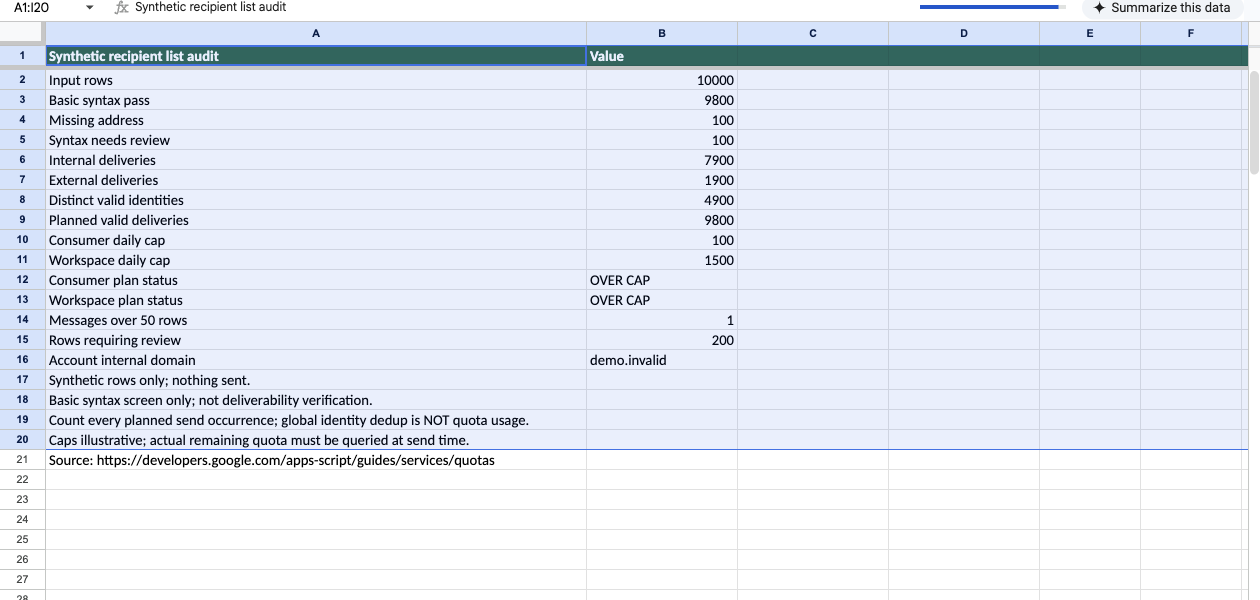
Synthetic native Google Sheets check; no email sent or live quota queried.
The restored baseline contains:
| Cell | Result |
|---|---|
B2 Input rows | 10,000 |
B3 Basic-syntax-pass occurrences | 9,800 |
B4 Missing addresses | 100 |
B5 Syntax-review rows | 100 |
B6 Internal occurrences | 7,900 |
B7 External occurrences | 1,900 |
B8 Distinct valid normalized addresses | 4,900 |
B9 Planned valid deliveries | 9,800 |
B15 Rows requiring review | 200 |
These totals reconcile: 9,800 basic-pass occurrences plus 100 missing addresses and 100 syntax-review rows equal 10,000 inputs. The internal and external occurrences also total 9,800.
Set B16 to your internal email domain. The fixture uses demo.invalid. In a recorded check, changing the domain to example.org changed the internal and external counts to 1,900 and 7,900. Restoring demo.invalid returned the baseline.
Compare the quotas with all 9,800 planned delivery occurrences, not only the 4,900 distinct normalized addresses. These totals show repeated addresses, but they don't establish that every address occurs exactly twice. Each occurrence in a separate send can consume recipient capacity.
3. Find messages over 50 recipients
Now inspect Message audit!A2:D201. In the restored baseline:
M-001has 51 raw recipient rows and is markedOVER 50.M-200has 49 raw recipient rows and is markedWITHIN 50.Audit summary!B14reports one message over the limit.
To reproduce the boundary check, change Recipient audit!A52 from M-001 to M-200. Both raw message sizes become 50, and Audit summary!B14 falls from one to zero. Restore A52 to M-001 afterward.
Raw rows remain relevant to the message-size review even when an address fails the basic syntax screen. Treat invalid addresses as issues requiring review, not as a reason to ignore a message with too many recipient rows.
4. Compare planned occurrences with cap scenarios
Audit summary!B10 and B11 are editable planning caps, with restored values of 100 and 1,500. Because B9 contains 9,800 planned valid deliveries, both B12 and B13 return OVER CAP.
These cells are planning inputs, not live measurements of an account's remaining quota. If the separate 2,000 within-domain Workspace quota applies to a send, evaluate it as another confirmed scenario instead of treating 1,500 as the only Workspace figure.
5. Reject invalid cap inputs
Cap inputs must be numeric, nonnegative integers. B12 uses:
=IFERROR(IF(AND(ISNUMBER(B10),B10>=0,B10=INT(B10)),IF(B9>B10,"OVER CAP","WITHIN CAP"),"INVALID CAP"),"INVALID CAP")
B13 applies the same guard to B11:
=IFERROR(IF(AND(ISNUMBER(B11),B11>=0,B11=INT(B11)),IF(B9>B11,"OVER CAP","WITHIN CAP"),"INVALID CAP"),"INVALID CAP")
Recorded native Google Sheets checks produced these results:
- Blank, whitespace, ordinary text, numeric text such as
'9800, negative values, and fractions returnedINVALID CAP. - Zero was accepted as a valid cap and returned
OVER CAP. - A cap of exactly 9,800 returned
WITHIN CAP. - A cap of 9,799 returned
OVER CAP.
After testing, the baseline values of 100 and 1,500 were restored. Spreadsheet locales that use semicolons as argument separators may require semicolons instead of commas. The Excel download contains the formulas, but the supplied evidence doesn't establish execution in the Excel interface.
Check the remaining quota at execution time
For a script you control, MailApp.getRemainingDailyQuota() reports the remaining recipient quota available to the current execution:
const remainingRecipients = MailApp.getRemainingDailyQuota();
Logger.log(remainingRecipients);
This code contains no send call. It doesn't reserve capacity, increase the quota, or guarantee that a later execution will receive the same result. Check the quota near execution time, then stop the workflow if the remaining amount can't cover the next message.