
Expected income isn’t collected cash, so enter it in the month when you reasonably expect payment. If that date changes, move the income to the revised month.
Gather your income and expense assumptions
Start with contracts, invoices, recent expenses, upcoming commitments, and expected payment dates:
- Expected income: Confirmed work and other income you’re prepared to include in your plan.
- Essential expenses: Costs you expect to pay regardless of your workload.
- Flexible expenses: Spending you could reduce or defer.
- Tax reserve: An allocation based on verified guidance for your jurisdiction and circumstances.
- Payment dates: Your current estimate of when each client will pay.
Unless you have a documented method for estimating uncertain opportunities, keep them outside the expected case. You can track possible work separately without making the main forecast depend on it.
Make sure you assign each expense only once. For example, don’t include a tax reserve within essential expenses and subtract it again in a separate column. For a more detailed tax workflow, see Track Taxes in Google Sheets With Controls.
Build a six-month freelance cash-flow forecast
Use the synthetic Personal cashflow planner:
The example uses Cashflow!A5:F12. Google documents this sheet-and-range format as A1 notation. All amounts are synthetic planning assumptions in unspecified currency units, not invoices, bank receipts, or actual freelancer results.
1. Inspect the baseline
Open Cashflow!A1:F12, then inspect the planning area in A6:F12.
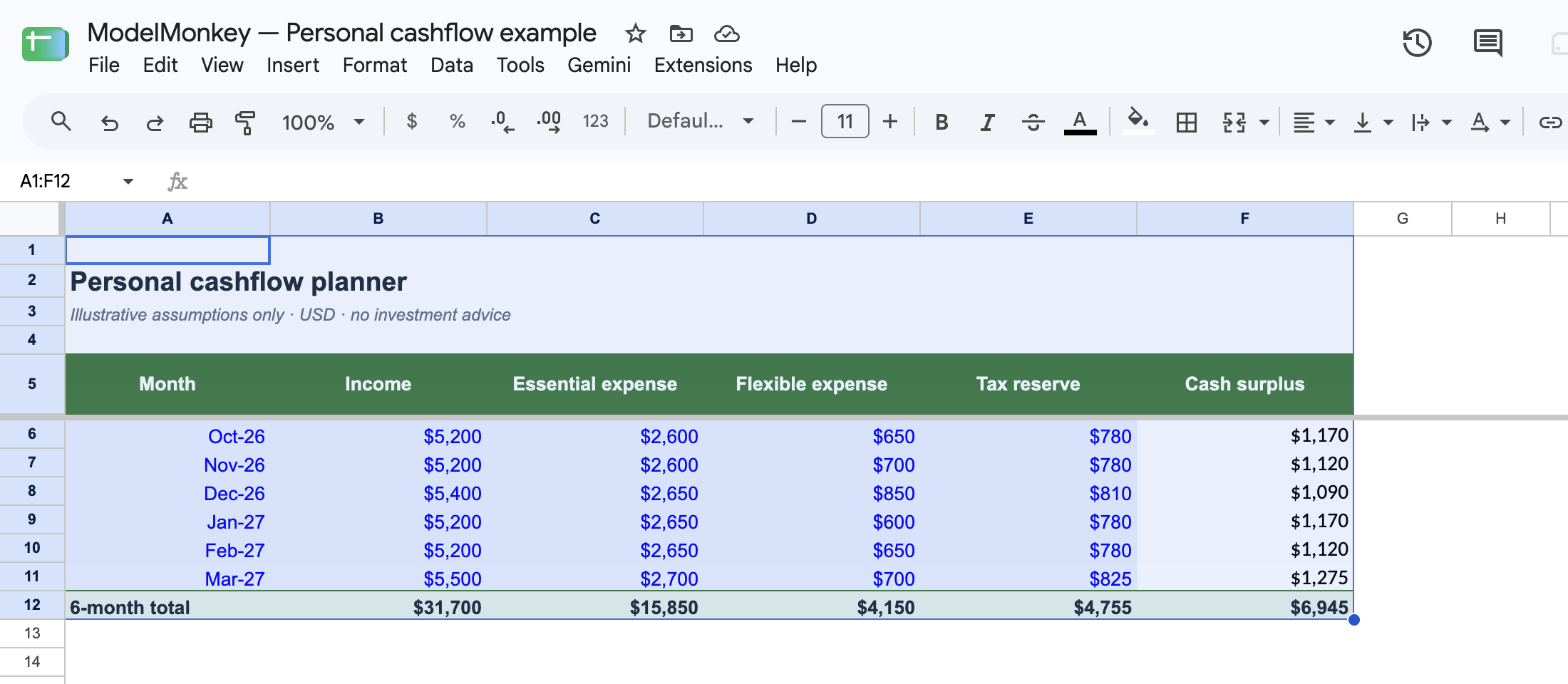
Actual Google Sheets screenshot of the restored synthetic example.
The six planning rows are:
| Month | Income | Essential expense | Flexible expense | Tax reserve | Cash surplus |
|---|---|---|---|---|---|
| Oct. 1, 2026 | 5200 | 2600 | 650 | 780 | 1170 |
| Nov. 1, 2026 | 5200 | 2600 | 700 | 780 | 1120 |
| Dec. 1, 2026 | 5400 | 2650 | 850 | 810 | 1090 |
| Jan. 1, 2027 | 5200 | 2650 | 600 | 780 | 1170 |
| Feb. 1, 2027 | 5200 | 2650 | 650 | 780 | 1120 |
| Mar. 1, 2027 | 5500 | 2700 | 700 | 825 | 1275 |
In F6, the cash-surplus formula is:
=B6-C6-D6-E6
Fill the corresponding row formula through F11. For the first month:
5200 - 2600 - 650 - 780 = 1170
In F12, total the six monthly surpluses:
=SUM(F6:F11)
The control calculation is:
1170 + 1120 + 1090 + 1170 + 1120 + 1275 = 6945
Therefore, F12 should display 6945. Confirm that its range covers exactly rows 6 through 11, because the formula won’t identify a duplicated or omitted month.
2. Stress-test a month without income
Next, change income in B6 from 5200 to 0. Leave the other inputs unchanged:
C6 = 2600
D6 = 650
E6 = 780
The recorded native Google Sheets execution produced:
F6 = -4030
That result agrees with the underlying calculation:
0 - 2600 - 650 - 780 = -4030
This is the planned shortfall if the month has no income and the listed costs remain due. It doesn’t predict that the scenario will occur.
Now restore B6 to 5200. Confirm that F6 returns to 1170, then read F12 for the restored six-month planned surplus of 6945.
Neither figure represents a bank balance. The sheet has no opening-cash input, and the amounts in B6:B11 are expected income rather than proof of collection.
Account for irregular client payments
Maintain an invoice record with the client, amount, expected payment date, status, and actual receipt date. Assign each pending invoice to the month when you expect to receive it.
When a payment is delayed, remove the amount from its original month and move it to the revised month. Don’t count it in both periods, and only record the payment as collected cash after it clears.
Even a positive forecast surplus can coincide with a cash gap if the expected income hasn’t arrived.
Update the forecast as actual results arrive
At the end of each month:
- Compare expected income with payments received.
- Compare planned expenses with actual expenses.
- Update future payment dates and cost assumptions.
- Preserve completed actual periods instead of rewriting them to match the plan.
- Repeat the no-income test when commitments or income expectations change.
Watch for common mistakes such as treating unpaid invoices as spendable cash, omitting irregular costs, subtracting the same expense twice, or leaving delayed payments in their original months.
Review the forecast with ModelMonkey
ModelMonkey is an AI assistant for spreadsheet work in Google Sheets and Excel. It can help you inspect, organize, analyze, and change spreadsheet content. In Google Sheets, it can use the active spreadsheet, sheet, and range as context.
With the copied template open, try:
Inspect
Cashflow!A6:F12, summarize the visible assumptions, and help me test a zero-income month while keeping the expense inputs unchanged.
If the workflow presents a preview, review the proposed changes before proceeding. Afterward, verify the demonstrated control yourself: B6 = 0, C6 = 2600, D6 = 650, and E6 = 780 should produce F6 = -4030. ModelMonkey can assist with the spreadsheet work, but you remain responsible for the assumptions and final review.