
=COUNTIF(range, criterion)
rangeis the group of cells to evaluate.criteriondefines which cells to count.
Both arguments are required. For example, =COUNTIF(F19:F38,"Open") counts cells in F19:F38 that equal Open, regardless of letter case. Google’s official COUNTIF documentation covers the syntax, comparison operators, and wildcard characters.
Exact text criteria are case-insensitive
You can write a text criterion directly in the formula:
=COUNTIF(F19:F38,"Resolved")
Alternatively, place the criterion in a cell. If B7 contains Open, use:
=COUNTIF(F19:F38,B7)
This version lets a reviewer change the status being counted without editing the formula.
Use quotation marks around a direct text literal, but not around a cell reference:
=COUNTIF(F19:F38,"Open")
=COUNTIF(F19:F38,B7)
If you type =COUNTIF(F19:F38,"B7"), Google Sheets counts cells containing the literal text B7.
COUNTIF text matching is case-insensitive, so Open, open, and OPEN all match. When you need case-sensitive equality, use Google Sheets’ EXACT function with an array calculation:
=SUM(ARRAYFORMULA(--EXACT(F19:F38,B7)))
A reproducible COUNTIF example
The synthetic COUNTIF Range and Criterion Practice Template contains a ticket log and several criterion patterns. You can copy the Google Sheets template or download the Excel file.
On the COUNTIF Practice tab, the source records occupy rows 19 through 38:
A19:A38: unique ticket IDB19:B38: opened date in ISOYYYY-MM-DDformatC19:C38: current ownerD19:D38: channelE19:E38: priorityF19:F38: statusG19:G38: SLA target hoursH19:H38: resolution score from 1 to 5, when applicable
Replace synthetic records only in A19:H38. Keep row 18 as the header, and don’t delete the formulas in C7:C15 or I7:I15.
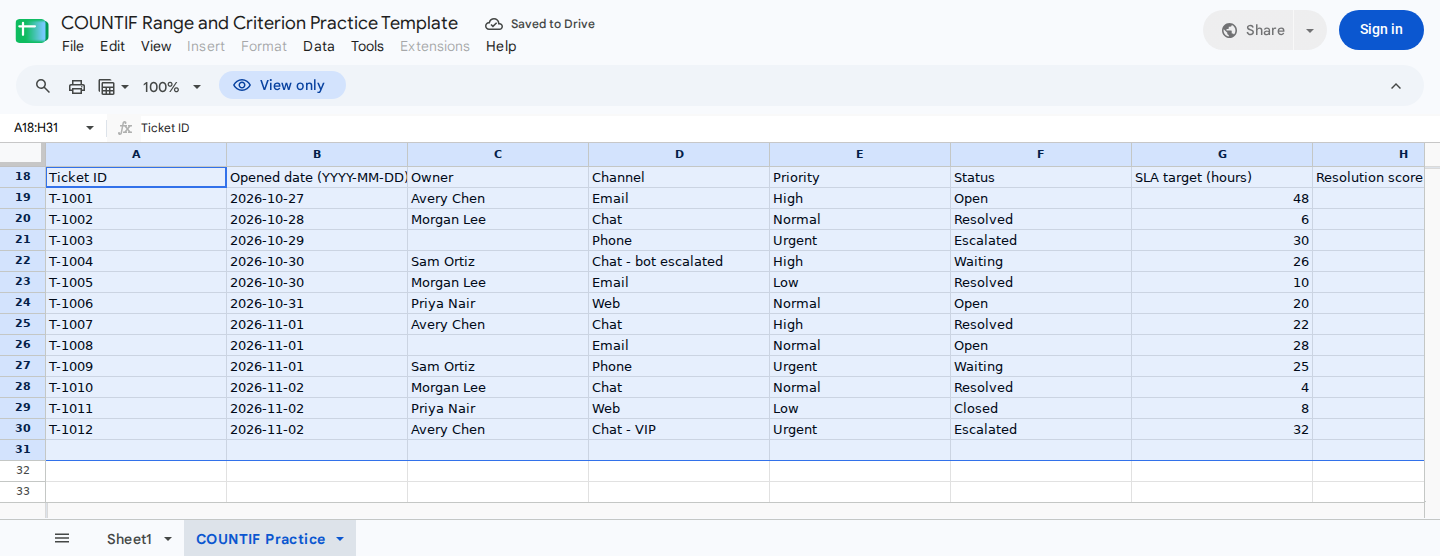
The editable record log includes exact-text matches, numeric thresholds, blanks, wildcard channel names, unresolved exceptions, and the next available input row.
The following formulas and results were recorded for the supplied baseline:
| Result cell | Criterion input | Formula | Expected result |
|---|---|---|---|
C7 | B7 contains Open | =COUNTIF(F19:F38,B7) | 3 |
C8 | B8 contains High | =COUNTIF(E19:E38,B8) | 3 |
C9 | B9 contains >24 | =COUNTIF(G19:G38,B9) | 6 |
C10 | Direct blank criterion | =COUNTIF(C19:C38,"") | 10 |
C11 | B11 contains <> | =COUNTIF(A19:A38,B11) | 12 |
C12 | B12 contains Chat* | =COUNTIF(D19:D38,B12) | 5 |
C13 | B13 contains >=4 | =COUNTIF(H19:H38,B13) | 3 |
C14 | B14 contains Lee | =COUNTIF(C19:C38,"*"&B14&"*") | 3 |
C15 | Direct text criterion | =COUNTIF(F19:F38,"Resolved") | 4 |
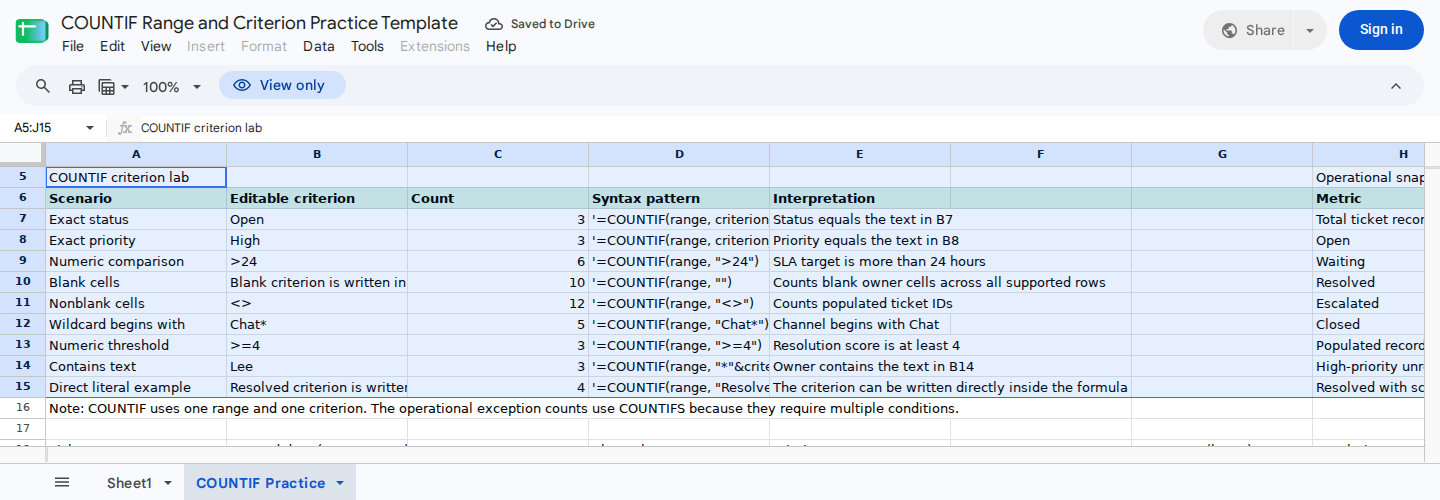
Edit criteria in B7:B14, then compare the resulting COUNTIF counts with the summary in I7:I15.
Numeric comparison criteria
A comparison operator and its number form one criterion. When that criterion appears directly in a formula, the complete expression requires quotation marks:
=COUNTIF(G19:G38,">24")
This formula counts SLA targets greater than 24 hours. The supplied baseline returns 6.
You can also enter the criterion in a cell. Put >24 in B9, without quotation marks in the cell, and use:
=COUNTIF(G19:G38,B9)
Other comparisons follow the same pattern:
=COUNTIF(H19:H38,">=4")
=COUNTIF(G19:G38,"<=8")
=COUNTIF(G19:G38,"=24")
By contrast, a direct formula such as =COUNTIF(G19:G38,>24) is invalid because the comparison criterion lacks quotation marks.
Blank and nonblank criteria
Use an empty string to count blank cells:
=COUNTIF(C19:C38,"")
The range contains 20 supported rows. In the verified baseline, 12 rows contain ticket IDs, which leaves 8 unused rows. Two populated tickets also have no owner, so the formula returns 10:
8 unused rows + 2 populated tickets without owners = 10 blank owner cells
That means a blank count isn’t necessarily the same as an unassigned-ticket count. The summary uses these formulas:
I7:  =COUNTIF(A19:A38,"<>")
I13: =COUNTIFS(A19:A38,"<>",C19:C38,"")
I7 returns 12 populated ticket IDs. Meanwhile, I13 requires both a nonblank ticket ID and a blank owner. It therefore excludes unused rows and returns 2.
A cell containing spaces isn’t genuinely blank. If the blank count looks too low, inspect the range for whitespace or other invisible text.
To count nonblank cells, use <>. If B11 contains <>, the formula is:
=COUNTIF(A19:A38,B11)
The baseline result in C11 is 12, matching the populated-ticket total calculated in I7.
Wildcard and partial-text criteria
An asterisk matches any sequence of characters. With Chat* in B12, the following formula counts channel values beginning with Chat:
=COUNTIF(D19:D38,B12)
The verified result is 5. Matches include Chat, Chat - bot escalated, and Chat - VIP.
For text that may appear anywhere within a cell, place a wildcard on both sides of a criterion cell. If B14 contains Lee, use:
=COUNTIF(C19:C38,"*"&B14&"*")
The formula returns 3 because three owner values contain Lee.
Guard against blank editable criteria
Editable criterion cells can produce unexpected counts when they’re left blank. If B7 is blank, this formula counts blank statuses, including unused rows:
=COUNTIF(F19:F38,B7)
To return a blank result until someone enters a status, use:
=IF(LEN(TRIM(B7))=0,"",COUNTIF(F19:F38,B7))
Similarly, a blank B14 turns "*"&B14&"*" into **, which can count populated owner text. Guard that formula in the same way:
=IF(LEN(TRIM(B14))=0,"",COUNTIF(C19:C38,"*"&B14&"*"))
Using TRIM also treats a criterion containing only spaces as blank.
Recorded formula checks
These controlled cases were run in Google Sheets on 2026-11-02. Each case started from the original baseline:
-
No match: Changing
B7fromOpentoCancelledmadeC7return 0. COUNTIF doesn’t validate whetherCancelledis an allowed status; it only reports that no cell matched. -
Status update: Changing ticket
T-1001inF19fromOpentoResolvedchangedC7from 3 to 2 andC15from 4 to 5. -
Supported-row addition: Adding ticket
T-1013in row 31 with ownerJordan Kim, channelEmail, priorityHigh, statusOpen, SLA target36, and a blank score changed the Open count to 4, High count to 4,>24count to 7, and nonblank ticket count to 13. The blank-owner count fell to 9 because row 31 was no longer unused, while the>=4score count remained 3.
Treat these counts as review signals, not approvals. In the baseline, three Open records and two populated records without owners identify items for review.
Common COUNTIF mistakes
Using the wrong column. A status criterion must evaluate F19:F38, while an SLA criterion must evaluate G19:G38.
Omitting quotation marks from a direct comparison. Use ">24", not >24, inside the formula.
Typing quotation marks into a criterion cell. Enter >24 in B9, not ">24". The quotation marks are formula syntax, not part of the cell value.
Leaving an editable criterion blank. A blank text criterion can count blank cells, while an empty contains criterion can count populated text. Add an IF guard when that behavior isn’t wanted.
Counting unused rows as blanks. =COUNTIF(C19:C38,"") evaluates every cell in the range, including rows without a ticket ID.
Adding records outside the formula range. The template supports rows 19 through 38. A record entered in row 39 won’t be counted until each relevant formula range is extended.
Treating zero as proof of an error. Zero may be correct. Check the criterion spelling, data type, and range before changing the formula.
For formulas that return multiple counts from a criteria list, see ARRAYFORMULA with COUNTIF in Google Sheets.
Check COUNTIF formulas with ModelMonkey
ModelMonkey is an AI assistant for Google Sheets and Excel that can inspect spreadsheet context and help with formulas. With the practice workbook open, you could ask:
Check the COUNTIF formulas in C7:C15 against A19:H38. Explain any zero result and identify an incorrect range or criterion format. Do not change any cells.
Then compare the response with visible controls such as C11 = I7. AI assistance can help inspect the setup, but it doesn’t guarantee that every formula or interpretation is correct.