
In this example, two queries create different outputs from Transactions!A1:F13:
Practice!A18:F28returns every dated transaction, including records with other missing fields.Practice!A32:B36groups the same dated transactions by category and totals their amounts.
Set up the transaction table
Use the native Google Sheets workbook for these formulas:
The XLSX companion contains the source data, guidance, and a portable SUM(F160:H160) example. It doesn’t reproduce native Google Sheets QUERY outputs.
The Transactions sheet uses these columns:
| Column | Field |
|---|---|
| A | Date |
| B | Category |
| C | Description |
| D | Amount (USD) |
| E | Paid |
| F | Owner |
Rows 5 and 10 are wholly blank. The other 10 rows have dates, although some are missing a category, description, payment status, or owner.
Here are the category and amount inputs:
| Source row | Category | Amount (USD) |
|---|---|---|
| 2 | Office | 48.50 |
| 3 | Travel | 22.00 |
| 4 | Meals | 86.00 |
| 6 | Office | 16.75 |
| 7 | Travel | 31.00 |
| 8 | blank | 14.00 |
| 9 | Meals | 12.50 |
| 11 | Office | 9.25 |
| 12 | Travel | 8.00 |
| 13 | Meals | 37.00 |
Query 1: Return every dated transaction
Enter this formula in Practice!A18:
=QUERY(Transactions!A1:F13,"select * where A is not null",1)
Google documents the syntax as QUERY(data, query, [headers]). In this formula:
Transactions!A1:F13is the source range.select *returns all 6 columns.where A is not nullrequires a populated Date.1identifies 1 header row.
The range reference follows A1 notation.
In the recorded native execution, the formula returned Practice!A18:F28, which contains 1 header plus 10 dated records. Practice!A18 contained Date.
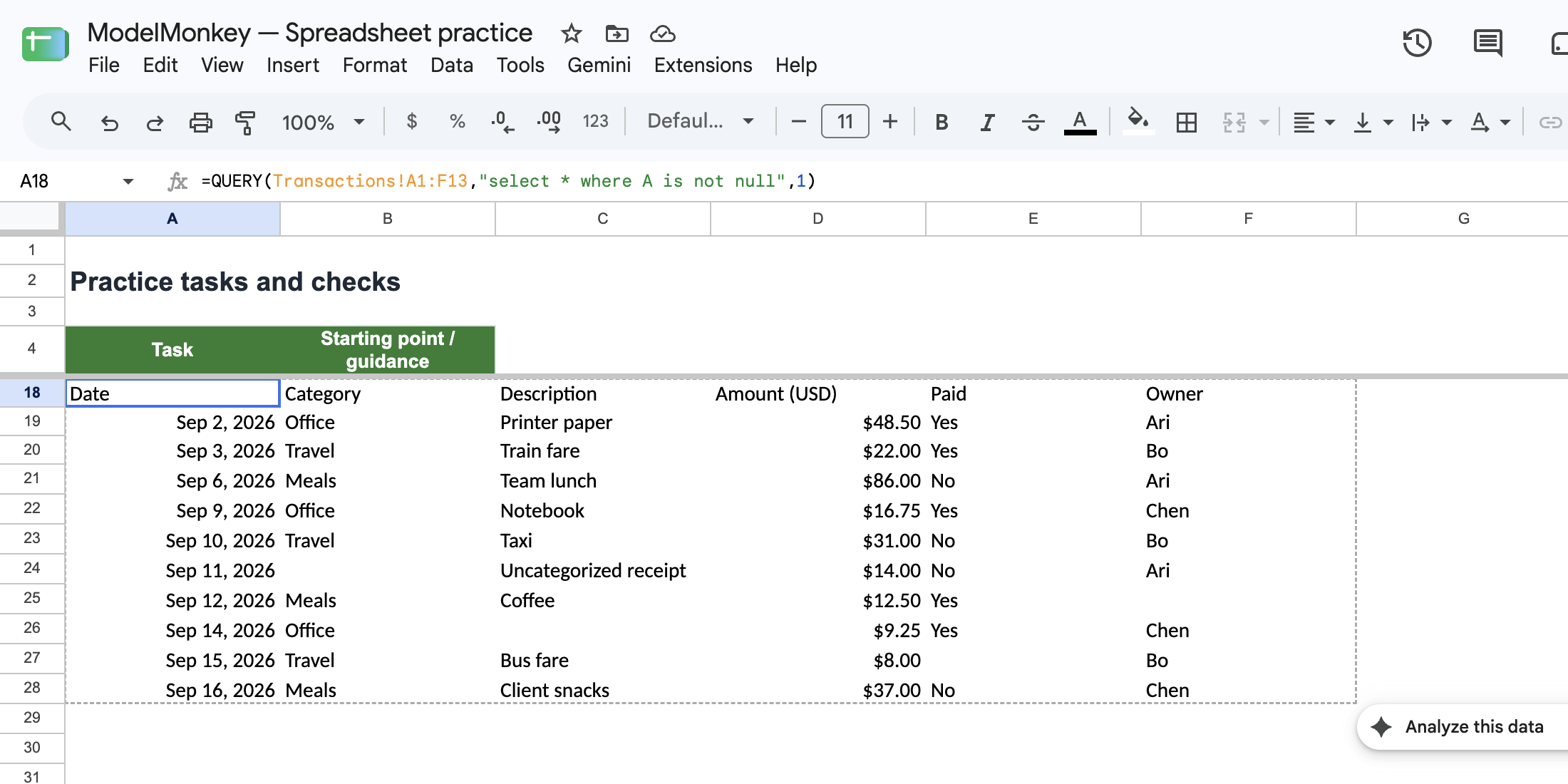
Native QUERY excludes wholly blank rows and keeps incomplete records for review.
The $14 uncategorized receipt remains because it has a Date. Records with a blank Description, Paid value, or Owner also remain. The formula doesn’t validate, approve, or deduplicate transactions. It tests only column A.
For more clause examples, see How to Use QUERY in Google Sheets for Finance.
Query 2: Summarize amounts by category
Next, enter a separate formula in Practice!A32:
=QUERY(Transactions!A1:F13,"select B,sum(D) where A is not null group by B label sum(D) 'Total'",1)
This query uses the same dated transactions, groups them by Category, and sums their Amounts.
The recorded output in Practice!A32:B36 is:
| Category | Total (USD) |
|---|---|
| blank | 14.00 |
| Meals | 135.50 |
| Office | 74.50 |
| Travel | 61.00 |
You can check the result against the source rows:
Meals:          86.00 + 12.50 + 37.00 = 135.50
Office:         48.50 + 16.75 +  9.25 =  74.50
Travel:         22.00 + 31.00 +  8.00 =  61.00
Blank category:                          14.00
Total:                                  285.00
The blank group confirms that the uncategorized $14 receipt was included. To exclude it, add and B is not null before group by B. The summarized total will then be $14 lower.
Reconcile Office expenses with SUMIFS
For an independent control, enter this formula in Practice!B15:
=SUMIFS(Transactions!$D$2:$D$13,Transactions!$B$2:$B$13,"Office")
The recorded execution returned $74.50:
48.50 + 16.75 + 9.25 = 74.50
That result agrees with the Office row in the grouped query. However, the formulas serve different purposes:
| Formula | Best use |
|---|---|
SUMIFS | One targeted result for a known category |
Grouped QUERY | A multirow summary covering every category |
Their populations can also differ. This SUMIFS includes every Office row, while both queries require a Date. As a result, an Office transaction with a blank Date would appear in B15 but not in either query.
Copy the control total without replacing its formula
You can preserve the calculation while reusing its current result:
- Copy
Practice!B15. - Select
Practice!C15. - Choose Edit → Paste special → Values only, or use Google’s documented paste-values-only shortcut.
- Confirm that
B15still contains theSUMIFSformula andC15contains the numeric value74.50.
A values-only copy is static. If the source transactions change, B15 recalculates, but C15 doesn’t.
Fix common multiple-query problems
- Results overlap: Keep the destination cells empty. The first result needs
A18:F28; the second needsA32:B36. - Wrong header behavior: Use
1because row 1 contains headers. If you test another value in a copy of the workbook, restore it to1. - Missing transactions: A row with a blank Date is excluded even when its other fields contain data.
- Unexpected rows: Whitespace or hidden text in a Date cell may not behave like a truly empty cell. Inspect and clean the source value.
- Duplicates: Neither formula removes duplicates. Repeated dated transactions remain in the detail output and are included in totals.
- No matching rows: Check the empty result in a workbook copy before adding error handling. An empty population doesn’t necessarily equal zero.
- Formula separators: This workbook uses commas. Some spreadsheet locales require semicolons.
Review query populations with ModelMonkey
ModelMonkey can inspect the active spreadsheet, sheet, and range context to help analyze formulas and locate partial records. For this workbook, you could ask:
Compare
Transactions!A1:F13, the detail query atPractice!A18, the category summary atPractice!A32, and the Office control atPractice!B15. Identify which rows each formula includes and reconcile the Office total before proposing any changes.
Before using the analysis in a finance deliverable, review the conditions, ranges, and totals. If the workflow presents proposed changes for review, inspect them before proceeding.