
You can copy this Google Sheets template or download the Excel file.
The template has one tab named Income Tracker. It requires manual entry and doesn’t connect to bank accounts, import transactions, send invoices, collect payments, file taxes, or move money.
What a simple income tracker should include
A cash-only log can use six fields: Date, Source, Category, Amount, Payment Method, and Notes. If you also need to monitor expected or partial payments, add a status and separate columns for the full amount due, cash received, and fees.
This template uses the following schema in Income Tracker!A22:L45:
| Column | Field | Purpose |
|---|---|---|
| A | ID | Unique identifier for the income event |
| B | Review period | Month assigned to the record in YYYY-MM format |
| C | Cash date | Date cash was received; leave blank while unpaid |
| D | Payer or source | Employer, client, marketplace, or other payer |
| E | Income type | Salary, Freelance, Sales, or Other |
| F | Receiving account | Account where the cash arrived |
| G | Status | Received, Partially received, Expected, Cancelled, or Transfer |
| H | Full amount due | Total expected from the event |
| I | Cash received | Amount collected so far |
| J | Fees | Processing, platform, or payment fees |
| K | Notes | Explanation or follow-up detail |
| L | Reference | Optional invoice, order, or payment reference |
Use ISO dates such as 2026-11-06. Enter money as numbers, then apply currency formatting instead of typing dollar signs into cells. Google documents the available date, currency, and number-format settings.
Which field controls the reporting month?
Column B controls the monthly summary. For example, if B3 is 2026-11, the summary uses records assigned to 2026-11 in column B.
Column C records when cash arrived, but it doesn’t determine whether a record is included in the selected period. Keep the two fields consistent where appropriate, and review any row where the cash date and assigned period differ. The template verification didn’t test mismatched periods and cash dates.
Copy and configure the tracker
- Open an unchanged copy of the template.
- In
Income Tracker!B3, enter the month to review inYYYY-MMformat. - In
Income Tracker!E3, enter a numeric monthly spendable-income target of zero or more. - In
Income Tracker!H3, enter the estimated tax-reserve rate as a decimal between0and1. For example, enter0.25for 25%. - In
Income Tracker!K3, enter a valid manual review date. - Review the supplied examples. When you’re ready to replace them, clear only
Income Tracker!A22:L36. KeepA1:L21because it contains the controls, formulas, explanations, and headings.
The template was verified with valid YYYY-MM periods, nonnegative targets, and reserve rates of 25% and 30%. Blank or malformed periods, text or negative targets, and reserve rates outside 0%-100% weren’t tested. Because these inputs may produce errors or results that aren’t useful for planning, check them before relying on the summary.
Google Sheets supports data-validation rules and dropdowns. These controls can guide manual entry, though pasted or imported values may still need review.
The summary formulas already cover A22:L45, so you don’t need to copy formulas into each record row.
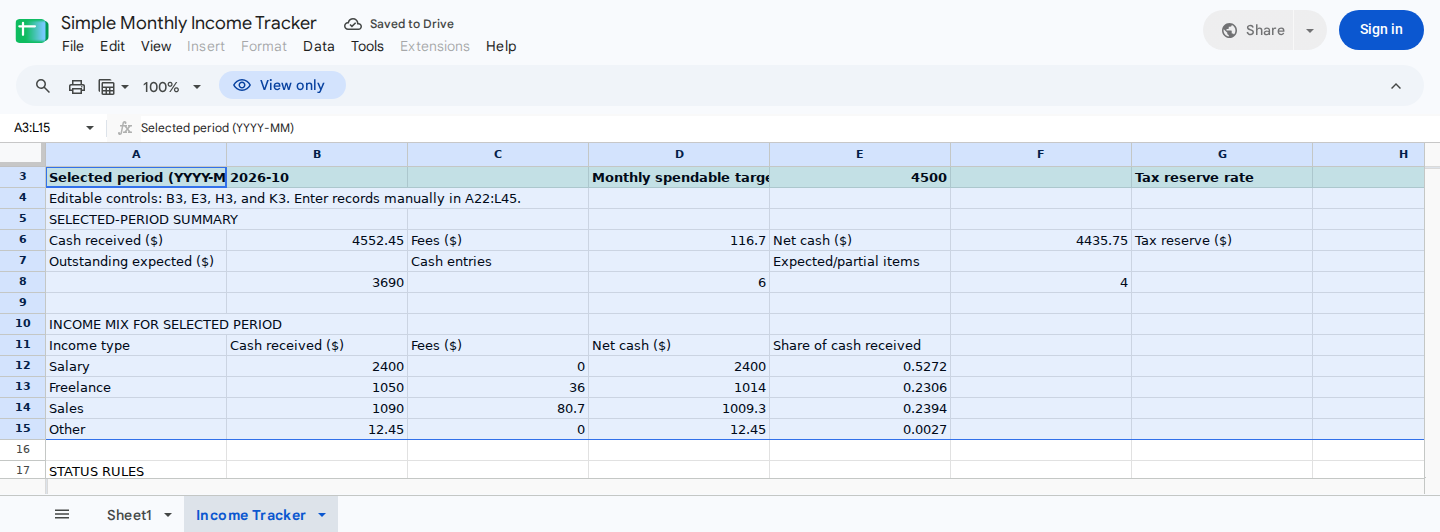
Change the selected period and assumptions at the top; the summary and income mix recalculate from the record log.
Enter income records correctly
Each row should represent one income event. The status in column G determines how the template treats it.
| Status | Treatment |
|---|---|
| Received | Cash in column I is included in received income |
| Partially received | Cash received is included; the unpaid balance contributes to outstanding income |
| Expected | No received cash is recognized; the unpaid amount contributes to outstanding income |
| Cancelled | Excluded from received and outstanding income |
| Transfer | Excluded so movement between owned accounts does not inflate income |
Use the listed status labels and the income types Salary, Freelance, Sales, and Other. Misspellings and extra spaces may prevent a row from appearing in the intended summary.
The verification doesn’t establish a case-sensitive guard, so capitalization alone shouldn’t be treated as a validation control. Use dropdowns where possible, then review pasted or imported values.
For a partial payment, enter the full amount due in column H and the cash collected so far in column I. Keep the status as Partially received. Once the balance arrives, manually update the cash date, status, cash received, and fees.
Column J should contain only processing, payment, or platform fees. Record ordinary business spending in an expense tracker or a separate report. See how to use an income and expense report if you need to track both income and expenses.
Refunds, reversals, and transfers
Record a refund, chargeback, or income reversal as negative amounts in columns H and I. Use Received as the status and explain the reversal in column K. This approach preserves the original history while reducing selected-period income.
Review negative reversals carefully:
- If reversals make net cash negative, don’t assume the estimated reserve is automatically limited to zero. That case wasn’t included in the verification.
- If a category has negative cash or total cash is close to zero, its displayed mix percentage may be negative, while another category may exceed 100%. In this situation, the percentages represent contributions to net received cash rather than shares bounded between 0% and 100%.
- Review the underlying rows before using a negative reserve or an unusual category percentage for planning.
When money moves between accounts you own, use Transfer. Don’t record it as new income.
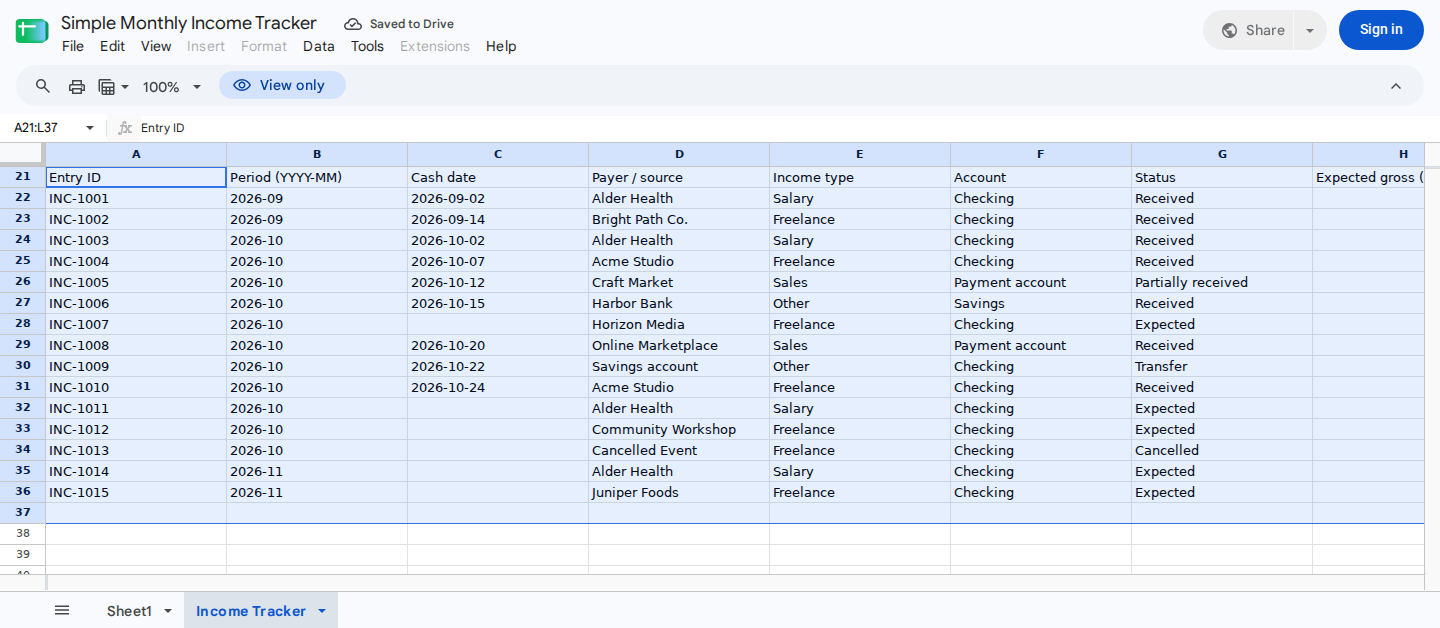
Enter one event per row. The examples demonstrate cash dates, payment statuses, fees, unpaid balances, transfers, refunds, and future-period income.
Reproduce a November income entry
Begin with an unchanged copy of the supplied sample. Keep the existing example rows and leave the target at $4,500 and the reserve rate at 0.25. Then set Income Tracker!B3 to 2026-11.
Enter this record in Income Tracker!A37:L37:
INC-1016 | 2026-11 | 2026-11-06 | Cedar Labs | Freelance | Checking | Received | 1000 | 1000 | 30 | Final retainer payment | INV-118
The recorded Google Sheets execution produced these November results:
| Cell | Expected result | Meaning |
|---|---|---|
| B6 | $1,000.00 | Cash received |
| D6 | $30.00 | Fees |
| F6 | $970.00 | Cash after fees |
| H6 | $242.50 | Estimated reserve at 25% |
| J6 | $727.50 | Spendable cash |
| L6 | -$3,772.50 | Difference from the $4,500 target |
| B8 | $3,900.00 | Outstanding expected income |
| F8 | 2 | Expected or partial items requiring review |
| L8 | 16.17% | Target attainment |
The November receipt appears in the Freelance row of the income mix. Meanwhile, October receipts remain outside the November totals because their column B review periods aren’t 2026-11. This example doesn’t test what happens when the review period and cash-date month differ.
Read the monthly summary
Use Income Tracker!B6:L8 to review the selected month:
B6shows cash received.D6shows payment and processing fees.F6shows net cash after fees.H6shows the estimated reserve based on the rate inH3.J6shows spendable cash after fees and the reserve.L6shows the difference between spendable cash and the target.B8shows outstanding expected income.D8counts cash entries.F8counts expected or partial items requiring review.L8shows spendable cash as a percentage of the target.
The reserve is a planning estimate based on your manual assumption. It isn’t a calculated tax liability or tax advice. For a tax-focused workflow, see how to track taxes in Google Sheets with controls.
Verify the October sample
With B3 set to 2026-10, the supplied sample provides this control total:
Cash received:       $4,552.45
Less fees:             $116.70
Net cash:            $4,435.75
25% reserve:         $1,108.94
Spendable cash:      $3,326.81
Spendable target:    $4,500.00
Difference:         -$1,173.19
Target attainment:      73.93%
The reconciliation is:
$4,552.45 - $116.70 = $4,435.75
$4,435.75 × 25% = $1,108.94 after currency rounding
$4,435.75 - $1,108.94 = $3,326.81
$3,326.81 - $4,500.00 = -$1,173.19
For the selected period, received cash minus fees and the estimated reserve equals spendable cash.
Review where monthly income came from
The income mix in Income Tracker!A12:E15 separates selected-period cash into Salary, Freelance, Sales, and Other.
For October, the displayed cash received is:
| Income type | Cash received | Share of cash received |
|---|---|---|
| Salary | $2,400.00 | 52.72% |
| Freelance | $1,050.00 | 23.06% |
| Sales | $1,090.00 | 23.94% |
| Other | $12.45 | 0.27% |
| Total | $4,552.45 | 99.99% |
The displayed percentages total 99.99% because each category share is rounded for presentation. However, the dollar amounts reconcile exactly to the $4,552.45 received-cash total in B6.
Check changes to the reserve and target
Changing the controls updates the summary without altering the underlying records.
If you change H3 from 0.25 to 0.30 for the October sample, received cash and fees remain unchanged. The recorded outputs become:
- Estimated reserve:
$1,330.73 - Spendable cash:
$3,105.02 - Difference from target:
-$1,394.98 - Target attainment:
69%
If you set E3 to 0, the recorded execution shows that spendable cash remains $3,326.81. The difference from the target becomes $3,326.81, and target attainment displays as 0 rather than a division error.
Negative targets and reserve rates below 0% or above 100% weren’t verified. Keep the target at zero or more and the reserve rate within 0-1.
Maintain the tracker each week and month
During a weekly review:
- Update the review date in
K3. - Change newly paid
Expectedrows toReceivedorPartially received. - Enter the cash date in column C.
- Update cash received and fees in columns I and J.
- Check
B8andF8for unpaid items that still need attention. - Confirm that each record’s column B period is the month in which you want it to appear.
At the start of a new month, change B3 to the new YYYY-MM period and continue in the next unused row. Keep prior records as an audit trail.
The original supported entry area ends at row 45. Once it’s full:
- Insert the required record rows directly above row 45.
- If you insert
nrows, confirm that the relevant source ranges now run from row 22 through row45+n. - Inspect the references used by
B6,D6,B8,D8,F8, andB12:C15. - Google Sheets or Excel may adjust references during insertion. If the formulas already end at the new final row, don’t edit them again. If they still end at row 45, extend them once before entering records beyond the old range.
- Recheck the received-cash and income-mix control totals after the change.
This expansion procedure wasn’t included in the execution tests. Inspect the formulas instead of assuming that their ranges were adjusted automatically or require manual editing.
Use ModelMonkey to review the tracker
ModelMonkey can use the active spreadsheet context in Google Sheets to help read, search, analyze, organize, format, or change spreadsheet content from natural-language instructions. For this tracker, you could enter:
Inspect Income Tracker!A22:L45 for misspelled statuses, extra spaces, malformed review periods, or income types outside Salary, Freelance, Sales, and Other. Summarize the rows that need review without changing them.
Compare its findings with the source records and monthly control totals. If the workflow shows a preview, review the proposed changes before proceeding. ModelMonkey doesn’t guarantee that every analysis or edit is correct.