
Build an OKR Google Sheets Template for Finance
Copy a quarterly OKR template and track finance objectives, weighted progress, summaries, and health codes in Google Sheets.
This OKR Google Sheets template helps finance and FP&A teams track quarterly objectives, key results, owners, weighted progress, and health codes.
Copy this Google Sheets template or download the Excel file. The Quarterly OKR Tracker contains 4 key-result rows, 2 objective summaries, and a portfolio summary.
The baseline and 2 boundary checks below were run in Google Sheets. Equivalent Excel execution evidence wasn't supplied, so confirm the expected results after opening the downloaded file.
What You'll Need
- Access to Google Sheets, or Microsoft Excel for the downloadable file
- Quarterly finance objectives with measurable key results
- A starting value, target, latest actual, and accountable owner for each key result
- Consistent metric definitions and supporting finance schedules
Step-by-Step Guide
Copy and review the template
Open the Google Sheets copy link and create an editable copy in your Drive.
The main entry and review area is OKR Tracker!A1:L9:
| Columns | Contents |
|---|---|
| A:E | Objective ID, objective, owner, KR ID, and key-result description |
| F:H | Starting value, target, and latest actual |
| I | Decimal weight |
| J:L | Calculated progress, weighted score, and health code |
| J7:J8 | Objective summaries |
| J9 | Portfolio summary |
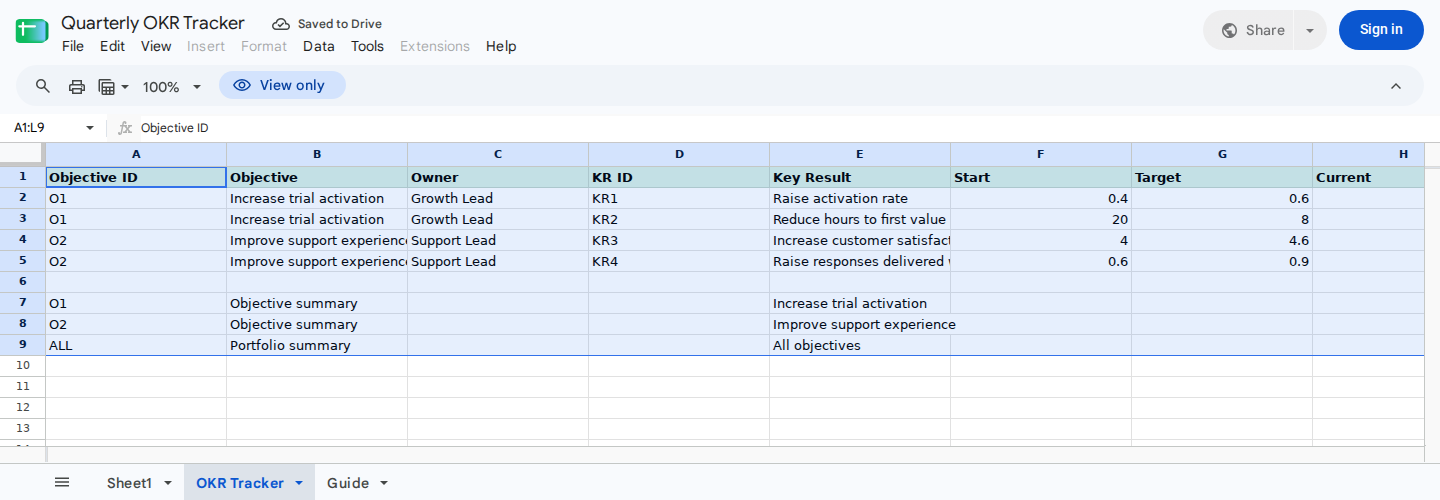
Main entry and review area for quarterly OKR updates.
Before you change the sample data, review Guide!A1:D8. This range explains the fields, entry rules, calculated columns, and health codes.
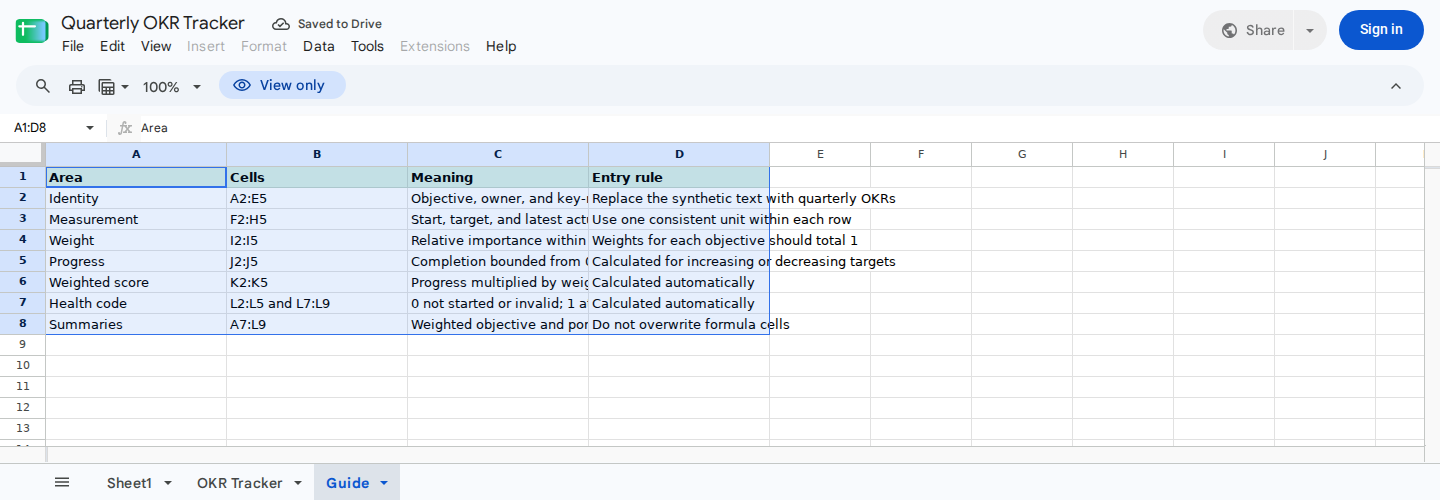
Setup and interpretation guide.
Replace the sample objectives and key results
In OKR Tracker!A2:E5, replace the sample objective, owner, KR ID, and key-result text.
Use this illustrative finance setup to reproduce the guide’s calculations:
| Row | Objective ID | Objective | Owner | KR ID | Key result |
|---|---|---|---|---|---|
| 2 | O1 | Improve forecast reliability | FP&A | KR1 | Forecast accuracy |
| 3 | O1 | Improve forecast reliability | FP&A | KR2 | Close-cycle days |
| 4 | O2 | Improve reporting quality | Finance Operations | KR3 | Review score |
| 5 | O2 | Improve reporting quality | Finance Operations | KR4 | On-time reporting rate |
Give every key result belonging to the same objective a matching objective ID. Each KR ID should remain unique.
Within each row, Start, Target, and Actual must use the same unit and scope. For example, row 4 uses a consistent 1-to-5 review scale for all 3 values.
Enter values and weights
Next, enter the following illustrative inputs in OKR Tracker!F2:I5:
| Row | Metric | Movement | Start F | Target G | Actual H | Weight I |
|---|---|---|---|---|---|---|
| 2 | Forecast accuracy | Increasing | 40% | 60% | 55% | 60% |
| 3 | Close-cycle days | Decreasing | 20 | 8 | 11 | 40% |
| 4 | Review score, out of 5 | Increasing | 4.0 | 4.6 | 4.3 | 50% |
| 5 | On-time reporting rate | Increasing | 60% | 90% | 84% | 50% |
Enter percentages as decimals or with a percent sign. For example, enter 40% as 0.40 or 40%, not 40.
The tracker infers direction from Start and Target:
- A target above Start is an increasing target.
- A target below Start is a decreasing target.
Then confirm that the decimal weights total 1 for each objective:
O1: I2 + I3 = 0.60 + 0.40 = 1.00
O2: I4 + I5 = 0.50 + 0.50 = 1.00
Automatic weight validation isn't established, so you'll need to check the totals manually.
You can also verify that all 16 cells in F2:I5 contain numbers. Enter the following formula on a temporary control sheet:
=COUNT('OKR Tracker'!F2:I5)
The expected result is 16. A lower result means that at least one required input is blank or nonnumeric, including whitespace-only text. Although this control can identify incomplete inputs before reporting, it doesn't prevent the workbook from accepting them. Google explains which values COUNT treats as numeric.
Blank, text, and pasted-value cases weren't included in the recorded execution tests. Correct any incomplete or nonnumeric inputs before interpreting columns J:L.
Finally, select OKR Tracker!I2:K5 and choose Format > Number > Percent. Apply the same format to J7:J9. Formatting changes how the values appear without changing the stored decimals. See Google’s number-formatting instructions.
Verify progress and weighted scores
Don't overwrite OKR Tracker!J2:L5. These cells calculate:
- Bounded progress in column J
- Weighted scores in column K
- Health codes in column L
For an independent check of row 2, enter this formula in an unused cell on your temporary control sheet:
=IF('OKR Tracker'!G2='OKR Tracker'!F2,0,MAX(0,MIN(1,('OKR Tracker'!H2-'OKR Tracker'!F2)/('OKR Tracker'!G2-'OKR Tracker'!F2))))
This is an equivalent control calculation, not the template’s underlying formula. It handles increasing and decreasing targets, returns 0 when Target equals Start, and bounds complete numeric inputs between 0% and 100%.
For KR1, the calculation is:
(55% - 40%) ÷ (60% - 40%)
= 15% ÷ 20%
= 75%
The weighted score is:
75% × 60% = 45%
For the decreasing KR2:
(11 - 20) ÷ (8 - 20)
= -9 ÷ -12
= 75%
Its weighted score is:
75% × 40% = 30%
Once you've entered all 4 rows, compare the workbook with these recorded Google Sheets results:
| Cell | Expected result |
|---|---|
| J2 | 75% |
| K2 | 45% |
| L2 | 2 |
| J3 | 75% |
| K3 | 30% |
| L3 | 2 |
| J4 | 50% |
| K4 | 25% |
| L4 | 1 |
| J5 | 80% |
| K5 | 40% |
| L5 | 2 |
This execution was recorded on October 13, 2026. Underlying floating-point results such as 0.7500000000000003 appear as 75% after percentage formatting.
Reconcile the objective and portfolio summaries
Now review the objective summaries in OKR Tracker!J7:J8 and the portfolio summary in J9. Don't replace their calculations.
The baseline should produce:
| Cell | Meaning | Expected result |
|---|---|---|
| J7 | O1 summary | 75% |
| L7 | O1 health code | 2 |
| J8 | O2 summary | 65% |
| L8 | O2 health code | 1 |
| J9 | Portfolio summary | 70% |
| L9 | Portfolio health code | 2 |
To reconcile O1, add its weighted key-result scores:
75% × 60% + 75% × 40%
= 45% + 30%
= 75%
Reconcile O2 in the same way:
50% × 50% + 80% × 50%
= 25% + 40%
= 65%
In the supplied template, the portfolio summary is the arithmetic mean of the 2 objective summaries:
(75% + 65%) ÷ 2
= 70%
Use the definitions in Guide!A7:D7 to interpret the health codes in L2:L5 and L7:L9. Don't assign labels based only on each code’s numeric order.
If a summary doesn't reconcile, confirm that:
- The
COUNTcontrol returns 16. - Each row uses consistent units.
I2:I3andI4:I5each total exactly 1.- The calculated cells in J:L haven't been overwritten.
Check completion and invalid targets
Run each boundary check in a separate workbook copy, and reset to the baseline before starting the next one.
For the completion check, change OKR Tracker!H2 from 0.55 to its target of 0.60. Recorded Google Sheets execution produced:
| Cell | Expected result |
|---|---|
| J2 | 100% |
| K2 | 60% |
| L2 | 3 |
| J7 | 90% |
| L7 | 2 |
| J9 | 77.5% |
| L9 | 2 |
When Actual equals Target, KR1 reaches 100% progress. Its objective and portfolio summaries update accordingly.
For the invalid-target check, reset the workbook and set F2, G2, and H2 to 0. Recorded execution produced:
| Cell | Expected result |
|---|---|
| J2 | 0% |
| K2 | 0% |
| L2 | 0 |
| J7 | 30% |
| L7 | 1 |
| J9 | 47.5% |
| L9 | 1 |
If Target equals Start, the corresponding progress cell returns 0 instead of a division error. That result doesn't make the no-change target valid, so correct it before using the tracker for management reporting.
The supplied execution record doesn't cover blank or text inputs, actuals beyond the target, or performance moving behind the starting value. Check these cases separately before changing the calculation pattern.
Use the tracker in quarterly finance reviews
Follow this process for each review cycle:
- Reconcile each latest actual to its supporting finance schedule.
- Update the relevant cells in
OKR Tracker!H2:H5. - Check that
COUNT('OKR Tracker'!F2:I5)returns 16. - Confirm that
I2:I3andI4:I5each total 1. - Review progress and weighted scores in
J2:K5. - Interpret health codes through
Guide!A7:D7. - Reconcile the objective summaries in
J7:J8. - Confirm the portfolio result in
J9. - Investigate unexpected changes before circulating the tracker.
The template contains 4 key-result rows. If you need more key results or objectives, make the changes in a test copy. The supplied evidence doesn't establish that inserted rows automatically inherit formulas, formatting, health logic, or inclusion in the summaries.
For more workbook-control guidance, see Choose and Set Up Finance Spreadsheet Templates.
Review the completed tracker with ModelMonkey
ModelMonkey can use the active spreadsheet, sheet, and selected range as context to inspect OKR entries, analyze calculations, and find inconsistent rows.
Select OKR Tracker!A1:L9 and submit:
Review this quarterly finance OKR tracker.

Check:
- whether each populated row has an objective, owner, unique KR ID, and measurable key-result description
- whether every cell in F2:I5 is numeric and whether any cell is blank or contains text
- whether the weights for O1 and O2 each total 1
- whether any target equals its starting value
- whether J2:L5 appear to contain calculated results rather than overwritten inputs
- whether J7:J9 reconcile with the populated key-result rows

Use the health-code definitions in Guide!A7:D7.
Do not change objectives, owners, targets, actuals, weights, or metric definitions.
Return each finding with its cell reference.
Check each finding against the workbook and supporting finance schedules. If the workflow presents proposed changes in a preview, review the affected cells before proceeding.
To perform this control review, open ModelMonkey in Google Sheets, select the completed range, and use the prompt above.
Wrapping Up
The Quarterly OKR Tracker includes 4 finance key-result rows, 2 objective summaries, and a portfolio summary.
After entering the illustrative data, confirm that the numeric-input count is 16. J2 and J3 should each show 75%, J7 should show 75%, J8 should show 65%, and J9 should show 70%. Resolve any difference or incomplete input before using the workbook in a quarterly finance review.
Frequently Asked Questions
Is there a working copy link for this OKR Google Sheets template?
Yes. Copy the Quarterly OKR Tracker in Google Sheets or download the Excel file. Equivalent Excel execution evidence wasn't supplied, so verify the expected results after opening the download.
How does the template handle decreasing targets?
Direction is inferred from Start and Target. With a start of 20 days, target of 8 days, and actual of 11 days, progress is:
(11 - 20) ÷ (8 - 20) = 75%
The negative numerator and denominator produce positive progress toward the lower target.
How should I check for blank or nonnumeric inputs?
On a temporary sheet, enter:
=COUNT('OKR Tracker'!F2:I5)
The expected result is 16. A lower result signals that at least one required input is blank or nonnumeric. This check helps identify incomplete inputs but doesn't prevent the workbook from accepting them.
Is progress capped between 0% and 100%?
Column J contains bounded progress. An equivalent independent control for complete numeric inputs is:
MAX(0, MIN(1, (Actual - Start) ÷ (Target - Start)))
The recorded execution confirms the baseline and at-target cases. It doesn't separately establish results beyond the target or behind the starting value.
What if the target equals the starting value?
The corresponding progress cell returns 0 instead of a division error. Treat this as an invalid target and correct it before reporting the result.
Why must each objective’s weights total 1?
The weights allocate 100% of an objective’s score across its key results. If they don't total 1, the objective summary won't represent a complete weighted allocation.
Can I add more objectives or key results?
Yes, but make the changes in a test copy. Added rows aren't proven to inherit the necessary formulas, formatting, health logic, or summary inclusion automatically.
Does the tracker update actuals automatically?
No automatic data connection is established in this guide. Update column H after reconciling each latest actual to its supporting finance schedule.