
Double Accounting draws two lines that extend more fully across each selected cell than an ordinary Double underline. It’s often applied to final financial-statement results.
To follow the example, download the Excel file. You can also copy this Google Sheets template to review the statement, though the procedure below applies to Excel desktop.
Apply Double Accounting underline to selected cells
- Open the Operating Statement worksheet in Excel desktop.
- Select B17:D17, the final Net operating income row.
- Press Ctrl+1 on Windows or Command+1 on Mac. You can find these shortcuts in Microsoft’s official Excel keyboard shortcut reference.
- In the Format Cells dialog, select the Font tab.
- Open the Underline list and choose Double Accounting.
- Select OK.
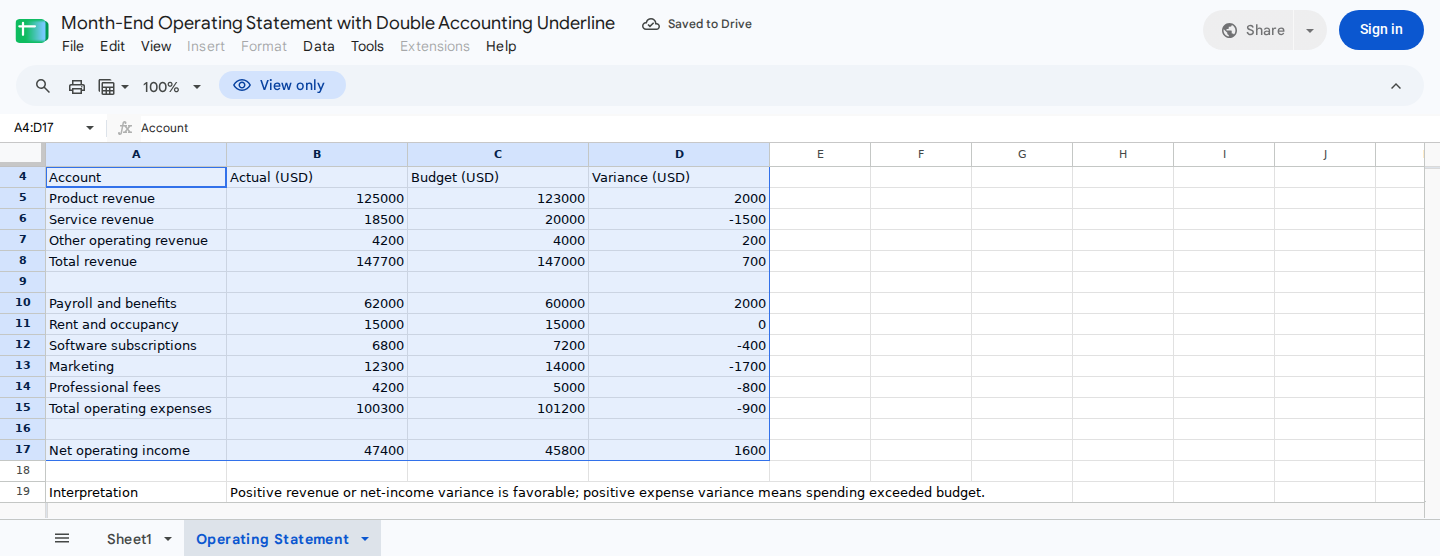
Enter actual and budget amounts in the input rows; the calculated totals flow to the Net operating income row.
Verify the result
The example workbook calculates its final results as follows:
| Cell | Formula | Calculation | Result |
|---|---|---|---|
| B8 | =SUM(B5:B7) | 125000 + 18500 + 4200 | 147700 |
| B15 | =SUM(B10:B14) | 62000 + 15000 + 6800 + 12300 + 4200 | 100300 |
| B17 | =B8-B15 | 147700 - 100300 | 47400 |
| C8 | =SUM(C5:C7) | 123000 + 20000 + 4000 | 147000 |
| C15 | =SUM(C10:C14) | 60000 + 15000 + 7200 + 14000 + 5000 | 101200 |
| C17 | =C8-C15 | 147000 - 101200 | 45800 |
| D17 | =B17-C17 | 47400 - 45800 | 1600 |
With USD formatting and zero decimal places, B17:D17 displays $47,400, $45,800, and $1,600.
Confirm that:
- Two underline strokes appear beneath all three cells in B17:D17.
- The strokes extend across each cell instead of appearing only beneath the numbers.
- The displayed results remain $47,400, $45,800, and $1,600.
- When you reopen Format Cells > Font, the Underline field shows Double Accounting.
The underline changes only the cells’ appearance. It doesn’t affect their formulas or underlying values.
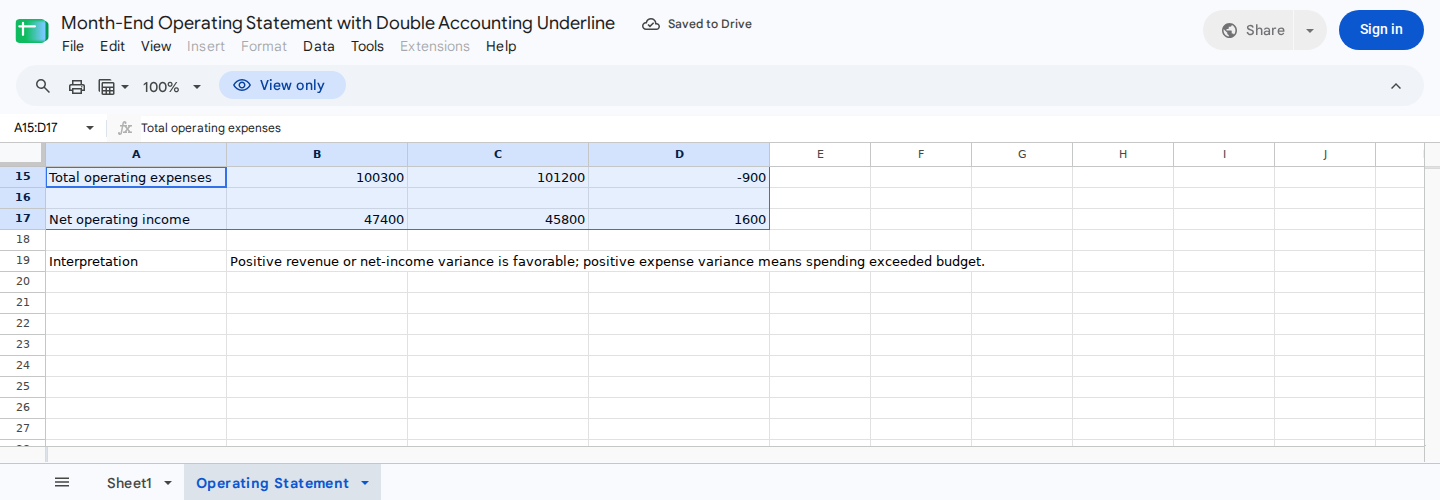
Select B17:D17 and apply Font > Underline > Double Accounting to mark the final financial-statement result.
Double Accounting versus ordinary Double underline
| Option | Appearance | Typical use |
|---|---|---|
| Double | Places 2 lines beneath the text or number | General emphasis |
| Double Accounting | Extends 2 lines more fully across the cell | Final financial-statement totals |
If the lines appear only beneath the numbers, you may have selected Double. Reopen Format Cells, choose Double Accounting, and select OK.
Fix a missing or incorrect underline
- One result has no underline: Select the complete range B17:D17, then apply Double Accounting again.
- The lines are too short: Replace the ordinary Double underline with Double Accounting.
- The shortcut doesn’t open Format Cells: Right-click the selected range and choose Format Cells.
- The values changed: Undo the value edit. Underline formatting shouldn’t alter formulas or values.
- The option is unavailable: Confirm that the file is open in the Excel desktop application, not another spreadsheet application.
For another operating-statement example, see the income and expense report template.
Request the formatting with ModelMonkey
ModelMonkey can inspect spreadsheet context and help with cell-formatting requests. After selecting B17:D17, enter:
Apply a Double Accounting underline to the selected final-result cells without changing their formulas or values.
If the workflow presents a preview, check that the proposed range is B17:D17 before proceeding. Once the change is applied, verify the underline style and confirm that the three results haven’t changed.