
The cleanup formulas below are written for Google Sheets. The ledger structure and SUMIFS calculation also work in Excel, but formulas that use REGEXMATCH, REGEXREPLACE, or QUERY shouldn’t be pasted into Excel unchanged.
This tracker can help you organize business records. It doesn’t determine whether an expense is tax-deductible or replace tax, legal, or financial advice.
Set up the expense ledger
Create a sheet named Expenses with these headers in A1:G1:
| Column | Header | What to record |
|---|---|---|
| A | Date | Confirmed transaction date stored as a spreadsheet date |
| B | Vendor | Merchant, supplier, or payee |
| C | Category | One approved reporting category |
| D | Amount | Numeric expense or refund |
| E | Payment Method | Card, bank account, cash, or another method |
| F | Client or Project | Related project, client, or General |
| G | Receipt or Notes | Receipt reference, source ID, and business purpose |
This example records expenses as positive numbers and refunds as negative numbers. Choose one sign convention and apply it consistently.
A spreadsheet total confirms only what the recorded values add up to. It doesn’t confirm that cash moved, a card transaction settled, or every expense was imported. Reconcile the completed ledger with the relevant bank, card, and payment-service statements.
The walkthrough also assumes every amount uses one currency. If an export contains several currencies, don’t combine them in column D until you’ve added fields for the original amount, currency, documented exchange rate, and converted amount.
Create consistent categories and entry controls
Create a sheet named Lists and enter these values:
Lists!A1:A8 | Lists!B1:B6 |
|---|---|
| Categories | Payment methods |
| Office | Business card |
| Software | Business bank |
| Travel | Personal card |
| Equipment | Cash |
| Professional Services | Other |
| Marketing | |
| Other |
You might also need categories such as Meals or Subcontractors. These labels are organizational choices, not tax conclusions. If you extend the list, update the validation and formula ranges that refer to A2:A8.
Avoid variations such as Office, office , and Office supplies when they represent the same category. Instead, map them to one approved value.
Next, set the accepted reporting period:
| Cell | Value |
|---|---|
Lists!D1 | Earliest accepted date |
Lists!E1 | Latest accepted date |
Lists!D2 | =DATE(2026,1,1) |
Lists!E2 | =DATE(2026,12,31) |
Change these dates when you begin a different reporting period.
Add Google Sheets validation
Apply these validation rules to Expenses and choose Reject the input:
| Range | Validation rule |
|---|---|
C2:C1001 | Dropdown from Lists!A2:A8 |
E2:E1001 | Dropdown from Lists!B2:B6 |
A2:A1001 | Custom formula below |
D2:D1001 | Custom formula =ISNUMBER(D2) |
Use this custom date formula:
=IFERROR(
  AND(
    ISNUMBER(A2),
    A2=INT(A2),
    A2>=INDIRECT("Lists!D2"),
    A2<=INDIRECT("Lists!E2")
  ),
  FALSE
)
Google documents dropdowns, custom formulas, and invalid-data settings in its data-validation guide.
Validation can prevent some manual-entry mistakes, but it doesn’t establish that pasted transactions are complete, correctly categorized, supported by receipts, or free of duplicates.
Use an Excel Table for the final ledger
In Excel, convert the ledger range to a table and name it ExpenseTable. Structured references expand as you add rows and avoid calculations through unused portions of entire columns. Microsoft explains their syntax in its structured-reference documentation.
The Google Sheets cleanup formulas below aren’t presented as Excel-compatible equivalents.
Keep every original import unchanged
Use two working sheets for each monthly review:
Import Rawholds the untouched source export.Import Reviewholds the copy you clean and assess.
Once the review is complete, rename both sheets with the import period, such as Import Raw 2026-04 and Import Review 2026-04. Then create fresh Import Raw and Import Review sheets for the next month. This process prevents a new import from overwriting the previous month and avoids duplicate sheet-name conflicts.
Keep the original downloaded CSV too. If a provider changes its export format, the dated file and raw sheet show what the source contained before cleanup.
Run a repeatable raw-to-reviewed cleanup
The following five-row import is a separate hypothetical walkthrough. It isn’t part of the downloadable practice workbook later in this article, and no spreadsheet execution is claimed for it.
Use these headers in Import Raw!A1:I1:
| Column | Header |
|---|---|
| A | source_date |
| B | vendor_raw |
| C | category_raw |
| D | amount_raw |
| E | payment_method_raw |
| F | client_or_project |
| G | receipt_reference |
| H | source_id |
| I | business_purpose |
Before entering the example, select Import Raw!A2:A6 and D2:D6, then choose Format → Number → Plain text. This step prevents Google Sheets from automatically converting the ambiguous date or formatted amount strings.
The stated cleanup results depend on these source values remaining text. With a real CSV, confirm that the import settings preserve the original date and amount strings when that distinction matters.
Enter these rows in A2:I6:
| source_date | vendor_raw | category_raw | amount_raw | payment_method_raw | client_or_project | receipt_reference | source_id | business_purpose |
|---|---|---|---|---|---|---|---|---|
2026-04-01 | Paper Co | Office supplies | $24.50 | Business card | General | receipt-001 | txn-001 | Printer paper for client deliverables |
04/15/2026 | Desk Supply | office | 50.00 | Business card | General | receipt-002 | txn-002 | Desk supplies for client work |
2026-04-30 | Software Co | SaaS | USD 20.00 | Business card | General | txn-003 | Monthly design software | |
2026-04-01 | Paper Co | Office supplies | $24.50 | Business card | General | receipt-001 | txn-001 | Printer paper for client deliverables |
2026-05-01 | Paper Co | Office | ($10.00) | Business card | General | refund-001 | txn-004 | Refund for returned office supplies |
This import contains an ambiguous date, unwanted spaces, category aliases, formatted amount strings, a missing receipt reference, a possible duplicate, and a refund.
Duplicate Import Raw, rename the copy Import Review, and add these headers in J1:R1:
| Column | Header |
|---|---|
| J | clean_date |
| K | clean_vendor |
| L | clean_category |
| M | clean_amount |
| N | clean_payment_method |
| O | normalized_source_id |
| P | completeness_status |
| Q | duplicate_status |
| R | decision |
Fill formulas only through the imported rows. For a larger import, replace row 1001 in the examples with a reasonable boundary beyond the last expected row. Formula performance varies by workbook, so measure recalculation with your own data before using very large ranges.
Normalize dates without guessing the locale
Enter this in Import Review!J2:
=IFERROR(
  LET(
    earliest,Lists!$D$2,
    latest,Lists!$E$2,
    parsed,
      IF(
        ISNUMBER(A2),
        IF(A2=INT(A2),A2,NA()),
        IF(
          AND(
            REGEXMATCH(A2,"^[0-9]{4}-[0-9]{2}-[0-9]{2}$"),
            TEXT(
              DATE(
                VALUE(LEFT(A2,4)),
                VALUE(MID(A2,6,2)),
                VALUE(RIGHT(A2,2))
              ),
              "yyyy-mm-dd"
            )=A2
          ),
          DATE(
            VALUE(LEFT(A2,4)),
            VALUE(MID(A2,6,2)),
            VALUE(RIGHT(A2,2))
          ),
          NA()
        )
      ),
    IF(
      AND(
        ISNUMBER(earliest),
        ISNUMBER(latest),
        earliest=INT(earliest),
        latest=INT(latest),
        earliest<=latest,
        parsed>=earliest,
        parsed<=latest
      ),
      parsed,
      "CHECK DATE"
    )
  ),
  "CHECK DATE"
)
Fill the formula through J6.
It accepts whole-number spreadsheet dates and valid YYYY-MM-DD text within the selected period. Unsupported formats, timestamps, impossible dates, and out-of-period dates return CHECK DATE.
Because Import Raw!A3 was preserved as text, 04/15/2026 returns CHECK DATE; its month and day order isn’t explicit. Check the source statement. If it confirms April 15, replace only Import Review!J3 with:
=DATE(2026,4,15)
Leave Import Raw!A3 unchanged.
Clean vendor names
Enter this in K2 and fill it down:
=TRIM(CLEAN(SUBSTITUTE(B2,CHAR(160)," ")))
Desk Supply becomes Desk Supply. The formula also replaces common non-breaking spaces and removes ASCII control characters while preserving the raw value in column B.
It may not remove every Unicode spacing character. Inspect names that still look blank or unexpectedly different.
Map dirty categories
Create this alias table in Lists!G1:H10:
| Raw category key | Approved category |
|---|---|
office | Office |
office supplies | Office |
software | Software |
saas | Software |
travel | Travel |
equipment | Equipment |
professional services | Professional Services |
marketing | Marketing |
other | Other |
Enter this in Import Review!L2:
=IFERROR(
  VLOOKUP(
    LOWER(TRIM(CLEAN(SUBSTITUTE(C2,CHAR(160)," ")))),
    Lists!$G$2:$H$10,
    2,
    FALSE
  ),
  "CHECK CATEGORY"
)
Fill it down. Office supplies and office become Office, while SaaS becomes Software. An unrecognized label returns CHECK CATEGORY instead of being assigned to Other without review.
Validate amount strings
The following formula assumes a locale that uses a period as the decimal separator and commas for optional thousands grouping.
Enter it in M2:
=IFERROR(
  IF(
    REGEXMATCH(
      TRIM(D2),
      "^(USD )?(\$?-?([0-9]+|[0-9]{1,3}(,[0-9]{3})+)(\.[0-9]{2})?|\(\$?([0-9]+|[0-9]{1,3}(,[0-9]{3})+)(\.[0-9]{2})?\))$"
    ),
    IF(
      OR(
        REGEXMATCH(TRIM(D2),"\("),
        REGEXMATCH(TRIM(D2),"^(USD )?\$?-")
      ),
      -1,
      1
    )*
    VALUE(REGEXREPLACE(TRIM(D2),"[^0-9.]","")),
    "CHECK AMOUNT"
  ),
  "CHECK AMOUNT"
)
It recognizes formats such as:
$24.50USD 20.00-10.00($10.00)1,234.50
Both -10.00 and ($10.00) become numeric -10.00. A blank, malformed thousands grouping, or unsupported currency format returns CHECK AMOUNT.
Google documents the pattern-matching behavior in its REGEXMATCH reference. This formula validates a limited format; it doesn’t convert currencies.
Standardize payment methods and transaction IDs
Enter this in N2:
=IFERROR(
  INDEX(
    Lists!$B$2:$B$6,
    MATCH(
      TRIM(CLEAN(SUBSTITUTE(E2,CHAR(160)," "))),
      Lists!$B$2:$B$6,
      0
    )
  ),
  "CHECK PAYMENT"
)
Enter this in O2:
=LOWER(TRIM(CLEAN(SUBSTITUTE(H2,CHAR(160)," "))))
Fill both formulas down. A source ID containing only ordinary spaces, ASCII control characters, or non-breaking spaces becomes blank. Other Unicode characters may remain, so visually blank or suspicious IDs still need review.
Mark incomplete records without exposing formula errors
Enter this in P2:
=IFERROR(
  IF(
    AND(
      ISNUMBER(J2),
      J2=INT(J2),
      J2>=Lists!$D$2,
      J2<=Lists!$E$2,
      K2<>"",
      COUNTIF(Lists!$A$2:$A$8,L2)=1,
      ISNUMBER(M2),
      COUNTIF(Lists!$B$2:$B$6,N2)=1,
      TRIM(CLEAN(SUBSTITUTE(F2,CHAR(160)," ")))<>"",
      TRIM(CLEAN(SUBSTITUTE(G2,CHAR(160)," ")))<>"",
      O2<>"",
      TRIM(CLEAN(SUBSTITUTE(I2,CHAR(160)," ")))<>""
    ),
    "READY",
    "INCOMPLETE"
  ),
  "INCOMPLETE"
)
The outer IFERROR ensures that an upstream value such as CHECK DATE produces INCOMPLETE instead of a visible calculation error.
Before correction:
- The Desk Supply row is incomplete because its date isn’t confirmed.
- The Software Co row is incomplete because its receipt reference is blank.
These checks catch empty cells and the common blank-like characters handled by the formulas. They don’t establish that a nonblank value is accurate.
Create a possible-duplicate queue
Enter this in Q2:
=IFERROR(
  IF(
    OR(
      AND(
        O2<>"",
        SUMPRODUCT(
          --EXACT($O$2:$O$1001,O2)
        )>1
      ),
      AND(
        ISNUMBER(J2),
        ISNUMBER(M2),
        K2<>"",
        SUMPRODUCT(
          --($J$2:$J$1001=J2),
          --EXACT($K$2:$K$1001,K2),
          --($M$2:$M$1001=M2)
        )>1
      )
    ),
    "REVIEW DUPLICATE",
    ""
  ),
  ""
)
This formula avoids treating *, ?, or ~ in transaction IDs and vendor names as wildcard criteria. It flags either:
- A repeated normalized source ID.
- An exact cleaned date-vendor-amount combination.
The normalized ID comparison is case-insensitive because column O converts IDs to lowercase. By contrast, the cleaned vendor comparison is case-sensitive because it uses EXACT.
A flag doesn’t prove that a row should be deleted. Compare it with the statement, payment account, receipt, and source ID. Then enter Include, Hold, or Exclude duplicate in column R.
To show only flagged rows on a separate Duplicate Review sheet, use:
=IFNA(
  FILTER(
    'Import Review'!A2:R1001,
    'Import Review'!Q2:Q1001="REVIEW DUPLICATE"
  ),
  "No possible duplicates"
)
If no rows match, the formula returns one text cell containing No possible duplicates. It doesn’t return numeric zero or an empty table.
Move only reviewed records into the ledger
For the hypothetical import:
- Confirm the slash-formatted date against the source.
- Locate the missing Software Co receipt reference.
- Compare the two Paper Co records with the original statement and transaction IDs.
- Mark one repeated row
Exclude duplicateonly if the source confirms duplication. - Mark confirmed records
Includein column R. - Retain negative amounts only after confirming that they are genuine refunds or credits.
Transfer only rows where Import Review!R equals Include. Use this field mapping:
Import Review source | Expenses destination |
|---|---|
J, clean_date | A, Date |
K, clean_vendor | B, Vendor |
L, clean_category | C, Category |
M, clean_amount | D, Amount |
N, clean_payment_method | E, Payment Method |
F, client_or_project | F, Client or Project |
| G, H, and I | G, Receipt or Notes |
Combine the receipt reference, source ID, and business purpose in the final notes cell with labels or a consistent separator:
receipt-001 | txn-001 | Printer paper for client deliverables
Rows marked Hold or Exclude duplicate don’t move into Expenses. Don’t invent missing details just to make a record appear complete.
After reconciling the transfer, rename the two working sheets with the import period before beginning the next monthly cycle.
Verify the supplied practice workbook
The Freelance expense tracking practice workbook contains synthetic records. It doesn’t contain customer information or the hypothetical import above.
Readers can Copy this Google Sheets template or Download the Excel file.
Use the Google Sheets copy for the native QUERY exercise. The XLSX companion provides source data, guidance, and a portable SUM(F160:H160) exercise, but it doesn’t establish native Google Sheets QUERY output.
Start with Transactions!A1:F13.
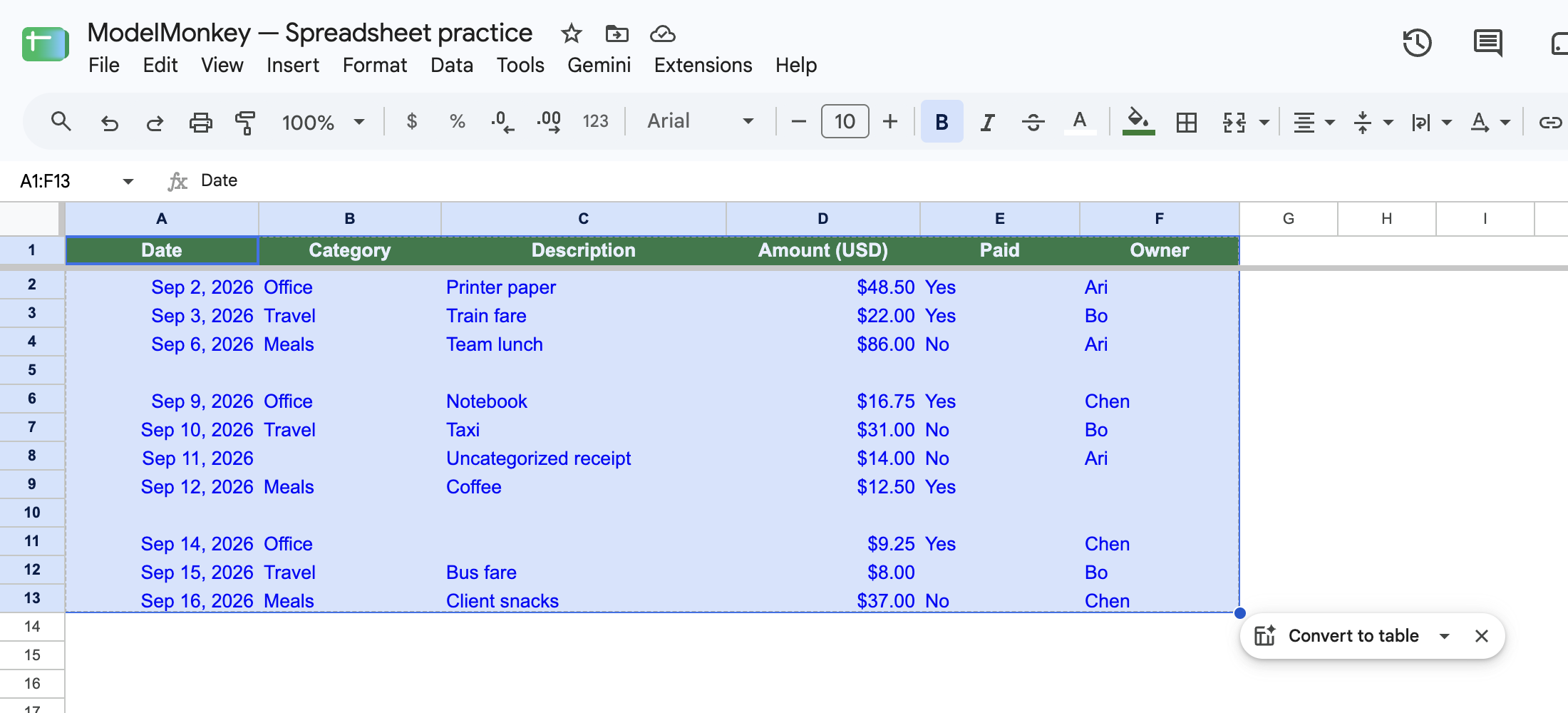
Actual Google Sheets screenshot of the restored synthetic example.
The columns are:
| Column | Header |
|---|---|
| A | Date |
| B | Category |
| C | Description |
| D | Amount (USD) |
| E | Paid |
| F | Owner |
For a solo-business ledger, you can add a separate Notes column for receipt links and business-purpose details. That extra column isn’t part of the verified fixture.
Confirm the Office total
Practice!B15 contains:
=SUMIFS(
  Transactions!$D$2:$D$13,
  Transactions!$B$2:$B$13,
  "Office"
)
Recorded native Google Sheets execution returned:
74.5
The three Office amounts displayed in the supplied Transactions range are:
| Cell | Description | Amount |
|---|---|---|
D2 | Printer paper | 48.50 |
D6 | Notebook | 16.75 |
D11 | Description missing | 9.25 |
The independent tie-out is:
48.50 + 16.75 + 9.25 = 74.50
Before replacing the formula, copy Practice!B15 and paste Values only into an empty cell or duplicate tab. Doing so preserves the recorded result for comparison.
The formula totals every numeric row whose category matches Office case-insensitively, so office would also match. However, it doesn’t filter by date, Paid status, receipt support, or approval. As a result, 74.50 isn’t a monthly total or proof of cash payment.
Google documents criteria and sum-range behavior in its SUMIFS reference. Some spreadsheet locales require semicolons instead of commas between arguments.
Review the incomplete fixture rows
Several records in the supplied range need attention:
- The
14.00Uncategorized receipt has no category. - The
12.50Coffee row has no owner. - The
9.25Office row has no description. - The
8.00Bus fare row has a blank Paid value.
Resolve these fields against receipts and source records. Don’t convert a missing value into zero or guess a category merely to make the row complete.
The Paid column contains Yes, No, or blank values. These are recorded statuses only. They don’t establish approval, deductibility, receipt support, reimbursement, or confirmed movement through a bank account.
Run concise checks on a duplicate tab
These are proposed reproduction checks, not recorded executions. Restore the original fixture before each independent check.
| Change | Expected result |
|---|---|
Change the criterion from Office to a category absent from B2:B13 | SUMIFS returns numeric 0 |
Leave the 14.00 row’s category blank | It remains excluded from the Office total |
Set one matching Office amount to numeric 0 | The row still matches but contributes zero |
| Paste nonnumeric text into an Office amount cell | The total isn’t proof that the input is valid |
Copy Transactions!A2:F2 into blank row Transactions!A5:F5 | The Office total becomes 123.00 |
Misspell a category as Offce | That row is excluded from the Office total |
Insert the duplicate inside A2:F13 because Practice!B15 sums only rows 2 through 13. Copying it below row 13 without extending the formula wouldn’t change the result.
The proposed duplicate check uses this arithmetic:
74.50 + 48.50 = 123.00
The original workbook contains no 99.00 Office row and no -24.50 Office credit. The 123.00 value is only the expected result after duplicating the first Office row in the proposed check.
Inspect the recorded QUERY result
Practice!A18 contains:
=QUERY(
  Transactions!A1:F13,
  "select * where A is not null",
  1
)
Recorded native Google Sheets execution returned the Date header followed by 10 dated rows. It retained partial records when column A contained a date but another field was blank.
The formula checks only whether column A is nonblank. It doesn’t prove that the date is valid or that every required field is present. Google explains type handling and query syntax in its official QUERY documentation.
These execution statements apply only to the recorded workbook cases. A public CSV read, formula string, workbook link, or filename isn’t evidence that a spreadsheet recalculated successfully.
Review freelance expenses every month
Follow the same sequence for each monthly import:
- Save the original export unchanged.
- Paste it into
Import Raw, preserving source strings where needed. - Duplicate the raw sheet as
Import Review. - Extend cleanup formulas only through the imported rows.
- Resolve date, amount, category, and payment-method exceptions.
- Find blank descriptions, project names, receipt references, transaction IDs, and business-purpose notes.
- Compare possible duplicates with statements and receipts.
- Separate personal spending from business records.
- Transfer only records marked
IncludeintoExpenses. - Reconcile the ledger with the relevant statements.
- Document excluded duplicates, refunds, and other material corrections.
- Rename the working sheets with the period, such as
Import Raw 2026-04andImport Review 2026-04.
Keep receipts or links consistently. Check an official authority or qualified professional for the storage and retention rules that apply to you.
If the workbook becomes slow, measure recalculation on a duplicate using your own rows and formulas. Compare bounded ranges with full-column ranges or Excel Table references. There isn’t one reliable row limit for every workbook.
Once the ledger is current, you can use it when you forecast freelance income and expenses. For a separate tax-estimate workflow, see Track Taxes in Google Sheets With Controls.
Use ModelMonkey to review expense exceptions
ModelMonkey is an AI assistant for spreadsheet work in Google Sheets and Microsoft Excel. It can inspect workbook context, read and search ranges, analyze records, help with formulas, and propose changes to spreadsheet values or formatting.
For this workflow, give it a bounded request:
Review Import Review!A1:R1001.

List rows containing CHECK DATE, CHECK AMOUNT, CHECK CATEGORY,
CHECK PAYMENT, INCOMPLETE, or REVIEW DUPLICATE.

Compare clean_category in column L with Lists!A2:A8.
Keep the original source values visible for every exception.

Do not delete, merge, or reclassify rows.
Compare the response with the raw export, statements, receipts, and workbook formulas. Possible duplicates and proposed categories still require your judgment. If the workflow presents a preview of proposed changes, inspect it before proceeding.
Use ModelMonkey to review exceptions in this freelance expense tracker.