
Build a CRM in Google Sheets for Deal Tracking
Build a Google Sheets CRM with deal stages, owners, close dates, weighted pipeline, filters, review controls, and a reusable template.
You can build a CRM in Google Sheets with a structured deals table, controlled inputs, pipeline formulas, filters, and data-quality flags. This guide shows you how to track deal amounts, probabilities, expected close dates, owners, and weighted pipeline.
The tracker requires manual updates. It doesn’t connect to or synchronize with another CRM.
Copy this Google Sheets template, or download the Excel file. The example contains synthetic data in USD.
What You'll Need
- A Google account with access to Google Sheets
- Permission to create or copy a spreadsheet
- Deal records you can update manually
- Estimated amounts, probabilities, and expected close dates
Step-by-Step Guide
Create the deals table
Start by creating a sheet named Deals. Enter these headers in A10:H10:
| Cell | Header | Purpose |
|---|---|---|
| A10 | Deal ID | Unique deal identifier |
| B10 | Client | Prospect or customer |
| C10 | Stage | Current pipeline stage |
| D10 | Amount (USD) | Nonnegative, unweighted deal value |
| E10 | Probability | Estimated closing probability |
| F10 | Expected close | Forecast close date |
| G10 | Weighted amount | Amount multiplied by probability |
| H10 | Owner | Person responsible for the deal |
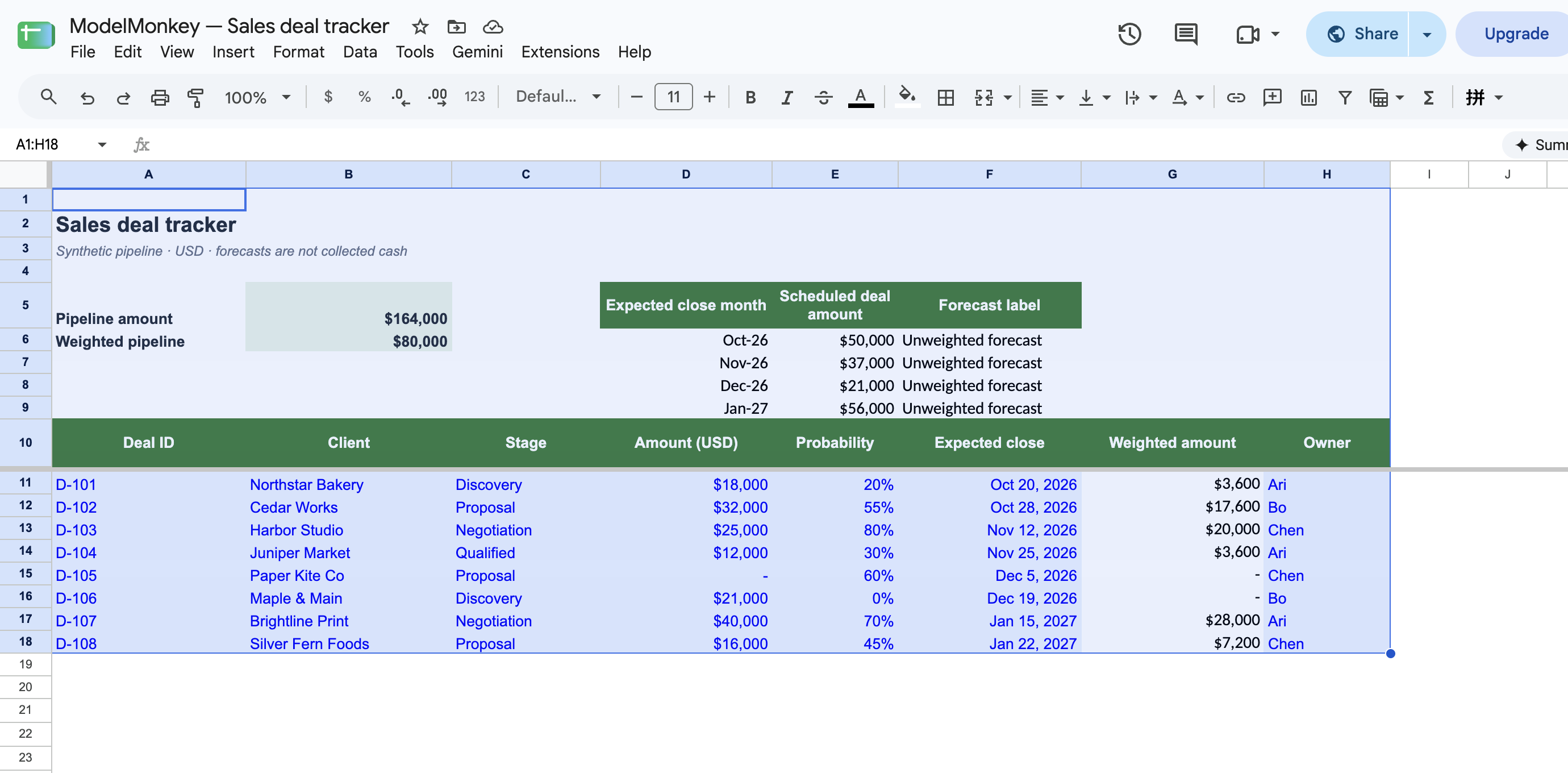
Next, enter the following illustrative records in rows 11 through 18. Leave column G for the formulas added later.
| Deal ID | Client | Stage | Amount (USD) | Probability | Expected close | Owner |
|---|---|---|---|---|---|---|
| D-101 | Northstar Bakery | Discovery | 18,000 | 20% | 10/20/2026 | Ari |
| D-102 | Cedar Works | Proposal | 32,000 | 55% | 10/28/2026 | Bo |
| D-103 | Harbor Studio | Negotiation | 25,000 | 80% | 11/12/2026 | Chen |
| D-104 | Juniper Market | Qualified | 12,000 | 30% | 11/25/2026 | Ari |
| D-105 | Paper Kite Co | Proposal | blank | 60% | 12/05/2026 | Chen |
| D-106 | Maple & Main | Discovery | 21,000 | 0% | 12/19/2026 | Bo |
| D-107 | Brightline Print | Negotiation | 40,000 | 70% | 01/15/2027 | Ari |
| D-108 | Silver Fern Foods | Proposal | 16,000 | 45% | 01/22/2027 | Chen |
The copied template displays a dash for D-105. To reproduce the missing-amount control, select D15 and press Delete so the cell is genuinely blank.
Apply these formats:
D11:DandG11:Gas USDE11:Eas percentagesF11:Fas dates
If Google Sheets interprets the example dates as text, set the spreadsheet locale under File > Settings > Locale, or enter them with formulas such as =DATE(2026,10,20).
Add dropdowns and input controls
To keep stages and owners consistent, create dropdown lists:
- Select
C11:C. - Choose Data > Data validation > Add rule.
- Select Dropdown.
- Add
Discovery,Qualified,Proposal, andNegotiation. - Set invalid data to Reject input.
- Repeat for
H11:HwithAri,Bo, andChen.
For D11:D, add a custom-formula validation rule:
=AND(ISNUMBER(D11),D11>=0)
For E11:E, use:
=AND(ISNUMBER(E11),E11>=0,E11<=1)
For F11:F, use the is valid date criterion. Google explains these controls in its data-validation guidance.
Together, these rules allow nonnegative numeric amounts and probabilities from 0% through 100%. They make manual entry more consistent, but you’ll still need to review pasted or imported values.
Calculate weighted amounts
In G11, enter:
=IFERROR(IF(AND(ISNUMBER(D11),D11>=0,ISNUMBER(E11),E11>=0,E11<=1),D11*E11,"Check amount/probability"),"Check amount/probability")
Fill it through G18. The expected results are:
| Deal ID | Weighted amount |
|---|---|
| D-101 | $3,600 |
| D-102 | $17,600 |
| D-103 | $20,000 |
| D-104 | $3,600 |
| D-105 | Check amount/probability |
| D-106 | $0 |
| D-107 | $28,000 |
| D-108 | $7,200 |
D-105 produces a warning because its amount is missing. D-106 stays in the table but contributes $0 to weighted pipeline because its probability is 0%.
Blank, text, whitespace-only, negative, or error-containing amounts produce the warning. So do blank, nonnumeric, or error-containing probabilities and percentages outside the 0%-100% range.
Some spreadsheet locales require semicolons instead of commas in formulas.
Build the pipeline summary
Enter Pipeline amount in A5. Then enter this formula in B5:
=IFERROR(SUM(FILTER(IFERROR(D11:D,0),ISNUMBER(IFERROR(D11:D,"")),IFERROR(D11:D>=0,FALSE))),0)
Enter Weighted pipeline in A6, followed by this formula in B6:
=IFERROR(SUM(FILTER(IFERROR(G11:G,0),ISNUMBER(IFERROR(G11:G,"")))),0)
The expected results are:
B5: $164,000B6: $80,000
The underlying arithmetic is:
Pipeline:
18,000 + 32,000 + 25,000 + 12,000 + 21,000 + 40,000 + 16,000
= 164,000

Weighted pipeline:
3,600 + 17,600 + 20,000 + 3,600 + 0 + 28,000 + 7,200
= 80,000
The row-level IFERROR checks prevent an error in one source cell from causing the entire summary to return $0. Invalid amounts are excluded, while the affected rows remain visible for correction.
Add the monthly close schedule
Set up the schedule with these labels:
D5: Expected close monthE5: Scheduled deal amountF5: Forecast label
In D6, enter:
=DATE(2026,10,1)
In D7, enter the following formula and fill it through D9:
=EDATE(D6,1)
Format D6:D9 as MMM-YY.
Next, enter this formula in E6 and fill it through E9:
=IFERROR(SUM(FILTER(IFERROR($D$11:$D,0),ISNUMBER(IFERROR($D$11:$D,"")),IFERROR($D$11:$D>=0,FALSE),ISNUMBER(IFERROR($F$11:$F,"")),IFERROR($F$11:$F>=EOMONTH(D6,-1)+1,FALSE),IFERROR($F$11:$F<EOMONTH(D6,0)+1,FALSE))),0)
Enter Unweighted forecast in F6:F9.
| Month | Expected scheduled amount |
|---|---|
| Oct-26 | $50,000 |
| Nov-26 | $37,000 |
| Dec-26 | $21,000 |
| Jan-27 | $56,000 |
This formula includes dates from the first through the last day of each month and excludes the first day of the following month. It also excludes individual rows with blank, nonnumeric, or error-containing amount or date cells.
The scheduled amounts are unweighted deal forecasts, while B6 is the probability-weighted pipeline. Neither measure represents invoiced revenue, collected cash, or guaranteed bookings.
Add filters and review flags
Select A10:H, then choose Data > Create a filter. The filter controls let you inspect deals by:
- Stage
- Owner
- Expected close period
- Upcoming close date
Google’s sorting and filtering documentation also explains filter views. With filter views, different users can save their own views without changing the underlying table.
Now add conditional-formatting rules through Format > Conditional formatting. Apply each rule only to its relevant field so that overlapping row conditions don’t compete for the same fill color.
| Apply to range | Review condition | Custom formula |
|---|---|---|
D11:D | Missing, nonnumeric, negative, or error-containing amount | =AND($A11<>"",IFERROR(OR(NOT(ISNUMBER($D11)),$D11<0),TRUE)) |
E11:E | Invalid or error-containing probability | =AND($A11<>"",IFERROR(OR(NOT(ISNUMBER($E11)),$E11<0,$E11>1),TRUE)) |
E11:E | Valid zero probability | =AND($A11<>"",IFERROR(AND(ISNUMBER($E11),$E11=0),FALSE)) |
F11:F | Missing, nonnumeric, or error-containing expected close | =AND($A11<>"",IFERROR(NOT(ISNUMBER($F11)),TRUE)) |
F11:F | Expected close has passed | =AND($A11<>"",IFERROR(AND(ISNUMBER($F11),$F11<TODAY()),FALSE)) |
Use red for invalid inputs, amber for overdue dates, and a separate neutral style for valid zero probabilities. Conditions that apply to the same cell are mutually exclusive. See Google’s conditional-formatting instructions for the setup process.
An overdue close date means the row needs review. It doesn’t prove that the opportunity has stalled. Measuring inactivity would require a separate last-activity field, which this CRM doesn’t include.
Verify the CRM controls
Run these checks in a copy. Reset the stated baseline before each independent test:
- With
D11 = 18000andE11 = 20%,G11should equal$3,600. - Change
E11to 0%. A recorded Google Sheets execution producedG11 = $0andB6 = $76,400without deleting or moving D-101. RestoringE11to 20% returnedB6to$80,000. - Clear
D15while keepingE15 = 60%.G15should displayCheck amount/probability. - In an unvalidated test copy, try
-10%,110%, text, a blank, whitespace, and an error value inE11. ResetE11to 20% between cases. Each invalid value should produce the warning. - Restore
E11to 20%, then try text, a negative value, and an error value inD11. Each should produce the warning and should not count as valid pipeline. - Restore
D11 = 18000. SetF11to=DATE(2026,10,31).E6should remain$50,000. ChangeF11to=DATE(2026,11,1);E6should become$32,000andE7should become$55,000. RestoreF11to=DATE(2026,10,20);E6should return to$50,000andE7to$37,000. - Replace
D9temporarily with=DATE(2027,2,1). With no February deals,E9should return$0. RestoreD9to=EDATE(D8,1)to return to January.
After restoring the fixture, confirm:
B5 = $164,000B6 = $80,000E6:E9 = $50,000, $37,000, $21,000, $56,000
Except for the recorded zero-probability control, these are expected results derived from the stated formulas and synthetic inputs.
Use ModelMonkey to review the deal tracker
In Google Sheets, ModelMonkey can receive the active spreadsheet, sheet, and range context. It can help you read and organize deal data, work with formulas and formatting, analyze the pipeline, and create or adjust charts.
Select the populated range, open the ModelMonkey sidebar, and enter a bounded request such as:
Inspect Deals!A10:H18. Check Amount, Probability, Expected close, and
Weighted amount for missing or invalid inputs. Summarize issues by deal ID
without describing pipeline forecasts as collected cash.
You can also ask for help creating a chart of weighted amount by owner or stage. Before using the result, review the source rows, formulas, and proposed changes. If the workflow presents a preview, inspect it before proceeding. Spreadsheet assistance doesn’t guarantee that every formula or analysis is correct.
Maintain the CRM
For each new deal:
- Enter its fields in the next unused row.
- Copy the weighted-amount formula down column G.
- Confirm that validation and conditional formatting cover the new row.
- Check that total pipeline, weighted pipeline, and the applicable monthly amount update as expected.
Review open deals regularly and update each deal’s stage, amount, probability, expected close date, and owner. Check warnings and overdue dates. Then reconcile the summary with the source rows before using it for an internal decision.
If inconsistent values accumulate, follow a structured Google Sheets data-cleaning process.
Wrapping Up
The completed Google Sheets CRM tracks eight deal fields and includes controlled inputs, filters, weighted-pipeline calculations, monthly close forecasts, and review flags. With the restored synthetic fixture, total pipeline should be $164,000 and weighted pipeline should be $80,000.
Keep these forecasts separate from recognized revenue and collected cash. This tracker requires manual maintenance and doesn’t establish synchronization with a dedicated CRM.
Frequently Asked Questions
Can Google Sheets replace a dedicated CRM?
It can support a small manual workflow focused on structured deal records, ownership, filters, and pipeline calculations. This workbook doesn’t provide tested CRM synchronization, automatic activity capture, duplicate management, or workflow automation.
Why is weighted pipeline lower than total pipeline?
Total pipeline includes each valid nonnegative deal amount without adjusting for probability. Weighted pipeline multiplies each valid amount by its probability. An $18,000 deal at 20%, for example, contributes $3,600 to weighted pipeline.
Should a zero-probability deal be deleted?
Not automatically. A 0% probability produces a $0 weighted amount, but the deal remains in total pipeline and its scheduled close month. Keep or remove it according to your deal-management policy.
Why does a row show “Check amount/probability”?
The weighted formula displays that warning when the amount is blank, nonnumeric, negative, or contains an error. It also warns when the probability is blank, nonnumeric, contains an error, falls below 0%, or exceeds 100%. Correct the source input instead of replacing the warning with a hard-coded value.
Will new rows update automatically?
The open-ended summaries, monthly formulas, validation ranges, formatting rules, and filter can include new rows. You must still copy the weighted-amount formula down column G and confirm that the summaries update correctly.
Are scheduled deal amounts a cash forecast?
No. They group unweighted opportunities by expected close month. They don’t establish when a deal will close, when an invoice will be issued, or when payment will be collected.