
Extract Certain Text from a Cell in Excel
Extract text before, after, or between characters in Excel, or find known labels and flag missing matches for review.
To extract certain text from a cell in Excel, choose a formula based on where the text appears:
| Text to extract | Method |
|---|---|
| Before a character | TEXTBEFORE |
| After a character | TEXTAFTER |
| Between 2 characters | TEXTAFTER inside TEXTBEFORE |
| A known label in varying positions | SEARCH |
For example, enter this text in Text Extractor!A2:
Ticket 104 | Sales | High
Before the first pipe:
=LET(result,IFERROR(TRIM(TEXTBEFORE(A2,"|")),""),IF(result="","No match",result))
Expected result: Ticket 104
After the first pipe:
=LET(result,IFERROR(TRIM(TEXTAFTER(A2,"|")),""),IF(result="","No match",result))
Expected result: Sales | High
Between the first 2 pipes:
=LET(result,IFERROR(TRIM(TEXTBEFORE(TEXTAFTER(A2,"|"),"|")),""),IF(result="","No match",result))
Expected result: Sales
These formulas work when source cells use consistent delimiters. If known labels can appear in different positions, use the approach in Step 3 instead.
What You'll Need
- Microsoft Excel with support for
TEXTBEFORE,TEXTAFTER, andLETfor the opening formulas - A worksheet named
Text Extractor - Commas as formula argument separators; some Excel locales require semicolons
- A blank workbook, Copy this Google Sheets template, or Download the Excel file
Step-by-Step Guide
Verify the before, after, and between formulas
Keep the sample text in Text Extractor!A2, then place the three opening formulas in these cells:
E2: formula for text before the first pipeF2: formula for text after the first pipeG2: formula for text between the first 2 pipes
Verify these results in Excel:
| Cell | Extraction | Expected result |
|---|---|---|
| E2 | Before the first pipe | Ticket 104 |
| F2 | After the first pipe | Sales | High |
| G2 | Between the first 2 pipes | Sales |
Now check an empty middle field by replacing A2 with:
Ticket 104 | | High
G2 should return No match because trimming removes the spaces between the delimiters.
Then replace A2 with:
General note
All three formulas should return No match because the required pipe delimiter is absent.
If your data uses another delimiter, such as "/" or "-", replace "|" in the formulas. Restore the original A2 value before continuing.
Extract by position in older Excel versions
If your Excel version doesn’t support TEXTBEFORE or TEXTAFTER, you can use LEFT, RIGHT, MID, and FIND.
With Ticket 104 | Sales | High restored in A2, extract everything before the first pipe:
=IFERROR(TRIM(LEFT(A2,FIND("|",A2)-1)),"No match")
Expected result: Ticket 104
To extract everything after the first pipe, use:
=IFERROR(TRIM(RIGHT(A2,LEN(A2)-FIND("|",A2))),"No match")
Expected result: Sales | High
For the text between the first 2 pipes, use:
=IFERROR(TRIM(MID(A2,FIND("|",A2)+1,FIND("|",A2,FIND("|",A2)+1)-FIND("|",A2)-1)),"No match")
Expected result: Sales
Verify each result in your version of Excel. These formulas return No match when a required pipe is absent. Unlike the opening formulas, however, a segment containing only spaces may return a blank after TRIM.
Extract known labels and flag missing matches
When departments or priorities can appear in different positions or use inconsistent separators, switch to a known-label formula.
Set up Text Extractor!A1:D7:
| Cell | Value |
|---|---|
| A1 | Source text |
| B1 | Extracted department |
| C1 | Extracted priority |
| D1 | Status |
| A2 | Ticket 104 | Sales | High |
| A3 | Support request - Low |
| A4 | Finance review / Medium |
| A5 | Sales follow-up / Medium |
| A6 | Warehouse note / High |
| A7 | General note |
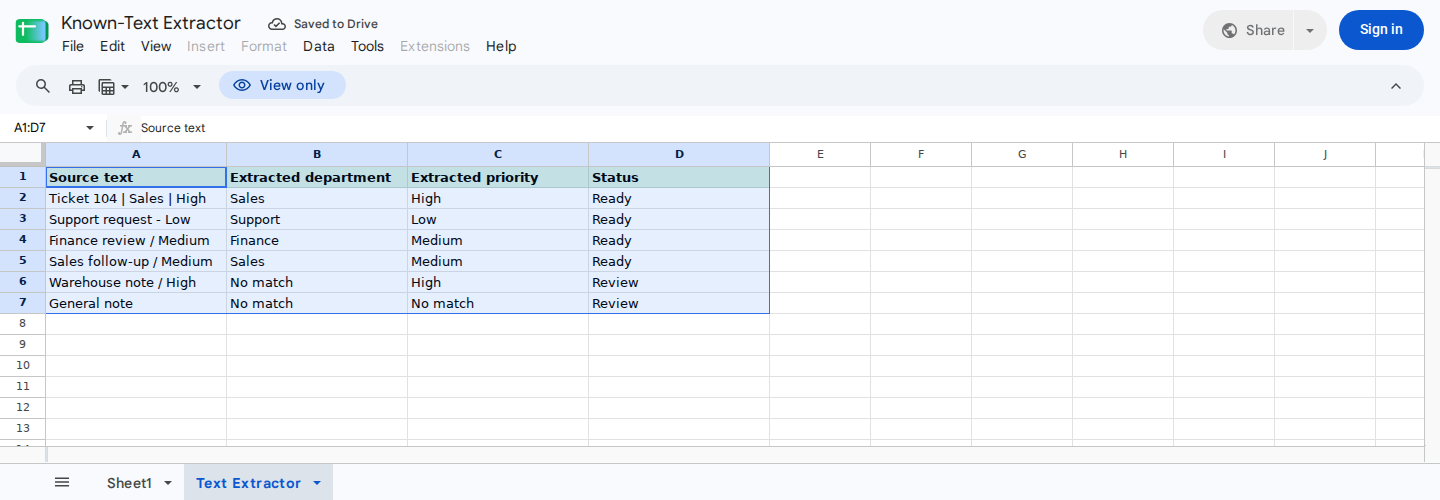
Enter descriptive text in column A; columns B and C extract recognized labels, while column D flags incomplete matches.
In Text Extractor!B2, enter this department formula:
=IF(NOT(ISTEXT(A2)),"No match",IF(IFERROR(ISNUMBER(SEARCH("Sales",A2)),FALSE),"Sales",IF(IFERROR(ISNUMBER(SEARCH("Support",A2)),FALSE),"Support",IF(IFERROR(ISNUMBER(SEARCH("Finance",A2)),FALSE),"Finance","No match"))))
The formula checks Sales, Support, and Finance in that order. If several labels appear, this precedence determines the result regardless of their order in the source text.
Next, enter this priority formula in Text Extractor!C2:
=IF(NOT(ISTEXT(A2)),"No match",IF(IFERROR(ISNUMBER(SEARCH("High",A2)),FALSE),"High",IF(IFERROR(ISNUMBER(SEARCH("Medium",A2)),FALSE),"Medium",IF(IFERROR(ISNUMBER(SEARCH("Low",A2)),FALSE),"Low","No match"))))
Here, Excel checks High, Medium, and Low in that order.
Finally, enter the review-status formula in Text Extractor!D2:
=IF(OR(B2="No match",C2="No match"),"Review","Ready")
Select B2:D2 and fill the formulas down through row 7. Your results should be:
| Row | Department | Priority | Status |
|---|---|---|---|
| 2 | Sales | High | Ready |
| 3 | Support | Low | Ready |
| 4 | Finance | Medium | Ready |
| 5 | Sales | Medium | Ready |
| 6 | No match | High | Review |
| 7 | No match | No match | Review |
Review means that at least one recognized label is missing. Ready means only that both formulas found matching character sequences. It doesn’t indicate approval or independent validation.
Test the following cases individually. Temporarily replace A2, confirm the results in B2:D2, and restore the original value after each test:
Finance escalation - Lowshould returnFinance,Low, andReady.- Numeric
0should returnNo match,No match, andReview. - A blank cell should return
No match,No match, andReview. sales request - lowshould returnSales,Low, andReady.Support handoff to Sales - Mediumshould returnSales,Medium, andReadybecause Sales has precedence.
Understand the SEARCH substring limitation
Excel’s SEARCH function is case-insensitive, and it finds character sequences rather than complete words or fields:
highlightcontainsHigh.follow-upcontainslow.
As a result, SEARCH can create unintended matches. For example, Sales follow-up / Medium returns Medium because the formula checks Medium before Low. If a description contained follow-up without High or Medium, the formula could incorrectly return Low.
Use delimiter extraction when a label must occupy a complete field. If capitalization must match, FIND is case-sensitive, although it still matches partial words.
To expand the table, copy B7:D7 downward and enter new descriptions in column A. Review any flagged rows, descriptions containing multiple recognized labels, and possible partial-word matches.
For related cleanup techniques, see Google Sheets Data Cleaning for Finance.
ModelMonkey can inspect spreadsheet context and help adjust formulas in Google Sheets or Excel. For this example, you could ask:
Inspect Text Extractor!A2:D7 and help me add Operations after Finance in the department precedence. Preserve the No match and Review behavior.
Before filling a proposed formula down, check it against the source descriptions, especially where substring matches could affect the result.
Wrapping Up
Use TEXTBEFORE and TEXTAFTER when the required text appears before, after, or between consistent delimiters. In Excel versions without those newer functions, use LEFT, MID, and RIGHT.
When known labels can appear anywhere in a cell, SEARCH can return a department or priority, while IFERROR provides a No match fallback. Before relying on the extracted values, check for possible substring matches.
Frequently Asked Questions
Why does Excel show #NAME? for TEXTBEFORE, TEXTAFTER, or LET?
Your Excel version may not support the function, or it may expect localized function names. Use the LEFT, MID, and RIGHT alternatives in Step 2. Also check whether your regional settings require semicolons instead of commas.
Is SEARCH case-sensitive?
No. SEARCH("Sales",A2) can match Sales, SALES, or sales. Use FIND when capitalization must match, remembering that FIND still matches partial words.
Why can SEARCH return the wrong label?
SEARCH matches character sequences rather than complete words. It can find High inside highlight or Low inside follow-up. Use consistently delimited fields when labels must be exact.
What happens when several known labels appear in one cell?
The formula returns the first match according to its declared precedence. Departments are checked as Sales, Support, then Finance. Priorities are checked as High, Medium, then Low.
How do I return a blank instead of No match?
Replace "No match" with "" in the relevant formula. Keeping No match makes missing labels visible and easier to filter for review.