
Use a Free Excel Pay Stub Calculator Template
Download a free Excel pay stub calculator, enter earnings and deductions, verify net pay and YTD totals, and prepare the stub for review.
This free pay stub template calculates earnings, deductions, taxes, net pay, and year-to-date totals in Excel or Google Sheets. Finance and payroll staff can replace the synthetic data, review the results, and prepare a pay stub for approval. Because the workbook relies on tax assumptions entered by the user, it doesn't replace a jurisdiction-specific payroll review.
What You'll Need
- Download the Excel pay stub calculator or copy the Google Sheets template.
- Gather the employee’s pay-period earnings, year-to-date balances, deductions, tax settings, and payment details.
- Confirm the payroll and pay-stub requirements that apply in the employee’s jurisdiction.
Step-by-Step Guide
Create a working copy
Open the downloaded .xlsx file in Excel, or make a Google Sheets copy. Keep an untouched master, then use a separate copy for each pay period.
The instructions below use the Pay Stub Calculator sheet. Its supplied example contains synthetic data, with Northwind Repair Services LLC identified as the employer and Jordan Lee as the employee.
The recorded calculation checks were completed in Google Sheets. Although the Excel file can be opened in Excel, its calculation results weren't independently tested or verified there.
Replace the employer, employee, and period details
Start by replacing the synthetic information in these cells:
- Employer information:
B3,E3, andB4 - Employee information:
B6,E6,H6,B7,E7, andH7 - Period start, period end, and pay date:
B9,E9, andH9 - Pay status and currency:
B10andE10 - Payment and review details:
B32,E32,H32,B33:B35,E35, andH35
While preparing the stub, keep B10 set to Draft.
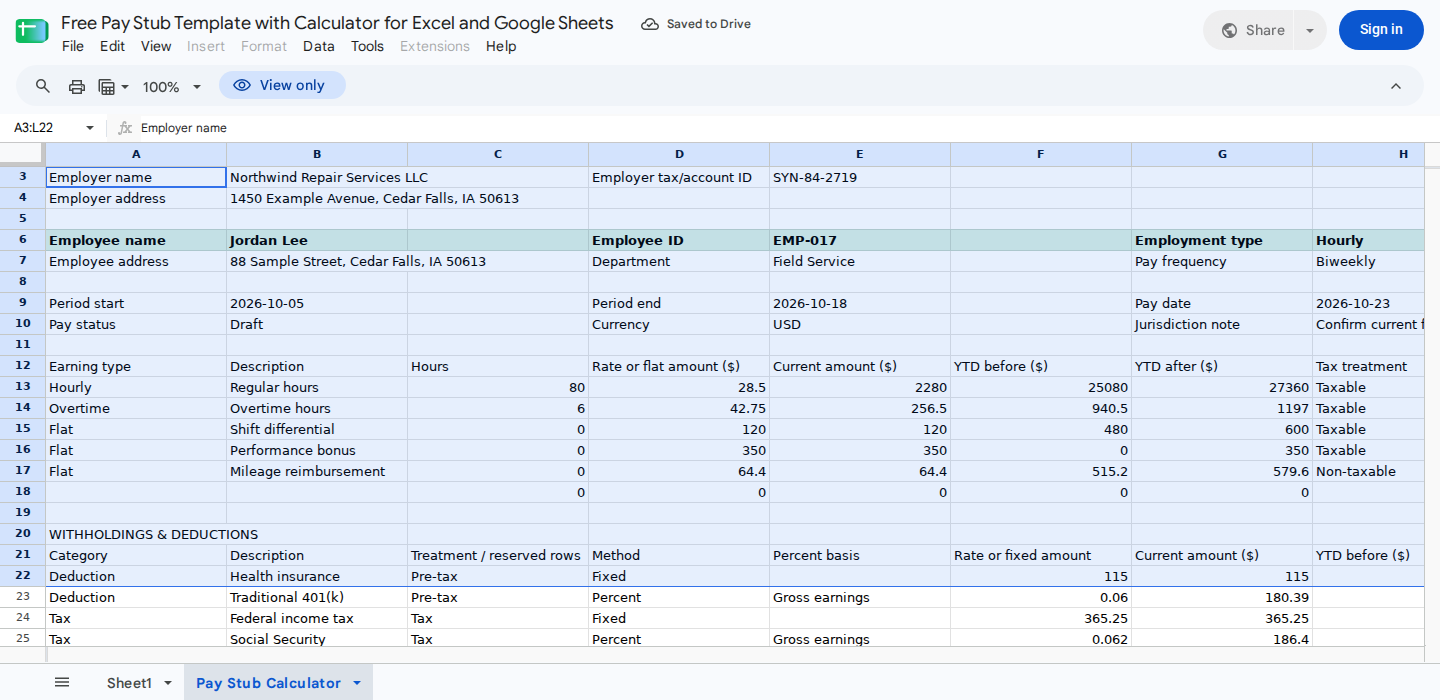
Enter identity, period, and earning inputs on the left; review gross earnings, taxable wages, deductions, net pay, and the exception status on the right.
Enter current and year-to-date earnings
Enter earnings only in A13:D18, F13:F18, and H13:H18. The template provides 6 earning lines.
For each line:
- Use
HourlyorOvertimein columnAto calculate the hours in columnCmultiplied by the rate in columnD. - Use
Flatwhen columnDcontains the complete amount for the period. Set columnCto0. - Enter the YTD amount before the current period in column
F. - Enter
TaxableorNon-taxablein columnH.
Don't overwrite E13:E18 or G13:G18. Column E calculates the current amount, while column G adds that amount to the YTD-before value.
The supplied synthetic example uses:
| Row | Earning | Type | Hours | Rate or amount | Treatment |
|---|---|---|---|---|---|
| 13 | Regular hours | Hourly | 80 | $28.50 | Taxable |
| 14 | Overtime hours | Overtime | 6 | $42.75 | Taxable |
| 15 | Shift differential | Flat | 0 | $120.00 | Taxable |
| 16 | Performance bonus | Flat | 0 | $350.00 | Taxable |
| 17 | Mileage reimbursement | Flat | 0 | $64.40 | Non-taxable |
The first 2 calculations are:
80 × $28.50 = $2,280.00inE136 × $42.75 = $256.50inE14
If an earning line isn't needed, clear its description in column B and set its numeric inputs in columns C, D, and F to 0.
Configure deductions and taxes
Next, configure the template’s 8 reserved withholding lines:
- Pre-tax deductions: rows
22:23 - Taxes: rows
24:27 - Post-tax deductions: rows
28:29
For each applicable line, edit the category and description in columns A:B, the method in column D, the basis where applicable in column E, the rate or fixed amount in column F, and the YTD-before amount in column H.
Use one of these methods:
Fixed: Enter the current-period dollar amount in columnF.Percent: Enter a decimal rate, such as0.06for 6%.
Percentage deductions in rows 22:23 use gross taxable earnings from K13. For percentage-based rows 24:29, enter Gross earnings or Taxable wages as the basis in column E.
When you select Taxable wages, the template uses the simplified amount in K17 after the pre-tax deductions in G22:G23. You’ll still need to confirm manually whether each deduction reduces the applicable federal, state, or local tax base.
Don't overwrite G22:G29 or I22:I29. Those cells calculate the current and YTD-after amounts.
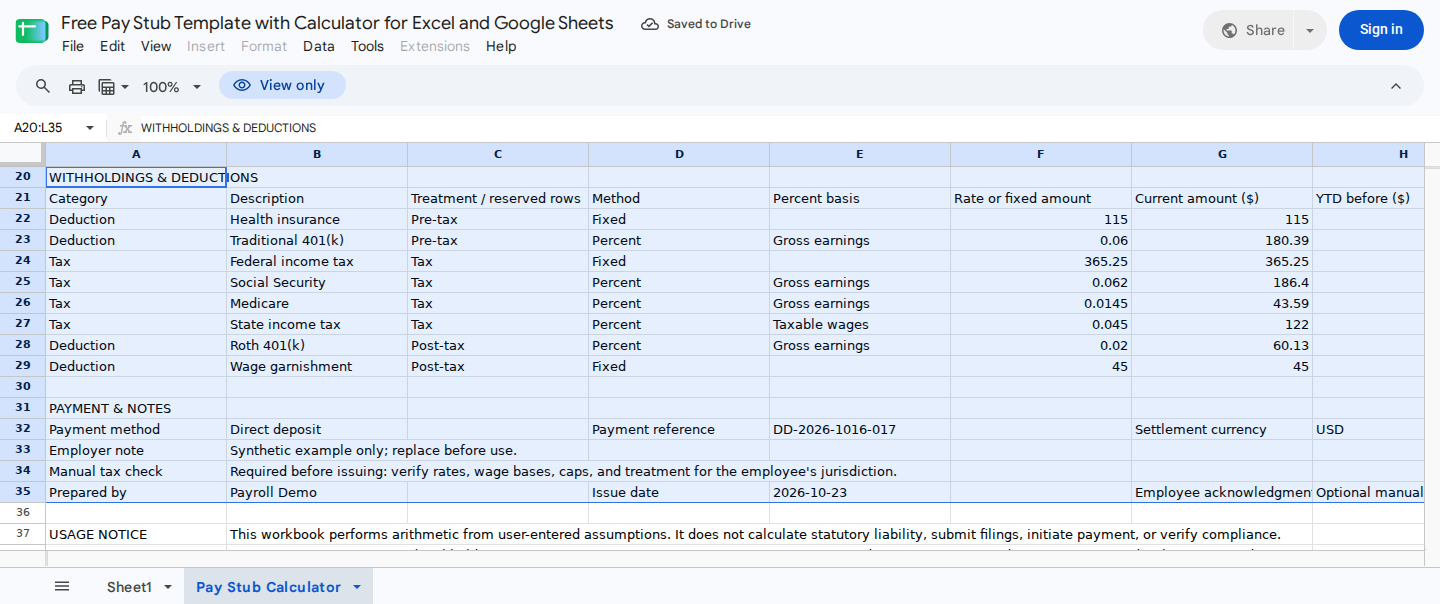
Reserved deduction and tax rows feed the YTD summary and period checks; update the editable rates and fixed amounts only after a manual payroll-tax review.
Verify gross pay, withholding, and net pay
Before issuing the stub, review K13:K22. Using the supplied template settings and the earnings above, the recorded Google Sheets calculation produced:
| Cell | Result | Expected value |
|---|---|---|
K13 | Gross taxable earnings | $3,006.50 |
K14 | Non-taxable reimbursements | $64.40 |
K15 | Gross cash additions | $3,070.90 |
K16 | Pre-tax deductions | $295.39 |
K17 | Simplified taxable wages | $2,711.11 |
K18 | Taxes | $717.24 |
K19 | Post-tax deductions | $105.13 |
K20 | Total withheld | $1,117.76 |
K21 | Net pay | $1,953.14 |
K22 | Status | Ready to issue |
Check that the following amounts reconcile:
$3,070.90 gross cash additions
- $1,117.76 total withheld
= $1,953.14 net pay
Then review the YTD and period controls:
K25: $29,507.00 YTD taxable earningsK26: $579.60 YTD non-taxable reimbursementsK27: $12,354.01 YTD withheldK28: $17,732.59 YTD net payK31: 86 paid hoursK32: 5 configured earning linesK33: 8 configured withholding linesK34: 63.6% net-to-gross ratio
These figures are reconciliation controls, not independent tax validation.
You can check the calculations by changing the overtime hours in C14 from 6 to 10. The recorded Google Sheets result was $427.50 of overtime pay in E14, $3,177.50 of gross taxable earnings in K13, 90 paid hours in K31, and $2,090.14 of net pay in K21. Afterward, restore C14 to the correct payroll input.
If ModelMonkey is available in your spreadsheet workflow, you can ask it to inspect the calculated ranges and identify formula errors. For example: “Check E13:G18, G22:I29, and K13:K34 for formula errors and explain any unexpected result.” Review any proposed changes before applying them. This formula review doesn't confirm payroll-tax treatment or legal compliance.
Resolve negative net pay warnings
Before the stub proceeds to approval, K22 must display Ready to issue. If K21 is negative, K22 displays:
REVIEW: negative net pay
In a recorded exception check, all current earning drivers were set to zero while fixed deductions remained in place. The result was:
K15: $0.00 gross cash additionsK21: -$525.25 net payK22:REVIEW: negative net payK34: 0, without a division error
Don't overwrite K21 or K22. Instead, check for missing earnings, duplicated deductions, incorrect fixed amounts, or a payroll exception that must be resolved outside the workbook.
Complete the payroll review and prepare the stub
Before changing the status from Draft, confirm the current:
- Federal, state, and local tax rates
- Wage bases and contribution caps
- Benefit and pre-tax deduction treatment
- Garnishment limits
- Required pay-stub fields for the applicable jurisdictions
Once the review is complete, record it in B34. Change B10 from Draft only after approval.
For printing or PDF export, use A1:L38 as the print area. Before sharing the stub, inspect B3:B10, E3:E10, H6:H10, A13:H18, A22:I29, and A31:H35 for synthetic, outdated, or confidential information. Distribute the completed document through an appropriate secure process.
Roll year-to-date values into the next period
For the next pay period, save a separate copy of A1:L38. Then, in the new copy:
- Paste the prior values from
G13:G18intoF13:F18as values. - Paste the prior values from
I22:I29intoH22:H29as values. - Update the period dates in
B9,E9, andH9. - Update payment and review details in
E32andE35. - Replace the current-period earning inputs in
C13:D18. - Replace the current-period withholding inputs in
F22:F29.
Don't paste over E13:E18, G13:G18, G22:G29, I22:I29, or K13:K34, because those ranges contain formulas or review calculations.
Wrapping Up
The completed template shows the calculation from earnings through withholding and net pay, along with the year-to-date balances needed for the next period. Before distributing the stub, confirm that K21 reconciles, K22 says Ready to issue, and the payroll assumptions have passed a manual jurisdiction-specific review.
Frequently Asked Questions
Does “Ready to issue” mean the pay stub is tax-compliant?
No. It means the workbook didn't produce its negative-net-pay warning under the entered assumptions. It doesn't validate tax rates, wage bases, benefit treatment, garnishment rules, or required disclosures.
Can I use this template in Excel?
Yes. An .xlsx file is available through the download link. The documented calculation checks were run in Google Sheets, not independently in Excel, so verify the results in the Excel version you use.
How many earning and withholding lines are available?
The template supports 6 earning lines in rows 13:18 and 8 deduction or tax lines in rows 22:29. If you need more, consolidate clearly labeled items or create a documented expanded version. Inserting or reordering these rows requires reviewing every affected formula.
Should I enter 6% as 6 or 0.06?
Enter 0.06 when the method is Percent. Entering 6 would represent 600% in standard spreadsheet percentage calculations.
Can the same file be reused every pay period?
Use a separate copy for each period. Carry the prior YTD-after values into the next copy’s YTD-before columns as values, then update the dates and current-period inputs without replacing formula cells.