
How to Lock Rows in Excel: Freeze and Protect
Keep Excel rows visible while scrolling, protect controlled cells from edits, and leave designated input rows editable.
To lock rows in Excel, use the control that matches your goal:
- To keep rows visible while scrolling, select the cell below them and choose View > Freeze Panes > Freeze Panes.
- To prevent edits, unlock the input cells, leave the controlled cells marked Locked, and choose Review > Protect Sheet.
This guide shows finance and FP&A users how to keep rows 1-6 visible, protect Work Tracker!A1:F6, and leave Work Tracker!A7:F12 editable.
What You'll Need
- Microsoft Excel with the View and Review tabs
- Optional practice file: Download the Excel workbook
- Optional layout reference: Copy the Google Sheets template
Step-by-Step Guide
Freeze the rows you want to keep visible
On the Work Tracker sheet:
- Select
A7, immediately below rows 1-6. - Choose View > Freeze Panes > Freeze Panes.
- Scroll down and confirm that rows 1-6 remain visible.
Excel freezes the rows above the selected cell and the columns to its left. When you select A7, rows 1-6 freeze without any columns freezing. If you selected B7 instead, Excel would also freeze column A.
Microsoft explains this selection behavior in its Freeze Panes guidance.
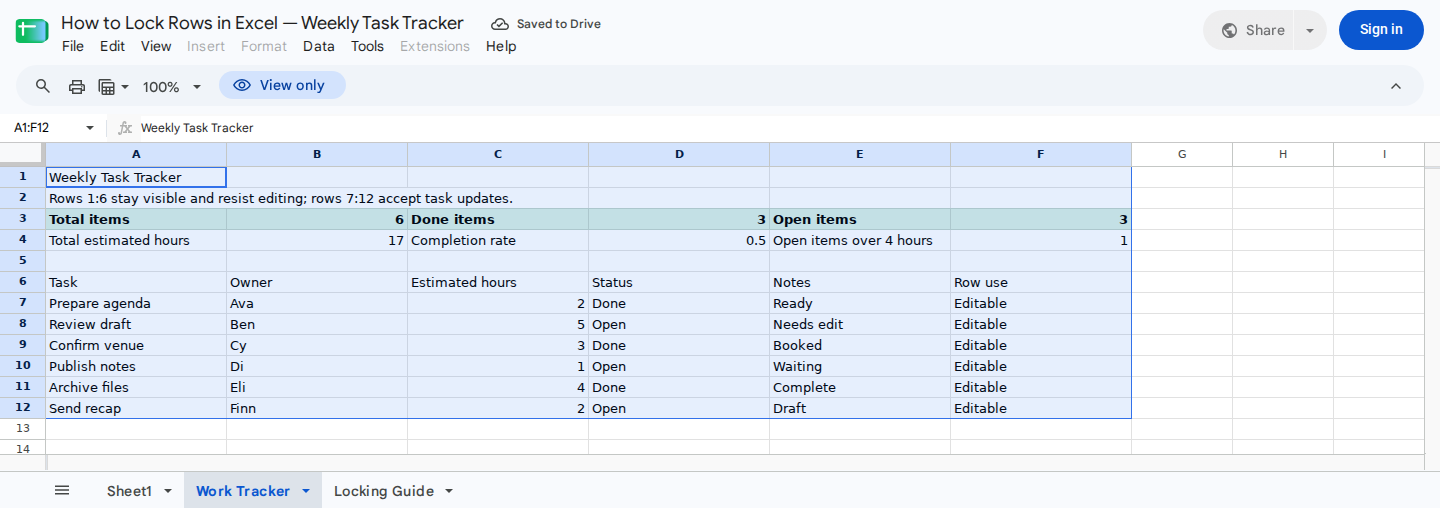
Select A7 and apply Freeze Panes to keep rows 1-6 visible; unlock A7:F12 before protecting the sheet.
Unlock the rows users should be able to edit
Excel cells are marked Locked by default, but that setting isn’t enforced until you protect the worksheet.
To keep the task-entry area editable:
- Select
Work Tracker!A7:F12. - Right-click and choose Format Cells, or press
Ctrl+1. - Open the Protection tab.
- Clear Locked.
- Select OK.
Next, select A1:F6 and confirm that Format Cells > Protection > Locked remains selected. After you enable protection, this summary and header area should resist ordinary edits.
Protect the worksheet
Now enforce the Locked settings:
- Choose Review > Protect Sheet.
- Keep Select unlocked cells enabled.
- Choose any other actions users should be allowed to perform.
- Enter a password only if your workbook process requires one.
- Confirm the protection settings.
Protection applies to the entire worksheet, so cells outside A7:F12 will also resist ordinary edits unless you unlock them before protecting the sheet.
If you use a protection password, store it securely. Worksheet protection helps prevent unwanted changes, but it isn’t encryption and doesn’t replace file-access controls. See Microsoft’s worksheet protection guidance.
Verify scrolling, editing, and calculations
Test the two controls independently:
- Scroll below row 12. Rows 1-6 should remain visible.
- Change a value in
A7:F12. Excel should accept the edit. - Try changing
A1or another cell inA1:F6. Excel should reject the edit while protection is active. - Choose Review > Unprotect Sheet. Rows 1-6 should remain frozen because worksheet protection and Freeze Panes operate separately.
If you’re using the supplied practice workbook, check that its summaries respond to an input change:
- Change
C8from5to6. - Change
D8fromOpentoDone. - Confirm these displayed results:
| Cell | Expected value |
|---|---|
B3 | 6 |
D3 | 4 |
F3 | 2 |
B4 | 18 |
D4 | 0.67 |
F4 | 0 |
After the check, restore C8 to 5 and D8 to Open. These expected values come from the supplied workbook’s recorded calculation case. They confirm that its formulas respond to input changes, but they don’t confirm that Excel’s Freeze Panes or worksheet protection settings are active.
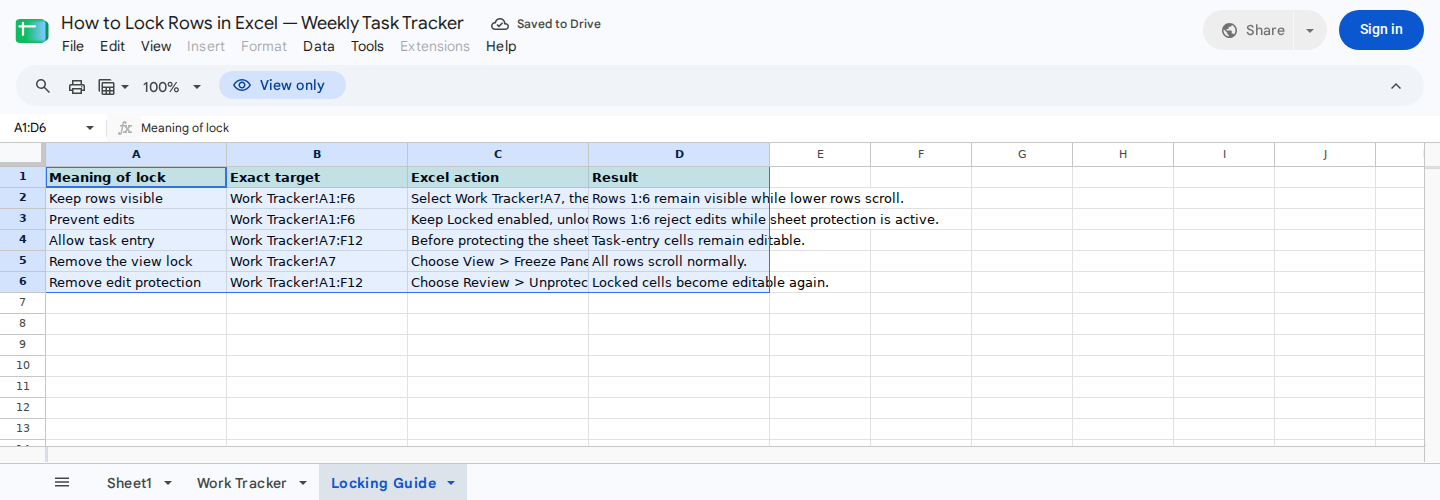
Freezing controls scrolling, while sheet protection enforces the Locked property.
For related guidance on separating controlled calculations from editable inputs, see how to choose and set up finance spreadsheet templates.
Wrapping Up
Selecting A7 before applying Freeze Panes keeps rows 1-6 visible. To preserve an editable task-entry area, unlock A7:F12 before protecting the worksheet. Locked cells such as A1:F6 will then resist ordinary edits.
Freeze Panes controls visibility. Locked cells combined with Protect Sheet control editing.
Frequently Asked Questions
Why can I still edit cells marked Locked?
The worksheet may not be protected. The Locked property takes effect only after you choose Review > Protect Sheet.
Why are the wrong rows frozen?
Choose View > Freeze Panes > Unfreeze Panes. Then select the cell immediately below the rows you want to keep visible and apply Freeze Panes again.
Why can’t I edit my input rows after protecting the sheet?
Unprotect the sheet, select the input range, and clear Locked under Format Cells > Protection. Then protect the sheet again with Select unlocked cells enabled.
Does Freeze Panes prevent formula edits?
No. Freeze Panes only controls what remains visible while scrolling. To restrict formula edits, leave the formula cells Locked and protect the worksheet.
What if I forget the worksheet-protection password?
Use the securely retained password or an authorized unprotected backup. This guide doesn’t provide a supported recovery or protection-bypass method.
Does Protect Sheet secure confidential financial information?
No. Worksheet protection helps prevent unwanted edits, but it doesn’t replace workbook encryption or file-access permissions.