
Open an XLSX File in Google Sheets
Open an XLSX in Google Sheets, save a native copy, and check formulas, dates, formatting, values, and control totals after conversion.
To open an XLSX file in Google Sheets, upload it to Google Drive, right-click it, and select Open with > Google Sheets. Alternatively, open a blank spreadsheet and select File > Import > Upload. If you need a native Google Sheets file for collaboration, select File > Save as Google Sheets after opening the workbook.
This guide shows finance and FP&A analysts how to open a workbook and verify that its sheets, formulas, dates, formatting, values, and totals remain usable. An XLSX file is a Microsoft Excel workbook. Although Google Sheets can open and edit Office files, you should check important calculations after conversion. Google documents its Office-file workflow here.
What You'll Need
- A Google account with access to Google Drive and Google Sheets
- Permission to open the XLSX file
- The original workbook or an approved control copy for comparison
- Optional practice files: Download the Excel file and copy the Google Sheets template
Step-by-Step Guide
Open the XLSX file from Google Drive
Choose this method when the XLSX file is already in Drive or when you want to edit it in Google Sheets while keeping it in Microsoft Office format.
- Open Google Drive.
- If necessary, upload the XLSX file by selecting New > File upload. Google provides separate instructions for uploading files to Drive.
- Wait for the upload to finish.
- Right-click the XLSX file.
- Select Open with > Google Sheets.
The workbook may open in Office editing mode. When it does, you’re editing the XLSX file rather than a native Google Sheets file.
Import the XLSX from a blank spreadsheet
If you’re already working in Google Sheets, you can import the XLSX from a blank spreadsheet:
- Open a blank Google spreadsheet.
- Select File > Import.
- Open the Upload tab.
- Select the XLSX file or drag it into the dialog.
- Follow the import prompts to place the workbook in the intended spreadsheet.
Before confirming the import, review the destination carefully. Replacing a spreadsheet isn’t the same as inserting imported sheets into an existing file. Google describes the available options in its spreadsheet import documentation.
Save a native Google Sheets copy when needed
If the workbook opens in Office editing mode and you want a native file, select:
File > Save as Google Sheets
A native copy is useful when you need Google Sheets-specific sharing or editing features. Because conversion creates a separate file, changes to the Google Sheets copy won’t automatically synchronize with the original XLSX.
Keep the original workbook until you’ve completed the checks below. If Excel-specific behavior is essential, retain the XLSX as the control file.
Verify the converted workbook
Before using the workbook for reporting, forecasting, or reconciliation, confirm that its structure, calculations, and data are intact.
Confirm its structure and presentation
Compare the opened file with the source XLSX:
- Confirm that every expected sheet is present and named correctly.
- Inspect merged cells, number formats, conditional formatting, charts, and print-related layouts.
- Check that dates represent the intended dates rather than text or shifted values.
- Make sure currencies, percentages, and decimals retain the correct units.
- Select representative formula cells and inspect the formula bar. Verify that they contain formulas rather than pasted values or errors.
- Recalculate critical totals independently. A matching grand total alone doesn’t prove that every row or formula is correct.
If dates were interpreted using the wrong regional convention, review File > Settings > Locale. Changing the locale can affect the entire spreadsheet, so compare the results with the source workbook afterward.
Reproduce the template control check
In the supplied Open & Verify sheet:
- Set the review date in
H8. - Use
A11:I20for the record ID, date, supplier, item, category, quantity, unit price, discount, and decimal tax rate. - Enter the totals displayed in the opened XLSX in
K11:K20. - Add explanations or follow-up actions in
N11:N20. - Preserve the prefilled calculations and statuses in columns
J,L, andM.
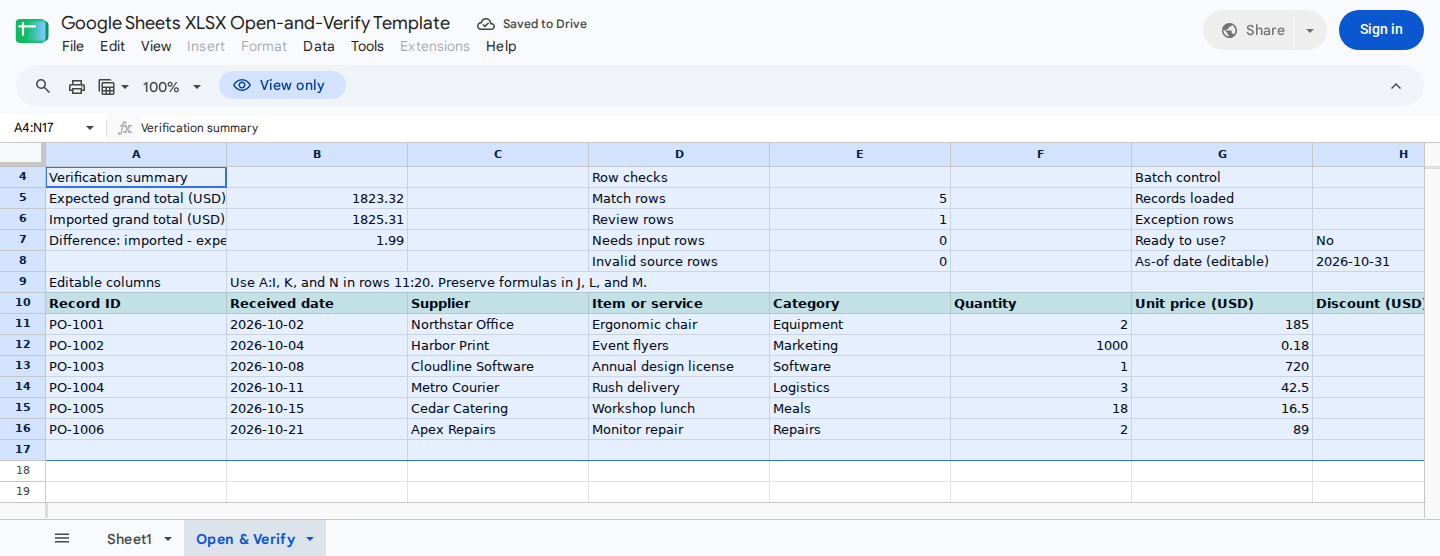
The verified baseline contains six synthetic purchase records. Its expected totals are:
378.88 + 180.00 + 648.00 + 133.88 + 304.56 + 178.00
= 1,823.32
The totals copied from the XLSX are:
378.88 + 180.00 + 648.00 + 133.87 + 304.56 + 180.00
= 1,825.31
The batch difference is therefore:
1,825.31 - 1,823.32 = 1.99
The focused check is record PO-1006:
Quantity:       2
Unit price:    $89.00
Discount:       $0.00
Tax rate:        0%
Expected total: 2 × $89.00 = $178.00
Imported total: $180.00
Difference:     $2.00
Status:         Review
This verified result contains five Match rows and one Review row, while Ready to use? displays No. Record PO-1004 differs by -$0.01 but remains Match under the template’s one-cent tolerance.
Unused rows don’t produce blank calculation results. J17:J20 and L17:L20 return 0, while M17:M20 returns Unused. These results distinguish unused capacity from missing inputs.
After you correct K16 from 180 to 178, that row’s difference changes to 0 and its status becomes Match. The batch then shows six matches, no exception rows, and a Ready to use? value of Yes. Its imported total becomes $1,823.31, leaving a -$0.01 aggregate difference caused by the accepted one-cent variance on PO-1004.
Resolve common opening and conversion problems
If Open with > Google Sheets is unavailable, first confirm that the upload has finished and that you have permission to access the file. You can also try File > Import > Upload.
When formulas are missing or display errors:
- Compare the affected cells with the original XLSX.
- Inspect the formula bar to determine whether the formula changed or became a static value.
- Check named ranges and references to other sheets or workbooks.
- Keep the calculation in Excel if it relies on an Excel-specific feature that hasn’t been validated in Google Sheets.
If formatting changes, correct it in the native copy and keep the original XLSX as a reference. Pay particular attention to currency formats, decimal precision, dates, merged ranges, conditional formatting, and charts.
When you can’t save the workbook, verify its ownership, your editing permission, and your access to Drive. Request access from the owner if necessary.
Inspect the opened range with ModelMonkey
Once the workbook is open in Google Sheets, ModelMonkey can use the active spreadsheet, sheet, and range context to read ranges, search content, inspect formula errors, and help analyze or organize the data.
For this example, select Open & Verify!A4:N20 and request:
Check this range for formula errors and summarize rows marked Review, Needs input, or Invalid source. Do not change any cells.
ModelMonkey can assist with the review, but it doesn’t open or convert the XLSX automatically. Check its output against the source workbook. If you later request an edit and the workflow presents a preview, review the proposed cells before proceeding.
For further cleanup after conversion, see Google Sheets Data Cleaning for Finance.
Wrapping Up
You can open an XLSX through Google Drive or import it from a blank spreadsheet. When you need a native copy, use File > Save as Google Sheets. Before relying on the converted workbook, compare its sheets, formulas, dates, formatting, values, and control totals with the original. Keep the XLSX until you’ve completed these checks.
Frequently Asked Questions
Can I edit an XLSX in Google Sheets without converting it?
Yes. An XLSX can open in Office editing mode, which lets you edit the Office file through Google Sheets. Save it as Google Sheets only when you need a separate native file.
Does saving as Google Sheets change the original XLSX?
No. It creates a separate Google Sheets file, and the two files aren’t automatically synchronized.
Will every Excel formula work after conversion?
Don’t assume that every formula will be compatible. Inspect critical formula cells, check for errors, and independently reproduce key totals. Excel-specific features, external references, or other specialized workbook behavior may require separate handling.
Why can the template say “Ready to use?” when its grand total differs by one cent?
Readiness is based on row statuses. In the verified corrected batch, every row is within the configured one-cent tolerance. As a result, all six rows are Match even though their accepted differences sum to -$0.01.
How many records does the verification template support?
Each sheet supports ten records in rows 11:20. For a larger file, duplicate the sheet and use a separate ten-record batch in each copy. Preserve the formula cells, and keep completed copies when an audit history is required.