
How to Use the Fill Handle in Excel
Use Excel’s fill handle to copy formulas, extend number or date series, repeat values, and fill down with a double-click.
To use the fill handle in Excel, select a cell or range, point to the small square at the bottom-right corner, and drag it across the cells you want to fill. You can use the fill handle to copy formulas, extend number or date patterns, and repeat fixed values.
This guide walks finance and FP&A readers through three reproducible examples.
What You'll Need
- Microsoft Excel
- A blank worksheet for the formula example
- Optional: Download the Excel practice file or Copy this Google Sheets template
Step-by-Step Guide
Find the fill handle in Excel
First, select a cell or range. The fill handle is the small square at the bottom-right corner of the selection border.
Move the pointer over the square until it becomes a thin black cross. Then hold the mouse button, drag across the destination cells, and release.
After the fill, Excel may display Auto Fill Options. Open this menu to choose an action such as Copy Cells or Fill Series. Microsoft describes these choices in its guide to filling worksheet cells automatically.
Use the Excel fill handle to copy a formula
On a blank worksheet, enter this net-value example:
| Cell | Entry |
|---|---|
| A1 | Units |
| B1 | Unit price |
| C1 | Net value |
| D1 | Discount assumption |
| E1 | 10% |
| A2 | 5 |
| B2 | 120 |
| A3 | 3 |
| B3 | 75 |
Enter this formula in C2:
=A2*B2*(1-$E$1)
Next, select C2 and drag its fill handle through C3. Format C2:C3 as Currency or Accounting if required.
| Cell | Formula after filling | Expected result |
|---|---|---|
| C2 | =A2B2(1-$E$1) | $540.00 |
| C3 | =A3B3(1-$E$1) | $202.50 |
The references A2 and B2 advance because they’re relative. By contrast, the absolute reference $E$1 remains fixed, so every copied formula uses the same 10% discount assumption. Microsoft’s guide to relative and absolute references explains the distinction.
Check C3 manually:
3 × $75 × (1 - 10%) = $202.50
For a longer table, select the first formula and double-click the fill handle. Excel fills down based on the adjacent populated range. Because blank cells may stop the fill early, always check the final populated row.
Use the Excel fill handle to extend a two-cell series
To create weekly dates in the practice file:
- Enter 2026-10-19 in N9.
- Enter 2026-10-26 in O9.
- Select N9:O9.
- Drag the fill handle through S9.
The completed series should be:
| N9 | O9 | P9 | Q9 | R9 | S9 |
|---|---|---|---|---|---|
| 2026-10-19 | 2026-10-26 | 2026-11-02 | 2026-11-09 | 2026-11-16 | 2026-11-23 |
If the cells display five-digit numbers, apply the yyyy-mm-dd date format. This formatting changes how Excel displays the underlying date values.
You can extend sequential numbers in the same way. Enter 1001 in N12 and 1002 in O12, select both cells, and drag through S12. The expected series is 1001 through 1006.
If Excel repeats the two starting values instead, open Auto Fill Options and select Fill Series.
Use the Excel fill handle to repeat a value
Enter 5 in N14. With N14 selected, drag its fill handle through S14.
| N14 | O14 | P14 | Q14 | R14 | S14 |
|---|---|---|---|---|---|
| 5 | 5 | 5 | 5 | 5 | 5 |
If Excel creates an unwanted sequence, choose Copy Cells from Auto Fill Options. This method also works for a tax rate, scenario label, cost-center code, or another constant assumption.
The practice file includes comparison rows for all three patterns:
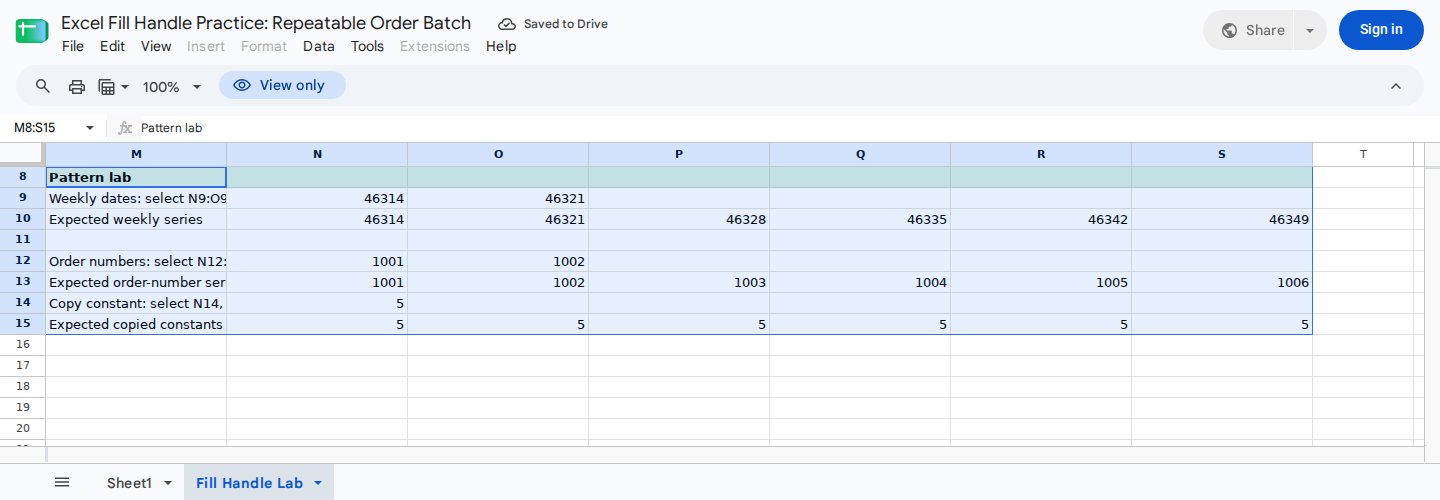
Compare your weekly dates, sequential numbers, and repeated constants with the supplied expected rows. These rows provide a manual check because fill behavior can differ by Excel version, device, and locale.
Fix common Excel fill handle problems
If the fill handle is missing in Excel for Windows:
- Open File > Options > Advanced.
- Find Editing options.
- Enable Enable fill handle and cell drag-and-drop.
- Select OK, then select a worksheet cell again.
For other unexpected results:
- A series repeats: Select two values that establish the interval, or choose Fill Series.
- A constant becomes a sequence: Choose Copy Cells.
- Dates appear as serial numbers: Apply a date format such as yyyy-mm-dd.
- Formula references don’t advance: Remove dollar signs from references that should be relative.
- A shared assumption moves: Make its reference absolute, such as $E$1.
- Double-click stops early: Check the adjacent data range for blanks.
- Existing values are replaced: Undo the fill and confirm the destination range before trying again.
- Excel rejects a formula: Some spreadsheet locales require semicolons instead of commas between formula arguments.
ModelMonkey can inspect spreadsheet context and help with formulas or spreadsheet changes in Excel and Google Sheets. For this formula example, you could ask:
Fill the formula in C2 down the populated rows, keep the discount assumption anchored at $E$1, and check the final copied formula.
When the workflow presents a preview, review the proposed cells before proceeding. Afterward, inspect at least one copied formula to confirm that its relative and absolute references changed as intended.
Wrapping Up
Excel’s fill handle can copy formulas, extend two-cell patterns, and repeat constants. Before using the completed range, check one copied formula, the final value in each series, and every absolute reference.
Frequently Asked Questions
Why does Excel copy a value instead of continuing a series?
One starting value may not establish an interval. Enter and select two seed values, drag again, and choose Fill Series from Auto Fill Options if needed.
Why doesn’t double-clicking the fill handle fill the entire column?
Excel uses adjacent populated data to determine the fill range. A blank cell can stop the operation, so remove the gap or drag the handle manually to the required row.
Why do dates display as five-digit numbers?
Excel stores numeric dates as serial values. Apply a date format such as yyyy-mm-dd. If formatting doesn’t change the display, the value may be stored as text.
What is the difference between E1 and $E$1 when filling?
E1 is a relative reference, so it can move when a formula is copied. $E$1 is absolute, so its column and row remain fixed.
Does an absolute reference prevent someone from editing the cell?
No. It controls how the reference changes when a formula is copied. Cell protection is a separate feature covered in How to Lock Rows in Excel.