
Build a Social Media Calendar in Google Sheets
Copy and customize a Google Sheets social media calendar for finance content, then track owners, deadlines, publishing, and results.
This social media calendar template helps finance and FP&A teams plan content, assign owners, manage deadlines, and review manually entered performance across platforms.
Copy the Google Sheets template or download the Excel file. The included posts and results are synthetic examples. Recorded calculation checks apply to Google Sheets, so review the formulas, formatting, and labels before relying on the Excel version.
What You'll Need
- A Google account for the Google Sheets version
- Reporting start, end, and review dates
- Planned posts, platforms, owners, and next actions
- Published reach or view counts and engagement counts, if performance tracking is required
Step-by-Step Guide
Copy and review the template
Open the Google Sheets copy link and select Make a copy.
The workbook has three working sheets:
- Calendar: Reporting controls, summaries, and the post log
- Idea Bank: Concepts that haven’t yet been scheduled
- Lists: Status, asset-status, and platform labels
For your first use, replace the synthetic records in Calendar!A20:P33. Keep the headers in A19:P19, and don’t overwrite:
- The period check in
H2 - Summary formulas in
B6:B17 - Platform formulas in
E6:F11
A bounded anonymous CSV read of Calendar!A1:P26 returned all 26 requested displayed rows on October 17, 2026. This read confirms only the displayed cell values. It doesn’t provide formula-recalculation evidence or expose rows 27:33.
Set the reporting period
On Calendar, enter:
- Reporting start date in
B2 - Reporting end date in
D2 - Review date in
F2
Next, format B2, D2, F2, B20:B50, and J20:J50 as dates using Format > Number > Date. Format B15 as a percentage with 2 decimal places.
The synthetic October fixture uses:
B2 = October 1, 2026
D2 = October 31, 2026
F2 = October 17, 2026
The underlying displayed serials are 46296, 46326, and 46312. You can replace them by typing normal dates.
Before interpreting the summary, confirm that H2 displays OK. A recorded Google Sheets check with the start and end dates reversed produced Fix: start is after end and set B6:B17 and E6:F11 to zero.
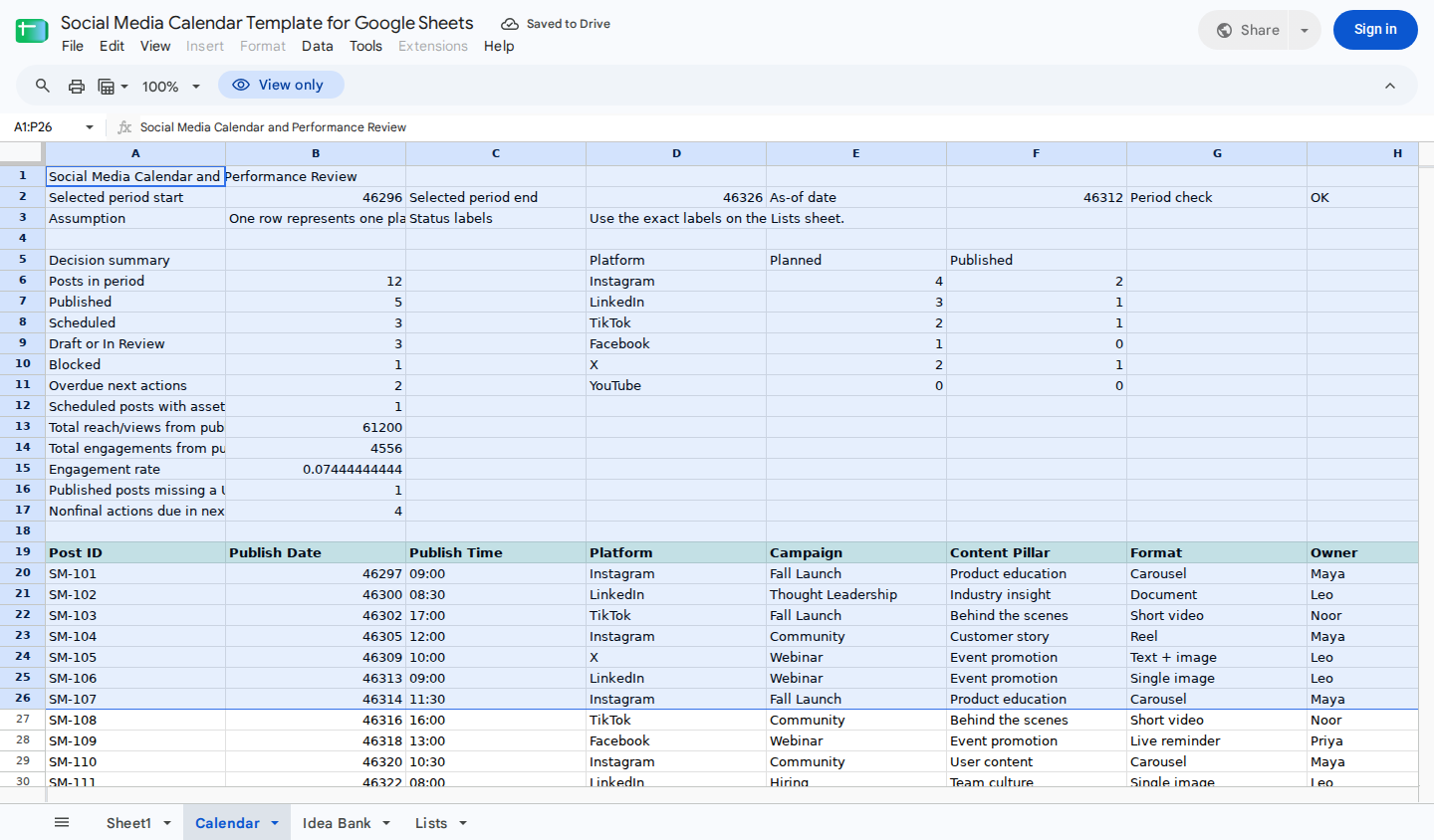
The reporting controls and decision summary are connected to the editable post log below.
Enter one platform-specific post per row
The Calendar uses this schema in A19:P19:
| Column | Field | What to enter |
|---|---|---|
| A | Post ID | Unique identifier |
| B | Publish Date | Planned or actual date |
| C | Publish Time | Planned time |
| D | Platform | Exact label from Lists!C2:C7 |
| E | Campaign | Campaign or initiative |
| F | Content Pillar | Subject category |
| G | Format | Carousel, video, document, or another format |
| H | Owner | Responsible person |
| I | Status | Exact label from Lists!A2:A7 |
| J | Next Action Date | Due date for the next task |
| K | Next Action | Specific required task |
| L | Asset Status | Exact label from Lists!B2:B9 |
| M | Published URL | Permalink added after publication |
| N | Reach/Views | Manually entered whole-number count |
| O | Engagements | Manually entered whole-number count |
| P | Notes | Context and exceptions |
Give each platform placement its own row. For example, if a finance webinar is promoted on LinkedIn, Instagram, and X, create three Post IDs. Each placement can then have its own date, status, URL, and results.
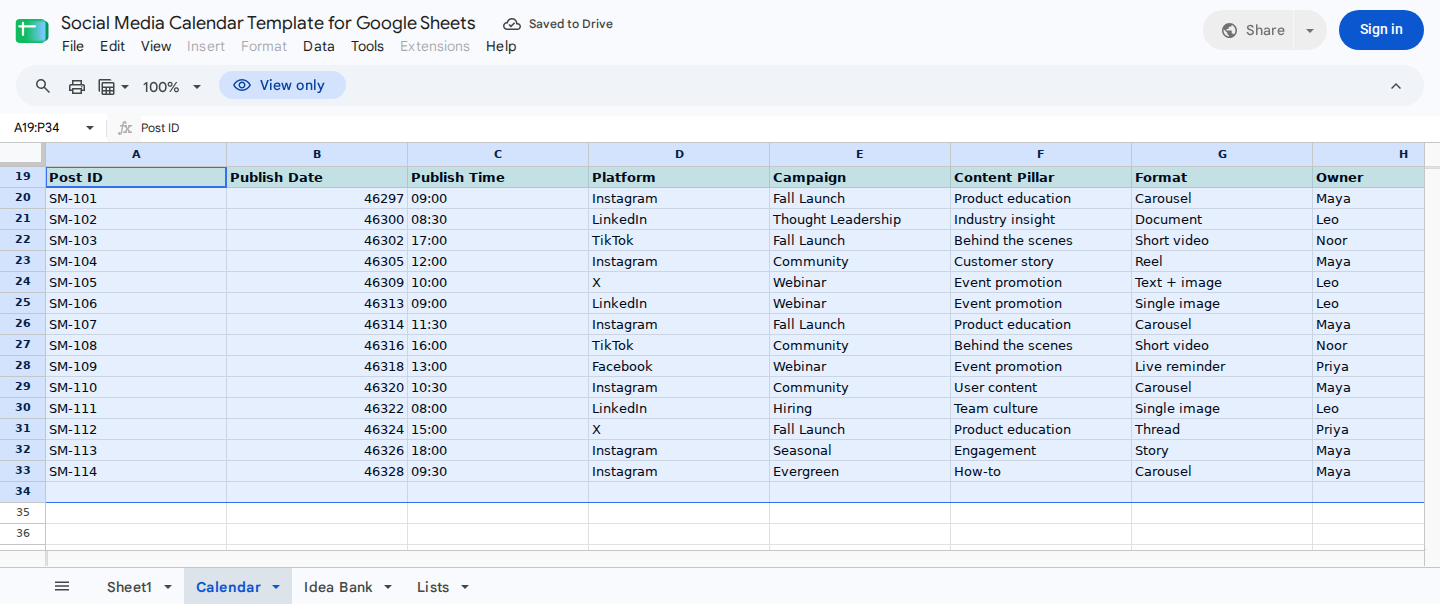
Each platform-specific post has one record. The example includes exceptions such as missing alt text, blocked usage rights, a missing published URL, and a cancelled post.
Manage statuses, assets, and next actions
Use these exact status labels from Lists!A2:A7:
- Draft
- In Review
- Scheduled
- Blocked
- Published
- Cancelled
The setup notes define Published as final and exclude Cancelled from planned counts. Draft, In Review, Scheduled, and Blocked are treated as nonfinal. Because the literal summary formulas weren’t supplied, verify unexpected totals against the source rows and exact labels.
For every nonfinal post, maintain:
- Its next-action date in column
J - A specific next action in column
K - Its asset status in column
L
During each review, examine:
B10for blocked postsB11for overdue next actionsB12for scheduled posts whose asset status isn’t ReadyB17for the documented next-seven-days action summary
The setup notes describe B17 as covering F2 through F2+7. Recorded checks included actions dated F2 and F2+6, but they didn’t establish the exact upper-boundary behavior at F2+7. Inspect column J directly when that cutoff affects the planning meeting.
Labels with different spelling or extra spaces may not match the summaries. Replace them with the exact labels from the Lists sheet before relying on the totals. For a broader cleanup process, see Google Sheets data cleaning for finance teams.
Record publication and performance
The template doesn’t publish posts or import platform results. When a post goes live:
- Change its status in column
ItoPublished. - Paste its permalink into column
M. - Enter observed reach or views in column
N. - Enter observed engagements in column
O. - Record relevant context in column
P.
Choose a consistent definition for column N. If you mix reach and views, B15 becomes a blended engagements-per-reach/view ratio instead of a directly comparable engagement rate.
In the illustrative fixture, the five published rows visible in Calendar!A20:P24 contain:
| Post ID | Reach/Views | Engagements |
|---|---|---|
| SM-101 | 12,400 | 806 |
| SM-102 | 6,800 | 374 |
| SM-103 | 22,100 | 1,989 |
| SM-104 | 15,800 | 1,264 |
| SM-105 | 4,100 | 123 |
| Total | 61,200 | 4,556 |
The displayed engagement rate reconciles as:
4,556 / 61,200 = 0.07444444444
Percentage display = approximately 7.44%
To reproduce a publication update, start from an unchanged copy and use the scheduled LinkedIn webinar reminder in row 25:
A25 = SM-106
I25 = Scheduled
J25 = October 17, 2026
K25 = Run final link check
L25 = Ready
Enter:
I25 = Published
M25 = https://example.com/posts/sm-106
N25 = 9000
O25 = 450
The recorded Google Sheets execution produced:
B7: 6 PublishedB8: 2 ScheduledF7: 2 published LinkedIn postsB13: 70,200 reach/viewsB14: 5,006 engagementsB15: approximately 7.13%B17: 3 upcoming nonfinal actions
The performance control is:
61,200 + 9,000 = 70,200
4,556 + 450 = 5,006
5,006 / 70,200 = 0.07131054131
Percentage display = approximately 7.13%
Use nonnegative numeric values in columns N:O. Blank, text, and negative performance entries weren’t covered by the recorded checks.
In the reversed-period check, B13 and B15 both returned zero while H2 showed an invalid reporting period. That result doesn’t establish how B15 behaves when H2 is OK and published reach/views total zero. Test that valid-period case in a disposable copy before documenting the percentage as zero or unavailable.
Read and verify the summary
With the unchanged October fixture and the dates from Step 2, recorded native spreadsheet execution produced:
| Summary | Expected value |
|---|---|
| Posts in period | 12 |
| Published | 5 |
| Scheduled | 3 |
| Draft or In Review | 3 |
| Blocked | 1 |
| Overdue next actions | 2 |
| Scheduled posts with asset not Ready | 1 |
| Published reach/views | 61,200 |
| Published engagements | 4,556 |
| Engagement rate | Approximately 7.44% |
| Published posts missing a URL | 1 |
| Near-term nonfinal actions | 4 |
The platform summary showed:
| Platform | Planned | Published |
|---|---|---|
| 4 | 2 | |
| 3 | 1 | |
| TikTok | 2 | 1 |
| 1 | 0 | |
| X | 2 | 1 |
| YouTube | 0 | 0 |
The status totals reconcile to the 12 planned posts:
5 Published + 3 Scheduled + 3 Draft or In Review + 1 Blocked = 12
The planned platform counts also total 12, while the published platform counts total 5.
Treat these figures as acceptance checks for an unchanged copy, not as expected results for your content plan or as a complete formula audit. The supplied CSV exposes displayed values rather than literal formulas. As a result, the checks don’t independently establish every criterion, period-boundary operator, blank-input rule, or valid-period zero-denominator result.
Move approved ideas into the Calendar
Use Idea Bank!A2:N9 for unscheduled concepts such as:
- Product-education posts
- Market or industry insights
- Finance webinar reminders
- Customer stories
- Reporting-process guidance
- Compliance-aware campaign concepts
Once an idea is approved:
- Create one Calendar row for each intended platform.
- Assign each row a unique Post ID.
- Enter the relevant Calendar Post ID in Idea Bank column
N. - Check both sheets before scheduling the concept again.
This handoff is manual. Idea Bank column N records that a concept reached the Calendar, but it doesn’t prevent duplicates, transfer records automatically, or map every placement in a multi-platform campaign.
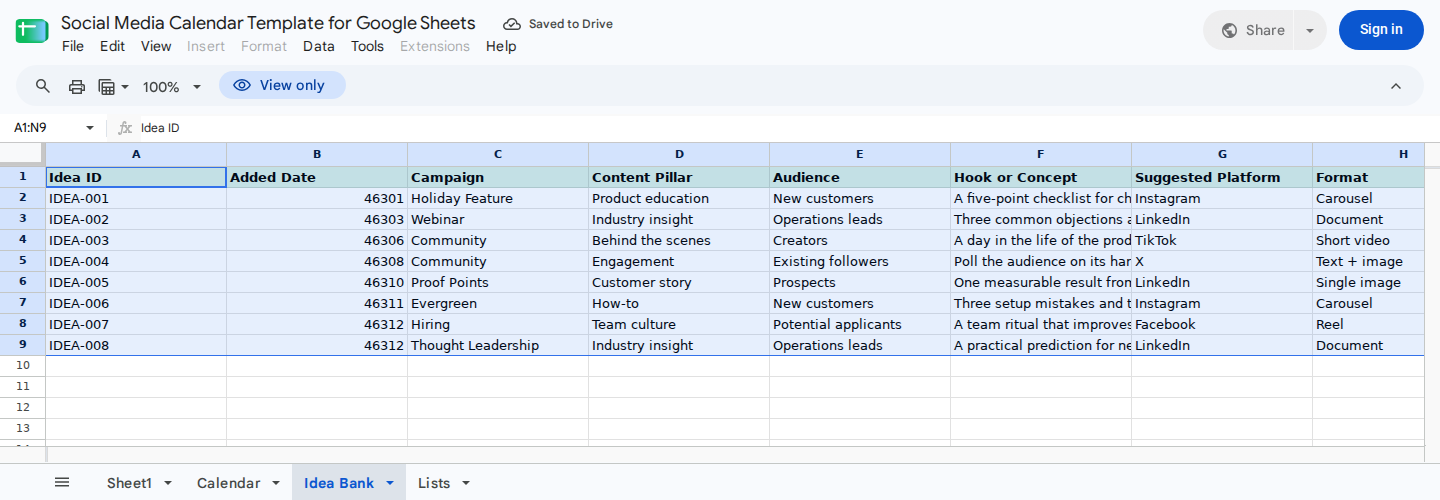
Ideas move into the calendar through a manual Post ID handoff, which helps reviewers identify concepts that may already have been scheduled.
Customize the template without breaking its formulas
You can change campaigns, content pillars, formats, owners, dates, and notes directly in the post records.
When editing platform or workflow labels:
- Use the labels stored on the Lists sheet.
- To summarize a different platform, replace its label in
Calendar!D6:D11and use the same label in the Calendar records. - Keep spelling and spacing consistent between the summary label, Lists sheet, and post rows.
According to the setup notes, the summary formulas read Calendar!A20:P50. Add future posts only in the available area A34:P50; you don’t need to copy any row formulas.
Before entering data in row 51 or later:
- Add the required rows.
- Update every summary formula range that ends at row 50.
- Recheck
H2,B6:B17, andE6:F11against the source records.
Common setup errors include invalid reporting dates, text stored where numeric results are expected, unrecognized status labels, missing published URLs, and records added outside the supported range. If a reporting-period boundary affects your analysis, test a post dated exactly on B2 or D2 in a disposable copy before relying on the result.
Run an exception check with ModelMonkey
If ModelMonkey is available in your Google Sheets workflow, it can inspect spreadsheet context and help search, organize, analyze, format, or change sheet content.
Begin with a read-only exception request:
Review Calendar!A20:P50. List nonfinal posts that are missing a
next-action date or next-action description. Also list Scheduled posts
whose Asset Status is not Ready. Do not change the sheet.
Compare the response with columns I:L, then verify each finding against its source row. If the workflow displays proposed changes as a preview, review them before proceeding. This check doesn’t add social-platform importing, scheduling, or publishing to the workbook.
Wrapping Up
Use this Google Sheets social media calendar to plan finance content, assign owners, track asset and deadline risks, and review manually entered publication results. Keep one row per platform-specific post, use the exact Lists-sheet labels, and confirm H2 before reading the summary. Stay within A20:P50 unless you extend and audit every affected formula range.
Frequently Asked Questions
Does the template automatically publish or schedule social posts?
No. It’s a planning and review workbook. Publishing and scheduling happen on the relevant social platform or in a separate scheduling system.
Does it import reach and engagement data?
No. Enter published URLs, reach or views, and engagements manually in columns M:O. The template doesn’t import or refresh platform data.
Can one row represent a post published on several platforms?
No. Create one row and one Post ID for each platform so every placement can have its own date, status, permalink, and results.
Is B15 a comparable engagement rate?
Only when column N uses a consistent denominator. If the column mixes reach and views, treat B15 as a blended engagements-per-reach/view ratio.
Why does the summary show zeros?
Check H2. In the recorded reversed-period case, a start date later than the end date produced Fix: start is after end, B13 = 0, and B15 = 0, along with zeros across the other recorded period summaries. Correct B2 and D2, then confirm that H2 displays OK.
What happens when published reach or views total zero?
The invalid reversed-period check returned B15 = 0, but the supplied checks don’t establish how B15 behaves when H2 is OK and published reach/views total zero. Test that case in a disposable copy before relying on the displayed percentage.
Can I add posts below row 50?
Only after extending and auditing the formulas. The documented summary ranges end at row 50, so every affected formula range must be updated before later rows will be included.