
Copy this Google Sheets template or download the Excel file. The recorded execution checks in this article apply only to the Google Sheets version.
This is a planning tool. It doesn’t determine which expenses are legally deductible, select the correct tax rate, file a return, or confirm a refund or final amount due.
Record your monthly tax information
The Tax Tracker sheet uses rows 3-14 for January through December:
B3:B14: Gross freelance income receivedC3:C14: Eligible deductible business expenses paidD3:D14: Estimated tax payments made
Start by replacing the synthetic amounts in Tax Tracker!B3:D14 with your records.
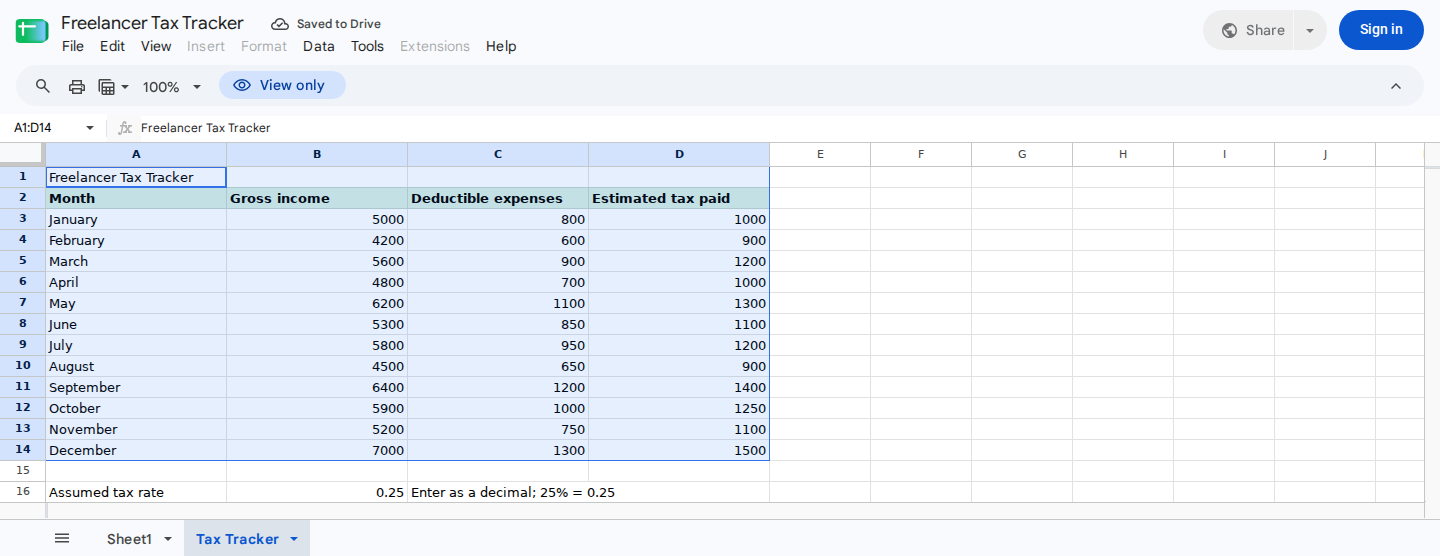
Monthly input area populated with synthetic examples.
Use one consistent currency throughout B3:D14. The calculated amounts in B17:B23 will use that same currency. If you receive or spend money in multiple currencies, convert the amounts using a documented method before entering them because the template doesn’t perform currency conversion.
Only include expenses that qualify under the tax rules applicable to you. The tracker records your entries, but it doesn’t determine legal deductibility or replace professional tax advice.
Reproduce the synthetic example
The supplied example contains these monthly inputs:
| Row | Month | Gross income (B) | Eligible expenses (C) | Tax paid (D) |
|---|---|---|---|---|
| 3 | January | 5000 | 800 | 1000 |
| 4 | February | 5200 | 900 | 1100 |
| 5 | March | 4800 | 750 | 1000 |
| 6 | April | 5500 | 850 | 1150 |
| 7 | May | 6000 | 1000 | 1200 |
| 8 | June | 5100 | 950 | 1100 |
| 9 | July | 5700 | 900 | 1200 |
| 10 | August | 5900 | 1100 | 1250 |
| 11 | September | 5300 | 800 | 1100 |
| 12 | October | 6200 | 1000 | 1300 |
| 13 | November | 4900 | 850 | 1150 |
| 14 | December | 6300 | 900 | 1300 |
These rows total:
Gross income: 65900
Eligible expenses: 10800
Estimated tax paid: 13850
Google Sheets’ SUM function ignores blanks and text while retaining negative numbers. As a result, a missing value, text pasted into a numeric cell, or an unintended negative amount can produce a plausible summary. Compare the monthly entries with invoices, receipts, payment records, and tax-payment confirmations.
Enter the assumed combined tax rate
Next, enter the assumed combined tax rate in B16 as a decimal from 0 through 1:
- Enter
0.25for 25%. - Enter
0for 0%. - Don’t enter
25for 25%.
Percentage formatting changes how a number appears, not its underlying value, as explained in the Google Sheets number-format documentation.
Before relying on the estimate, check B24:
OKmeansB16contains a number from 0 through 1.CHECK RATEmeans a non-error value is missing, nonnumeric, or outside that range.- While
B24showsCHECK RATE, cellsB20,B22, andB23remain zero.
If B16 contains a spreadsheet error such as #N/A or #VALUE!, that error may propagate into the summary instead of producing CHECK RATE. Correct the underlying error first.
Keep in mind that an OK status validates only the rate’s format and permitted range. It doesn’t confirm that the rate is suitable or that the monthly entries are correct.
Read the annual summary
You’ll find the annual summary in Tax Tracker!A16:C24.
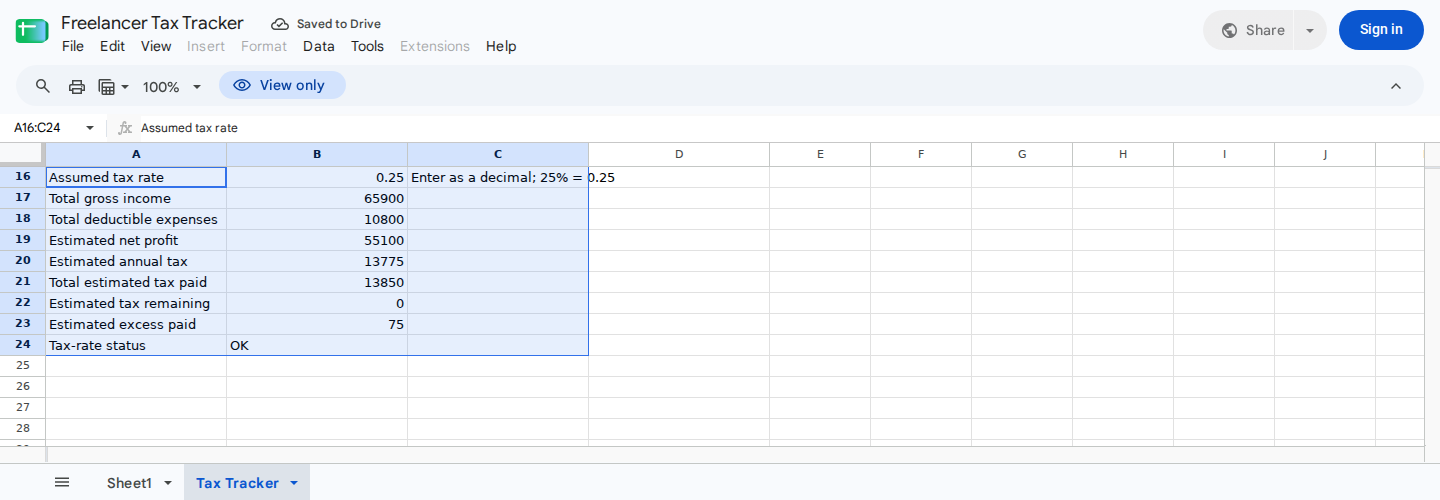
Annual planning summary with tax-rate validation.
Read the results as follows:
B17: Annual gross incomeB18: Total deductions enteredB19: Estimated net profitB20: Estimated annual taxB21: Total estimated tax paidB22: Estimated tax remainingB23: Estimated excess paidB24: Rate status
The formulas are:
| Cell | Formula |
|---|---|
B17 | =SUM(B3:B14) |
B18 | =SUM(C3:C14) |
B19 | =MAX(B17-B18,0) |
B20 | =IF(B24="OK",B19*B16,0) |
B21 | =SUM(D3:D14) |
B22 | =IF(B24="OK",MAX(B20-B21,0),0) |
B23 | =IF(B24="OK",MAX(B21-B20,0),0) |
B24 | =IF(AND(ISNUMBER(B16),B16>=0,B16<=1),"OK","CHECK RATE") |
The MAX formulas prevent B22 and B23 from both showing positive amounts. They also make B19 show zero when entered expenses exceed income, rather than displaying the size of the loss.
Verify the baseline result
Keep January gross income at B3 = 5000 and enter B16 = 0.25.
The recorded Google Sheets execution produced:
| Cell | Expected result |
|---|---|
B17 | 65900 |
B18 | 10800 |
B19 | 55100 |
B20 | 13775 |
B21 | 13850 |
B22 | 0 |
B23 | 75 |
B24 | OK |
Use this tie-out to check the result:
Net profit:
65900 - 10800 = 55100

Estimated annual tax:
55100 × 0.25 = 13775

Estimated excess paid:
13850 - 13775 = 75
The 75 in B23 shows that the supplied baseline inputs reconcile within this workbook. It isn’t a confirmed refund or proof that other inputs will be correct.
Check that an income change reaches the summary
Change only B3 from 5000 to 6000, and leave B16 at 0.25.
The recorded Google Sheets result is:
B17 = 66900
B18 = 10800
B19 = 56100
B20 = 14025
B21 = 13850
B22 = 175
B23 = 0
B24 = OK
The extra 1000 of income increases estimated tax by 250:
56100 × 0.25 = 14025
14025 - 13850 = 175 estimated tax remaining
This verifies the calculation for that input change. It doesn’t establish that 25% is the right rate for you.
Test the zero-rate boundary
Reset B3 to 5000, then set B16 to 0.
The recorded Google Sheets execution produced:
B17 = 65900
B18 = 10800
B19 = 55100
B20 = 0
B21 = 13850
B22 = 0
B23 = 13850
B24 = OK
Because zero is within the permitted 0-1 range, the spreadsheet treats it as valid and classifies all recorded payments as estimated excess. This tests workbook behavior, not whether a zero tax rate is appropriate.
For a separate invalid-rate check, enter a non-error value such as 1.1, -0.1, text, or whitespace in B16. Based on the displayed formulas, B24 should show CHECK RATE, while B20, B22, and B23 should show zero. This conclusion comes from formula analysis rather than a recorded execution, so test it in a separate copy before relying on it.
Separate recorded cash from estimates
Treat B17, B18, and B21 as confirmed only after matching them to source records:
- Match income to payments received, not merely invoices issued.
- Match expenses to receipts or transaction records.
- Match tax payments to official payment confirmations.
- Investigate blanks, text, and unexpected negative values.
By contrast, cells B19, B20, B22, and B23 are estimates. Tax rules, other income, credits, payment timing, and the rate selected in B16 can all change the final outcome.
For a more detailed control process, see how to track taxes in Google Sheets. You can also keep uncertain future projects separate in a freelance income and expense forecast.
Review the tracker with ModelMonkey
ModelMonkey can read and analyze ranges, help with formulas, organize spreadsheet content, and make changes in Google Sheets or Excel through natural-language requests. It can’t determine tax law or guarantee that a formula, classification, or estimate is correct.
Use this read-only request to review the example:
Read
Tax Tracker!A1:D24. Report the value inB24, compareB20withB21, and explain why the difference appears in eitherB22orB23. Flag blanks, text, and negative values inB3:D14. Do not change any cells.
Then compare the response with your source records and the manual tie-out. If you later request formula or formatting changes and the workflow presents a preview, review the proposed cells before proceeding.