
Copy this Google Sheets template or download the Excel file. The examples below were tested in Google Sheets. If you open the Excel version, verify its formulas and control totals before entering your records.
With eight entry rows, the tracker is intended as a small current-income register. It isn’t a complete bookkeeping system, bank reconciliation, tax calculator, or monthly reporting dashboard.
What the income tracker records
The workbook has one tab named Income Tracker. Its entry table occupies A12:H19:
| Column | Field | What to enter |
|---|---|---|
| A | Invoice date | The date you issued the invoice |
| B | Client or project | Customer, engagement, or project name |
| C | Income type | A category such as Consulting, Design, Workshop, or Writing |
| D | Payment status | Paid or Unpaid |
| E | Gross income | Full invoiced amount |
| F | Business expenses | Expenses assigned to that record |
| G | Planned tax reserve | Amount you intend to set aside |
| H | Net income | Formula result: gross income minus expenses and planned reserve |
Use one row per invoice or engagement. Once an invoice is paid in full, change its existing status to Paid instead of entering the payment as another income row. Adding a second row would count the invoice twice.
In this setup, column A holds the invoice date, including for unpaid invoices. Because the summary formulas don’t use that date, it doesn’t determine which records appear in the totals. If you also need payment dates, add a separate field in an expanded workbook instead of mixing two date conventions in column A.
Enter your income records
The working area is Income Tracker!A1:H19.
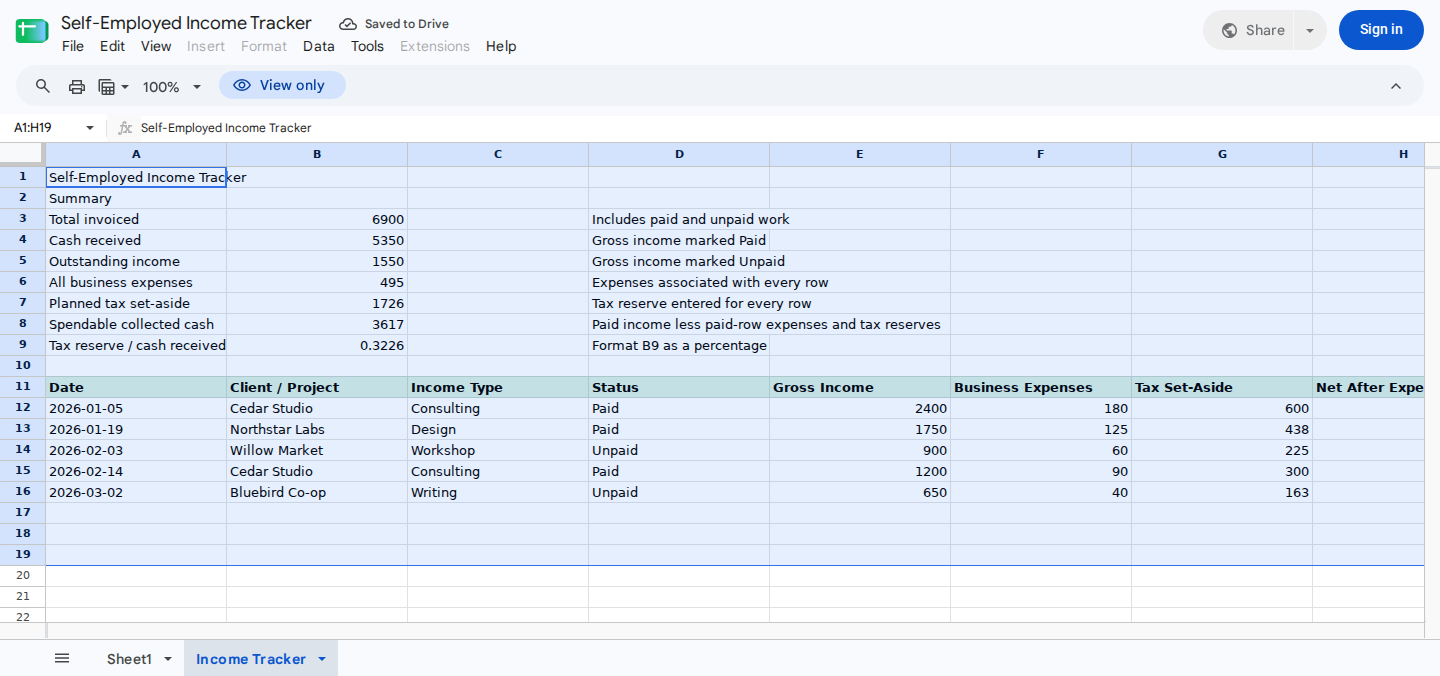
The summary separates invoiced, received, and outstanding income. The transaction table calculates net income after expenses and tax reserves.
- Replace the synthetic examples in
A12:G16and enter additional income records inA17:G19. - Enter the invoice date in
A12:A19, the client or project inB12:B19, and the income type inC12:C19. - Enter
PaidorUnpaidinD12:D19so cash received inB4and outstanding income inB5calculate correctly. - Enter gross income in
E12:E19, related business expenses inF12:F19, and the planned tax reserve inG12:G19. - Do not overwrite the summary formulas in
B3:B9or the row-level net formulas inH12:H19. - Use
B8as the amount collected from Paid rows after their expenses and tax reserves; unpaid work is excluded. - Format
E12:H19andB3:B8as currency, and formatB9as a percentage. Google documents its number, currency, and date formatting options.
Because SUMIF text matching isn’t case-sensitive, the formulas treat Paid and paid as matches. Consistent capitalization still makes the register easier to review. Extra spaces, blank statuses, and labels such as Pending won’t match the supplied conditions.
A planned tax reserve is an amount you choose for planning. It isn’t an expense or a calculation of your actual tax liability. Treat the resulting “net income” figures as amounts after the workbook’s two allocations, not as accounting net income or confirmed bank cash.
How the summary formulas work
The summary uses SUM and SUMIF. Google’s documentation explains how SUMIF adds values that meet a condition.
| Cell or range | Formula | Meaning |
|---|---|---|
| B3 | =SUM(E12:E19) | Gross income from all records |
| B4 | =SUMIF(D12:D19,"Paid",E12:E19) | Gross income from Paid records |
| B5 | =SUMIF(D12:D19,"Unpaid",E12:E19) | Gross income from Unpaid records |
| B6 | =SUM(F12:F19) | Expenses from all records |
| B7 | =SUM(G12:G19) | Planned reserves from all records |
| B8 | =SUMIF(D12:D19,"Paid",H12:H19) | Paid-row amounts after expenses and planned reserves |
| B9 | =IF(B4=0,0,B7/B4) | Total planned reserves divided by Paid gross income |
| H12 | =E12-F12-G12 | Gross income minus expenses and planned reserve |
Fill the H12 formula through H19. Depending on your spreadsheet locale, you may need semicolons instead of commas between formula arguments.
Two summary figures require careful interpretation:
B8isn’t necessarily the amount available in your bank account. The formula doesn’t confirm that an expense has cleared or that a planned reserve has been transferred.B9divides reserves from both Paid and Unpaid rows by Paid gross income. It’s a reserve-to-cash ratio, not a tax rate or the reserve percentage for collected income alone. It can exceed 100%.
Reproduce the verified example
Enter these illustrative records in rows 12-16, using one currency throughout the sheet.
| Row | Invoice date | Client or project | Income type | Status | Gross income | Expenses | Planned tax reserve |
|---|---|---|---|---|---|---|---|
| 12 | 2026-01-05 | Cedar Studio | Consulting | Paid | 2,400 | 180 | 600 |
| 13 | 2026-01-19 | Northstar Labs | Design | Paid | 1,750 | 125 | 438 |
| 14 | 2026-02-03 | Willow Market | Workshop | Unpaid | 900 | 60 | 225 |
| 15 | 2026-02-14 | Cedar Studio | Consulting | Paid | 1,200 | 90 | 300 |
| 16 | 2026-03-02 | Bluebird Co-op | Writing | Unpaid | 650 | 40 | 163 |
Leave rows 17-19 blank. Testing in Google Sheets produced these results:
| Cell | Summary measure | Expected result |
|---|---|---|
| B3 | Total invoiced income | 6,900 |
| B4 | Cash received | 5,350 |
| B5 | Outstanding income | 1,550 |
| B6 | Related expenses | 495 |
| B7 | Planned tax reserve | 1,726 |
| B8 | Paid-row amount after allocations | 3,617 |
| B9 | Reserves divided by received gross | 32.26% |
To verify the totals manually, use these calculations:
- Invoiced income:
2,400 + 1,750 + 900 + 1,200 + 650 = 6,900 - Cash received:
2,400 + 1,750 + 1,200 = 5,350 - Outstanding income:
900 + 650 = 1,550 - Expenses:
180 + 125 + 60 + 90 + 40 = 495 - Planned reserves:
600 + 438 + 225 + 300 + 163 = 1,726 - Paid-row amount after allocations:
1,620 + 1,187 + 810 = 3,617
The expected results in H12:H16 are 1,620, 1,187, 615, 810, and 447. For example:
H12 = 2,400 gross income - 180 expenses - 600 planned reserve = 1,620
Rows 14 and 16 also have calculated amounts in column H, but their Unpaid status excludes them from B8. Meanwhile, the unused formula rows H17:H19 return zero.
What changes when an invoice is paid
Starting with the baseline example, change Willow Market in D14 from Unpaid to Paid.
| Cell | Before | After |
|---|---|---|
| B3: Total invoiced income | 6,900 | 6,900 |
| B4: Cash received | 5,350 | 6,250 |
| B5: Outstanding income | 1,550 | 650 |
| B8: Paid-row amount after allocations | 3,617 | 4,232 |
| B9: Reserve-to-cash ratio | 32.26% | 27.62% |
| H14: Row amount after allocations | 615 | 615 |
That status change moves 900 from outstanding income to cash received. It also adds Willow Market’s 615 after-allocation amount to B8.
However, H14 remains 615 because its gross income, expense, and planned reserve haven’t changed. Total invoiced income also stays at 6,900 because the same invoice still appears once.
Cash received is not the same as invoiced income
The tracker separates four related amounts:
- Total invoiced income (
B3) includes Paid and Unpaid records. - Cash received (
B4) includes gross income only from Paid rows. - Outstanding income (
B5) includes gross income only from Unpaid rows. - Paid-row amount after allocations (
B8) includes Paid rows after subtracting their assigned expenses and planned reserves.
As a result, a fully unpaid invoice isn’t treated as available cash. Still, the tracker doesn’t prove that every Paid amount agrees with your bank records. During each review, compare Paid rows with payment confirmations or bank activity.
How to use the tracker each month
Use the sheet as part of a monthly review routine, not as a monthly report. The supplied formulas total every record in rows 12-19 regardless of its invoice date.
At least once a month:
- Add invoices issued since your previous review.
- Update an existing row from
UnpaidtoPaidonly after receiving the full payment. - Compare Paid rows with payment confirmations or bank activity.
- Compare Unpaid rows with your open invoices.
- Review the expenses and planned reserve assigned to each row.
- Check the control total
B3 = B4 + B5.
If you need January-only totals, separate invoice and payment dates, or cash grouped by receipt month, this workbook doesn’t calculate those results. Don’t describe its whole-register summary as a monthly total simply because column A contains dates.
The fixed entry area ends at row 19. To extend it, fill the column H formula into the new rows and update every affected summary range.
How to handle partial payments
The supplied tracker can’t accurately represent partial payments. It has only two statuses, Paid and Unpaid, and B4 counts the full amount in column E whenever a row matches Paid.
If a client has paid only part of an invoice:
- Don’t mark the full invoice Paid.
- Don’t create a duplicate income row for the payment.
- Keep the invoice Unpaid to avoid counting its full value as received.
- Record the partial receipt in supporting records and don’t rely on
B4orB5as an exact cash or remaining-balance figure until the invoice is fully settled.
Accurate partial-payment tracking requires separate fields for the original invoiced amount, payments received, and remaining balance. Those fields aren’t included in this verified setup.
Check the tracker before using its totals
After entering or updating records, review these items:
- Every populated row should use
PaidorUnpaidin column D. B3:B9andH12:H19should still contain formulas.- Columns E:G should contain numbers or blank cells, not numbers stored as text.
- Review negative inputs because the sheet accepts them and they reduce the totals.
- Check the client, invoice date, income type, and amount together for accidental duplicates.
- Use invoice dates consistently in column A.
- Use one currency for all monetary records.
When every gross-income row has a matching status, this reconciliation should hold:
B3 = B4 + B5
In the baseline example:
6,900 = 5,350 + 1,550
A blank or whitespace-only status, a space-padded entry such as Paid , or a different label such as Pending can leave an amount in B3 while excluding it from B4 and B5. Capitalization alone isn’t a problem because paid still matches the Paid criterion. Correct inconsistent entries instead of changing the summary formulas.
Text entered in columns E, F, or G may cause calculation errors. Fix the source value instead of wrapping the formula in IFERROR, which could conceal a bad entry.
There’s no automatic duplicate control in the tracker. If the same invoice is entered twice, both rows affect the totals.
Zero and blank behavior
The tracker was also tested with all monetary inputs in E12:G16 set to zero:
B3:B8returned zero.B9returned 0%.H12:H19returned zero.
The 0% result comes from =IF(B4=0,0,B7/B4). Although it prevents division by zero, it doesn’t mean your tax or reserve rate is 0%.
In the baseline case, leaving rows 17-19 blank also produced zero in H17:H19 without changing the summary.
Keep tax planning separate from this register
Column G records a reserve amount that you choose. The sheet doesn’t determine your taxable income, filing obligations, deductions, estimated-payment schedule, or final tax liability.
For a separate tax workflow, see the Freelancer Tax Tracker. If you need to plan income and expenses that haven’t happened yet, use How to Forecast Freelance Income and Expenses instead of mixing forecasts into this historical register.
How ModelMonkey can help check the tracker
ModelMonkey is an AI assistant for spreadsheet work in Google Sheets and Microsoft Excel. Through natural-language requests, it can inspect workbook context and help read ranges, find inconsistent content, check formulas, organize cells, and adjust formatting.
For this workbook, use a request tied to its structure:
Inspect
Income Tracker!A1:H19. Find missing or inconsistent payment statuses, confirm thatB3:B9andH12:H19contain formulas, and help formatE12:H19andB3:B8as currency andB9as a percentage.
You should still review the source records, formulas, and resulting totals yourself. When the workflow presents a preview, inspect the proposed changes before proceeding.